 Wingware
Wing Quick Start Guide
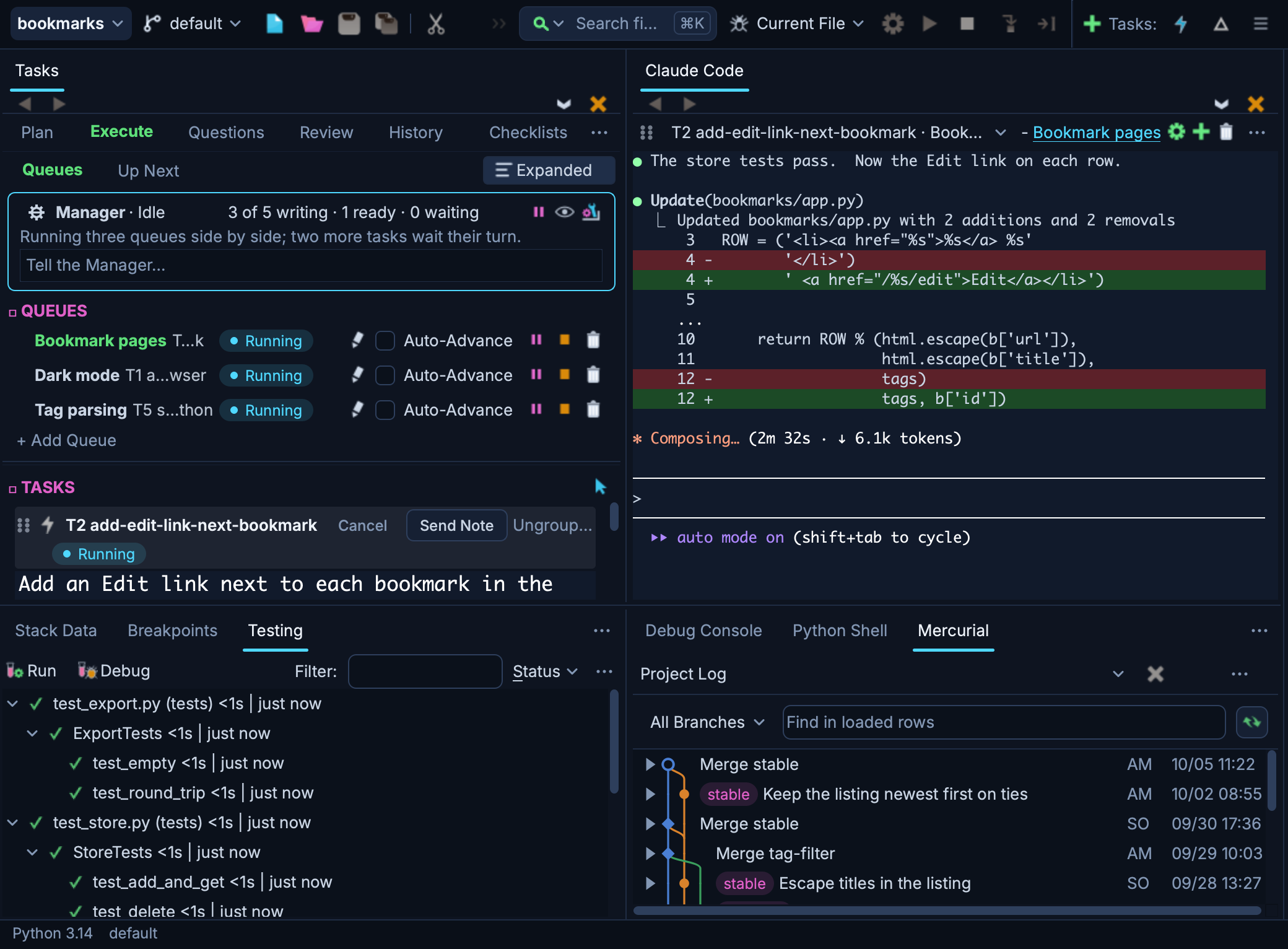
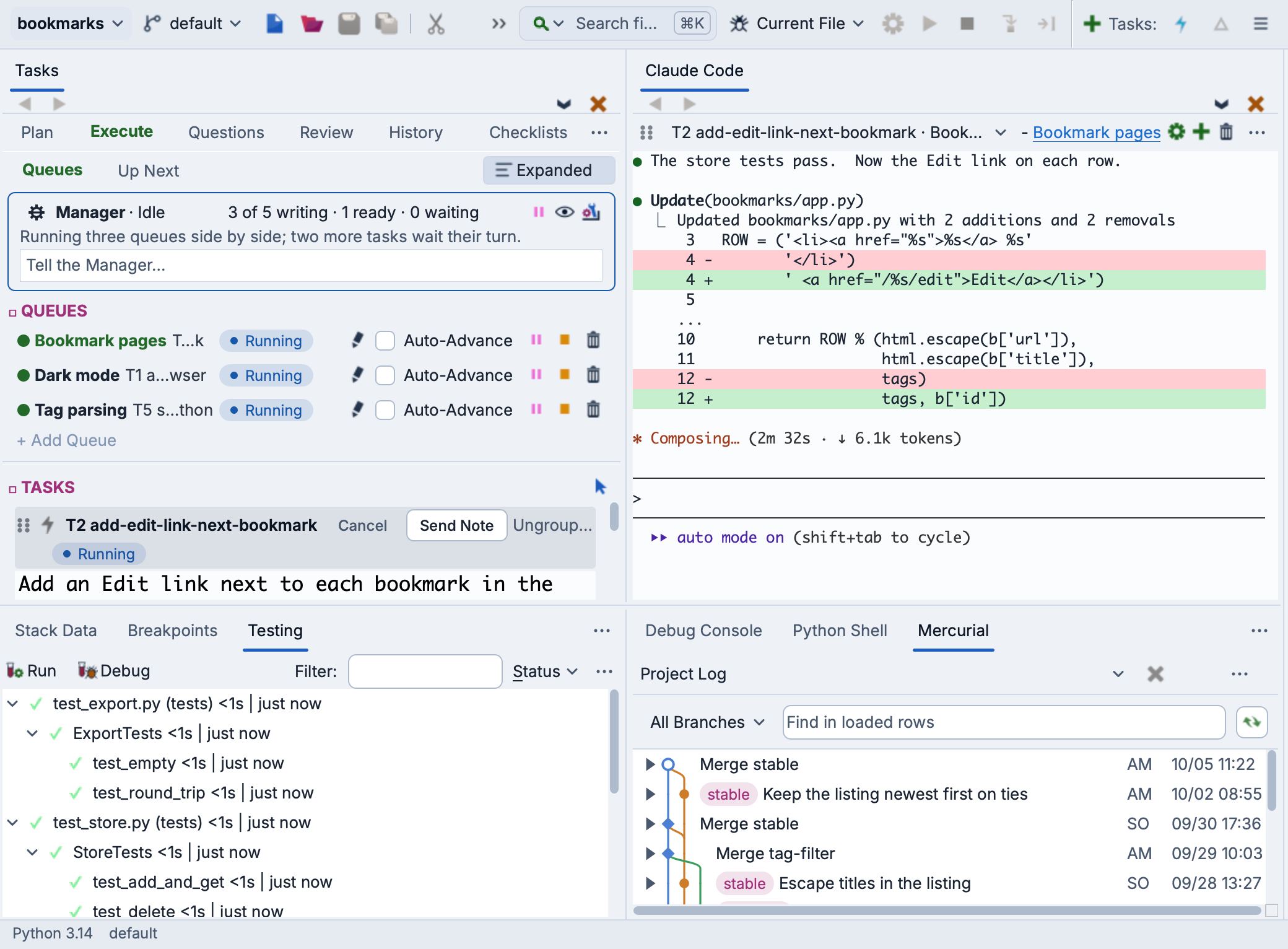
This is a minimalist guide for getting started quickly with Wing. For a more in-depth introduction, try the Tutorial.
Wing 12 ships with a deep integration of AI coding agents: Claude Code, Codex, Antigravity, Copilot, Cursor, goose, OpenCode, as well as any other agent that speaks the Agent Client Protocol (ACP). Wing Pro lets you queue requests for the agent, or have the Tasks Manager agent schedule them across several agents for you, manage their execution, and review and audit each completed task before committing changes. Wing also gives the agent an AI-agent-focused API for code analysis, unit testing, debugging, and version control, which reduces both elapsed time and token use.
AI agents substantially change how software is developed -- with significant increase in productivity and code quality. Wing 12 is built around this new reality, so this Quick Start leads with AI agent workflow. If you have a Wing Classic license -- or simply prefer to start with the classic walkthrough -- skip ahead to the Working Manually section further down on this page.
Let's get started with Wing!
Install Python
If you don't already have Python on your system, install it now. Two good options are:
- Obtain the standard Python distribution from python.org
- Use Anaconda for seamless access to many third party Python libraries. See Anaconda package lists for the available libraries.
See Supported Python Versions for other options.
Install Wing
If you don't already have Wing installed, download it now. For detailed installation instructions, see Installing Wing.
Start Wing
Wing can be launched from the start menu on Windows, by double clicking on the application on macOS, or with wing12.1 on Linux. In Wing 101 the executable is instead named wing-101-12.
For more information, see Running Wing.
Wing requires a license to run, except for Wing 101 which is free. If you don't have a license, you can obtain a 30-day Wing Pro trial the first time you start it.
Set Up a Project
After Wing is running, select New Project from the Project menu, or New Project... on the welcome screen, to create a new project. This dialog lets you choose or create the source directory, or clone it from GitHub or another repository, and choose or create the Python environment for your project. A new source directory can get a new Git repository, published to GitHub if you choose. Wing can also create and install packages into new virtualenv, Poetry, uv, pipenv, Anaconda, and Docker container environments. All Options shows the less common choices. See Creating a Project for details.
If you choose No directory, you can configure your project later with Add Existing Directory, Project Properties, and Save Project As in the Project menu. See Project-Wide Properties for details.
Working with the AI Agent
The fastest way to see what Wing 12 offers is to set up the AI agent and run a small task.
Set Up for an AI Agent - Install the agent you want to use and get an account for it if you don't already have one; each agent's how-to says what it needs -- Claude Code, Codex, Antigravity, Copilot, Cursor, goose or OpenCode. You can also set up a configuration for any other ACP compatible agent from the AI Agent tool's Options menu (the ⋯ button). Note that not all AI agents are equally safe or well suited to autonomous development. See the table in AI Agent Safety for details.
Free and low-cost plans are generally enough for evaluation. Sustained day-to-day use may require a mid-level subscription, a cost that easily pays for itself in increased productivity.
The Set Up Wing dialog shown the first time Wing starts lists the agents found on your computer and makes the one chosen the default. In Wing, choose Set Up for AI Agent from the Project menu and pick your agent (or use the same option when creating a new project). This gives the agent Wing's MCP servers for code analysis, debugging, testing, and version control, and writes the development guides that tell it about your project. See Using Wing with an AI Agent for details.
Your First Agent Task - Type a request into the AI Agent tool and press Enter. For example:
- "Write, run, and fix unit tests for the new user registration dialog."
- "Change how this works so it uses a .jsonl file instead."
- "Find out why the dashboard sometimes shows yesterday's data, and propose a fix."
The agent reads the relevant files, makes edits, and reports back.
If the result isn't quite right, follow up in the same task -- for example, "good, but please add a regression test that would have caught this". The agent has the context of the previous turn and refines accordingly.
Reviewing and Committing - When the task completes, it appears in the Review tab. Click Start Review to walk the agent's changes in a side-by-side diff and accept or reject them, or Commit if you've already validated the work some other way (for example, the agent ran the tests and they pass, or a separate reviewer has signed off). The Review tab also shows a list of changed files for the task -- click it to see which files were touched without opening the diff viewer.
When you commit the work to revision control, by default Wing generates a commit message from the task summary. Once committed, the task transitions to the History tab, which keeps a record of completed work along with runtime and token usage.
Let the Tasks Manager Run Your Work - Once you have more than a task or two, we strongly recommend letting an agent do the queueing for you. Write your tasks on the Plan tab of the Tasks tool and click each one's Draft pill to mark it Ready. Then check Use Tasks Manager Agent in the Tasks tool's Options menu. The Manager works out which tasks can safely run at the same time and runs them, collects every agent's questions on the Questions tab so you can answer them in one place, files problems found along the way as new draft tasks in the Plan tab's Incoming view, and lines up the results on Review. You can talk to it at any time, to change its plan or to ask it to explain or fix anything about the workflow. See The Tasks Manager Agent. However, note that not all AI agents are well suited to run the Manager. See the table in AI Agent Safety for details.
Checklists - The Checklists tab, at the right of the Tasks tool's tab bar, keeps checklists of steps to run again at milestones, such as a security review before a push. Each step runs as a task and reports pass, issues or fail, and the run's section on Review says whether the project is ready. See The Tasks Tool.
For a deeper introduction to the task lifecycle, queues, plan mode, testing strategies, and review controls, see the Tutorial's AI agent track and the AI Agent-Assisted Development chapter.
Even when the agent is doing most of the writing, you'll still touch many of Wing's classic features -- the editor, debugger, search, and version control. The rest of this Quick Start is a tour of those, so you'll know where they are when you need them.
Working Manually
Wing Classic readers can pick up here. The rest of the Quick Start covers Wing's editing, debugging, search, and version control features -- the same workflow you'd use for hands-on Python development whether or not the AI agent is part of your day.
Basic Configuration
You are now ready to start working with code, but may want to make a few configuration changes first:
Display Colors - The Appearance > Display Mode preference selects whether Wing runs with a light or dark display style. This is also available in the high-level configuration menu in the top right of Wing's window. The specific styles used are selected with the Appearance > Light Theme and Appearance > Dark Theme preferences. The editor's colors can be configured separately with the Appearance > Light Theme > Light Editor and Appearance > Dark Theme > Dark Editor preferences.
Key Bindings - Wing can emulate VI/Vim, Visual Studio, Emacs, Eclipse, XCode, MATLAB, and Brief editors, as selected from Keyboard Personality in the Edit menu or with the Keyboard > Personality preference.
Tab Key - The default tab key action depends on the selected keyboard personality and in some cases file type, context, and whether or not there is a selection in the editor. This can be changed from the Keyboard > Tab Key Action preference.
Completion Keys - By default, the auto-completer uses the Tab key for completion, but other keys can be added using the Auto-completion > Completion Keys preference.
There are many other options in Preferences.
Navigating Code
Wing provides a number of different ways to navigate the structure of your code, and several methods for quickly finding symbols or files by name:
Source Index menus at the top of the editor provide quick access to other parts of a source file.
Goto-definition is available from the Source menu, and by right-clicking on symbols in the editor, Python Shell, and Debug Console. Use the forward/back history buttons at the top left of the editor to return from the point of definition.
Find Points of Use in the Source menu shows where the current symbol is being used. This distinguishes between separate but like-named symbols.
Find Symbol in the Source menu jumps to a symbol defined in the current file when you type a fragment of its name.
Find Symbol in Project in the Source menu works the same way but searches all files in the project.
Open From Project in the File menu provides a similar interface for quickly opening project files.
See Navigating Source for details on the above.
Source Browser in the Tools menu provides module- or class-oriented display of the structure of your code. Details
Source Assistant in the Tools menu shows detailed information about symbols selected in the editor, auto-completer, Source Browser, Python Shell, Project, and other tools. Details
Searching
Wing provides several different interfaces for searching your code. Which you use depends on what you want to search and how you prefer to interact with the search and replace functionality:
Toolbar search is a quick way to search the current file. Details
Search in the Tools menu shows the Search tool, which provides incremental text, wildcard, and regular expression search and replace in selections and the current file or documentation page. Details
Mini-search provides powerful keyboard-driven search and replace. The key bindings listed in the Mini-search area of the Edit menu display the search entry area at the bottom of the window. Details
Search in Files in the Tools menu shows the Search in Files tool, which provides wildcard and regular expression search and replace in filtered sets of files, directories, named file sets, and within the project and documentation. Details
Editing Code
Wing's editor speeds up the process of writing and modifying Python code and reduces the incidence of coding errors. Its features include:
Auto-completion in Wing's editor, Python Shell, and Debug Console speeds up typing and reduces coding errors. The auto-completer uses Tab by default for completion, but this can be changed in the Auto-completion > Completion Keys preference. This feature is disabled by default in Wing 101. Details
Auto-indent matches the file's existing indentation. When multiple lines are pasted, they are re-indented according to context. A single Undo reverts an unwanted indentation change. A selected range of code may be re-indented as a block using Indentation in the Source menu or the indentation toolbar group. The Indentation tool may be used to convert a whole file's indentation style. Details
Auto-Editing implements a range of operations such as auto-entering closing parentheses, brackets, braces, and quotes. Among other things, Wing also auto-enters invocation arguments, manages new blocks with the : key, and corrects out-of-order typing. Auto-editing operations can be enabled and disabled in the Auto-editing > Typing preferences group. The default set includes those operations that don't affect finger memory. The others are well worth learning. Details
Refactoring operations, accessed from the Refactoring menu, implement automated renaming and moving of symbols, creating functions or methods out of existing code, and introducing variables much more quickly than by manually editing code. Details
Multiple Selections can be made with Multiple Selections in the Edit menu, the multiple selections toolbar item, and by pressing Ctrl+Alt (or Command+Option on macOS) while making a selection with the mouse. Once multiple selections have been made, edits made will be applied to all the selections at once. Details
Code Warnings are shown for syntax errors, indentation problems, unreachable code, use of undefined variables and attributes, unresolvable imports, and some other problems. External checkers like ruff, flake8, mypy, pep8, and pylint may also be configured as sources for the code warnings. Warnings are shown on the editor with details shown in a tooltip when the mouse hovers over the warning indicator. Warnings can be navigated from the warnings menu in the top right of the editor and managed from the Code Warnings tool. Details
Snippets are included in Wing's auto-completer as a quick way to enter commonly repeated patterns for coding standards, documentation, testing, and so forth. Data entry for snippet arguments is inline in the editor. Use the Tab key to move between the fields. Edit or add snippets in the Snippets tool. Details
Turbo Completion is an optional auto-completion mode for Python, made possible by Wing's powerful source analysis engine. When the Auto-completion > Python Turbo Mode preference is enabled, Wing turns every non-symbol key into a completion key in contexts where a new symbol name is not being typed. Details
Quick Selection operations in the Edit > Select menu allow selecting whole statements, blocks, or scopes before copying, editing, or searching through them. Details
Debugging Code
Wing's debugger is a powerful tool for finding and fixing bugs, understanding unfamiliar code, and writing new code interactively. You can launch code from the Debug menu or toolbar, from the Python Shell, or from outside of the IDE either on the same machine or on another host. Wing also supports working with code running on containers like those provided by Docker.
Breakpoints can be set by clicking on the breakpoint margin to the left of the editor. Stepping operations are in the Debug menu and toolbar.
The Stack Data tool is used to inspect or change program data. Right-click on items to display the item as an array or in textual form. Hovering the mouse over a symbol in the editor shows the value for that symbol in a tooltip, if available on the active debug stack. Pressing Shift-Space shows tooltips for all symbols visible in the editor.
Debug process I/O is shown in the Debug I/O tool, or optionally in an external console.
Other debugger features include:
Interactive Debugging is supported by the Debug Console, which provides a Python prompt that executes code in the current debug stack frame. When the debugger is paused, Wing also uses the live runtime state to populate the auto-completer in the editor, Source Assistant, goto-definition, and other tools. Details
Conditional Breakpoints can be used to isolate and understand complex bugs by stopping before they occur. Using a conditional breakpoint to isolate a broken case and the Debug Console to design a fix is far more productive than relaunching code repeatedly. Details
Move Program Counter is supported by right-clicking in the editor and selecting Move Program Counter Here. Because of how Python is implemented, this feature works only in the innermost stack frame and it does not work when the debugger is stopped on an exception.
Watching Values by right-clicking on the editor or any of the data views tracks values over time by symbolic name or object reference in the Watch tool. Expressions can also be watched. Details
Launch Configurations in the Project menu define different runtime environments for debugging, executing, and unit testing your code. Details
Named Entry Points in the Debug menu provide a way to launch the same file with different debug environments. Details
Other Features
Wing includes a number of other features designed to make Python coding easier and more productive:
Python Shell -- Wing's Python Shell lets you try out code in an independent sandbox process. To enable debugging, click the bug icon in the top right of the Python Shell. The shell provides auto-completion, goto-definition, and is integrated with the Source Assistant. Details
Unit Testing in the Testing tool works with unittest, doctest, pytest, nose, and Django unit tests. You can run test suites, view the results, and debug tests. Details
Version Control supports revision control with Mercurial, Git, and Perforce. Wing auto-detects which systems are used in your project and shows the appropriate additional menus and tools in the Tools menu. Details
Difference and Merge in the Source menu can be used to compare and merge files and directories on disk, files open in the IDE, an unsaved buffer with disk, and a working copy with its revision control repository. Details
Remote Development to remote hosts, virtual machines, or containers accessible via SSH lets Wing work seamlessly and securely with files stored entirely on the remote host. Use the Remote Hosts item in the Project menu to configure a remote host, then set the Python Executable in Project Properties to that remote host, and use Add Existing Directory in the Project menu to add your remote directories to the project. Wing can edit, debug, test, search, inspect, and manage files, run the Python Shell, and execute OS Commands on the remote host in the same way as it does when working locally. Details
Package management is available for virtualenv, Poetry, pipenv, uv, and Anaconda environments, using the Packages tool in the Tools menu. This can be used to install, remove, and manage the packages that are installed into your project's Python environment. Details
Containers like those provided by Docker are also supported. In this development model, files are stored locally but code is run inside a containerized environment. Details
OS Commands in the Tools menu displays the OS Commands tool, which executes external tools for build, code generation, and other purposes. Details
Preferences in the Edit menu (or WingPro menu on macOS) gives you control of the overall layout and color of the IDE, among many other options. Right click on tool and editor tabs for layout options, or drag tabs to move them or create new splits. Right-click on the toolbar to configure which tools are visible or to add your own. See Customization for details.
Perspectives let you save named tool panel layouts. Details
Other Features like bookmarks, code folding, and keyboard macros are also available, and you can extend Wing by writing Python scripts.
Further Reading
As you work with Wing on your own software development projects, the following resources may be useful:
- Wing Support Website -- Q&A support forum, mailing lists, documentation, links to social media, and other information for Wing users.
- Wing Reference Manual -- documents all the features in detail.
- AI Agent-Assisted Development -- the full reference for Wing's AI-agent integration, including the Tasks tool, code actions, project configuration, and safety guidance.
- How-Tos -- instructions for using Wing with third-party frameworks, applications, and tools, like Django, Jupyter, matplotlib, Autodesk Maya, Raspberry Pi, pygame, and many others.
- A collection of Wing Tips, available on our website and by email subscription, provides additional tips and tricks for using Wing productively.
Thanks for using Wing!