 Wingware
Using Wing with an AI Agent

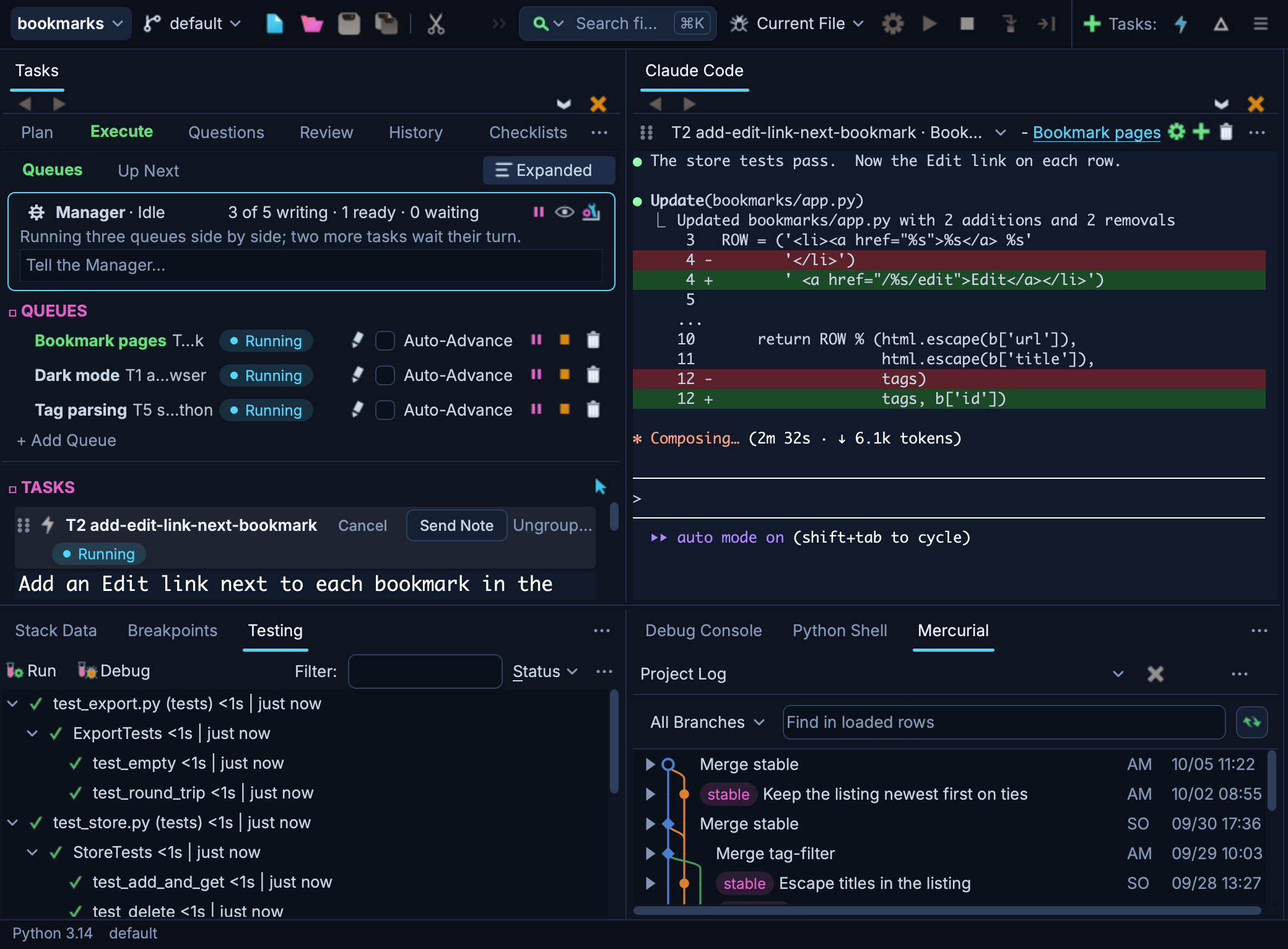
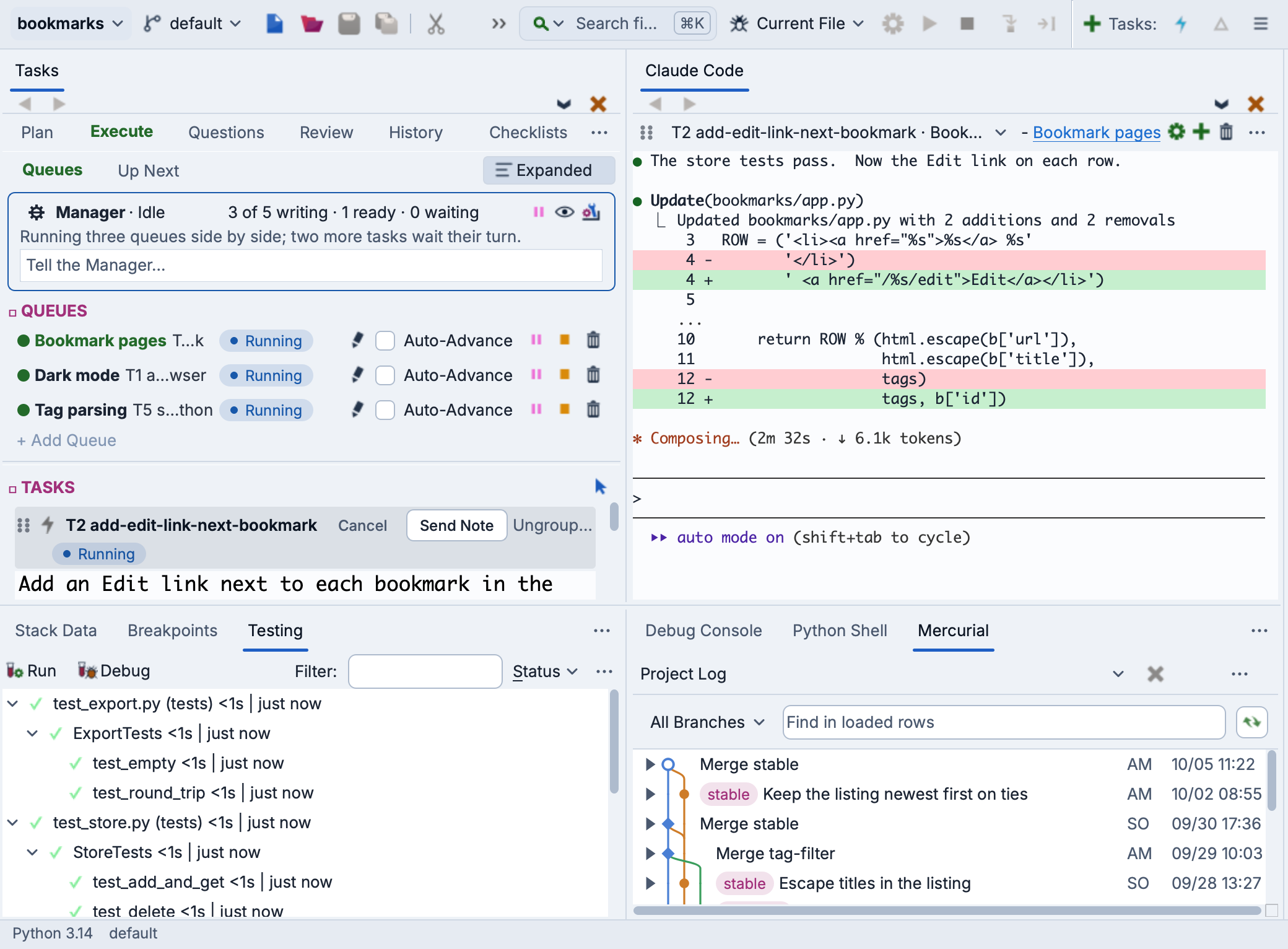
Wing Pro 12 runs your choice of AI coding agent inside the IDE. The agent reads your code, makes edits, runs tests, debugs failures, and iterates until the work is done. Wing provides an AI Agent panel, a Tasks tool for queueing and tracking work, one-click code actions on test failures and warnings, and a side-by-side review workflow for agent-made changes. Wing also gives the agent efficient access to its analysis, debugger, testing, and version control through the Model Context Protocol (MCP).
This How-To covers the workflow that is the same whichever agent you run.
Before You Start
If you have not yet set up an AI agent in Wing, start with the how-to for the agent you want to use -- each covers what that agent needs and how to set it up. Note that not all AI agents are equally safe or well suited to autonomous development. See the table in AI Agent Safety for details.
The how-tos for each agent are:
Any other agent that speaks the Agent Client Protocol (ACP) can be used as well; see Setting Up an AI Agent.
If you do not already have Wing installed, download it now. For a step-by-step walkthrough of the same workflow, see the AI agent chapters in the Tutorial. For full reference details on each feature, see AI Agent-Assisted Development in the manual.
Working with the Agent
The AI Agent tool holds your agent sessions. It is shown automatically when you run Set Up for AI Agent, or you can show it from the Tools menu. Claude Code, Codex, Antigravity, Copilot, Cursor, and OpenCode run in their own terminal interfaces there. goose and other ACP agents talk to Wing over the Agent Client Protocol, and Wing manages then in its own AI agent conversation UI.
You interact with the agent by typing requests into it -- implement a feature, refactor existing code, write tests, investigate a bug. The agent reads your source files, makes changes, runs tests, and iterates until the task is done.
Sessions persist across restarts. Wing remembers which conversation each session was in, along with which agent it belongs to, and resumes it the next time the tool is shown. Use the Options menu (the ⋯ button) to start a new session, resume a previous conversation, clear the current one, or switch agents.
You can have several sessions open at once, on the same agent or on different ones, each in its own working directory. Sessions are created automatically when you use one-click fixes or run multiple queues from the Tasks tool.
See The AI Agent Tool for full details.
AI Actions
Wing provides quick access to AI agent-driven actions:
- One-click fixes for failing tests, debugger exceptions, and code warnings -- via the relevant tool's right-click menu.
- Test generation for Python files from the Testing menu.
- Code actions from the AI actions icon in the top right of the editor: explain a scope, review for quality or security, fix warnings, optimize, update docs, or run a custom action.
See AI Actions for details.
Planning and Executing Tasks
The Tasks tool lets you draft work in advance and run it through the agent. This is especially useful when you have several tasks and want them to run sequentially -- or in parallel across multiple queues -- with minimal intervention.
We strongly recommend turning on the Tasks Manager agent with Use Tasks Manager Agent in the Tasks tool's Options menu. It schedules your Ready tasks across queues, working out what can safely run at the same time, collects every agent's questions on the Questions tab, files problems found along the way as draft tasks on the Plan tab, and can explain or fix workflow problems when you ask it. It works only in queues of its own, so you can still run tasks in your own queues alongside it, and every change it makes to your tasks can be reverted. See The Tasks Manager Agent, and Autonomous Development with AI Agents for how to set up and work with it.
However, note that not all AI agents are well suited to run the Manager. See the table in AI Agent Safety for details.
The tool has five tabs:
Plan -- Draft new tasks under goals in the Goals view, or as a flat list in the Tasks view. Click the clock icon in a goal's header to set it aside for later, so its tasks don't run until you move it back. The Incoming view lists the tasks agents filed that you haven't looked at yet. Tasks start as a Draft and don't run until you click their pill to mark them Ready for the Tasks Manager, or assign them to a queue using the Q button on each task (or queue a whole goal at once from its Q menu).
Execute -- Queued and running tasks live here. The Queues view shows one queue's tasks at a time, and Up Next shows what runs next in every queue. Each queue maps to one agent session. With Auto-advance enabled the queue moves to the next task automatically; otherwise the cog icon on a task starts it manually.
Questions -- Everything waiting on you, from every queue: questions that autonomous tasks ended with, the Tasks Manager's own questions, and permission prompts, each answerable in place.
Review -- When a task finishes, it transitions here. Each queue shows a list of changed files plus two action links:
- Start Review opens a side-by-side diff/merge session where you accept or reject individual hunks and optionally add comments with the pencil icon between hunks. When you finish review, the toolbar's green check mark commits the change set. If you have added per-hunk comments, those comments are agent feedback (not commit annotations), so the task transitions back to Execute for the agent to act on instead of committing. The toolbar's pencil icon rejects the task with an overall comment.
- Commit skips the diff session and commits directly. Appropriate when tests have already validated the work or when a separate reviewer has signed off.
History -- Completed tasks appear here with run time and token consumption recorded.
Per-task controls are available from the Q button:
- Plan -- the agent writes a plan for the task without making any code edits. You review the plan, edit it if needed, then approve to execute. Use for risky or large changes, or when several sessions are running concurrently and you want to avoid them deciding to edit the same file at the same time.
- Ask For Approval -- the agent asks before it acts, and whatever is pre-approved on the AI Agent tab of Project Properties runs without prompting.
- Auto-Approve -- the agent's own judgement decides what needs your approval. This is the right setting for letting it work without constant interruption, and the default for a new task.
- Session reuse -- the default is a new session per task, which keeps unrelated context out of the way and minimizes token use. Reuse the existing session when the next task builds on the last one.
- Compact Context -- compacts a long-running session before continuing, when context has grown large but is still useful. Compaction itself consumes tokens, so it pays off only in long sessions.
What each agent supports. The three run modes are Wing's, and each agent carries them out with whatever it actually offers. Not every agent has all three, and the Q menu lists only the ones the queue's agent supports. Where a mode is listed but is broader on that agent than it is on Claude Code, Wing warns before the task starts and offers to cancel.
- Claude Code -- all three. Auto-Approve needs a Max, Team or Enterprise account and a recent model; other accounts see it exit with an error at launch.
- Codex -- all three. Plan is Codex's Plan mode in a read-only sandbox, so it cannot change files without asking, and Auto-Approve is its Approve for me setting, where an automatic reviewer decides what it would otherwise ask about. Codex ACP has only Plan and Auto-Approve: it treats the project directory as trusted and edits files and runs commands there without asking, so the project's pre-approvals cannot govern it, and its Plan only tells it not to change files. Wing warns.
- Antigravity -- all three. Plan is its plan mode, and Auto-Approve approves every tool without asking; Wing warns. Antigravity ACP has no read-only mode, so Plan runs in Ask For Approval, and Auto-Approve selects its YOLO mode; Wing warns.
- Copilot -- all three, but Auto-Approve approves every tool, path, and URL rather than judging them, because it has no middle setting. Wing warns.
- Cursor -- all three. In Ask For Approval it asks before running commands but changes files without asking, outside the project too, so the project's edit pre-approvals cannot govern it. Auto-Approve is its Run Everything mode, which runs every command not explicitly denied. Wing warns about both. Cursor ACP has no auto-decide mode, so Auto-Approve runs as Ask For Approval.
- goose -- Ask For Approval and Auto-Approve. It has no read-only mode at all, so a Plan task runs in Ask For Approval and the agent can still write. Auto-Approve approves every tool call, because goose's only middle setting still asks about each edit and command. Wing warns.
- OpenCode -- all three. Asking works because Wing passes the project's pre-approvals to it at startup, but in Ask For Approval Wing can stop only the actions it asks you about. Auto-Approve is its --auto mode, which approves everything the pre-approvals do not explicitly deny. Wing warns about both. OpenCode ACP has no auto-decide mode, so Auto-Approve runs as Ask For Approval.
The ACP versions, such as Codex ACP, are listed only when the Show ACP Versions of Agents preference is enabled; see Setting Up an AI Agent.
Wing never picks an agent's unrestricted mode for you except where it is the only practical thing that mode can mean, which is Auto-Approve on Antigravity, Copilot, Cursor, goose, and OpenCode above; the warning says so each time until you dismiss it. Every agent's unrestricted mode stays reachable inside the session with Shift-Tab.
Commit Mode, set in the AI Agent tab of Project Properties:
- The agent commits only when asked (default) -- it commits only when you start a review or use Commit, writing the message from the task summaries.
- The agent commits after each task -- it commits on its own at the end of each completed task, without waiting for you.
- The agent commits at its discretion -- it commits on its own at logical stopping points it chooses.
- Wing commits with generated message -- Wing builds a commit message from the task summaries and commits immediately.
- Wing presents commit message for review -- Wing opens the regular VCS commit dialog with the message pre-filled.
Sharing with a team -- Tasks can be shared via version control by enabling Share Plan in the Options menu. Other developers' goals, tasks, and history are visible in read-only form.
See The Tasks Tool for full details.
Reviewing Ad-Hoc Changes
When the agent makes changes outside the Tasks workflow -- for example, in response to requests typed directly into the AI Agent panel -- and there are uncommitted version control changes, the Review button on the tool's row becomes enabled. Clicking it asks the agent to start a review using Wing's review MCP server, which opens the same diff/merge session described above.
The review behavior is identical: any per-hunk comment causes the task to iterate when you finish review, rather than commit.
Debugging with the Agent
Once set up, the agent has access to Wing's debugger. You can ask it to:
- Launch and debug a script -- "Debug my_script.py and stop on the first line."
- Set breakpoints -- "Set a breakpoint at line 42 in app.py."
- Step through code -- "Step over the next line" or "Step into this function."
- Inspect state -- "What are the local variables?" or "What is the value of result?"
- Evaluate expressions -- "Evaluate len(items) in the current context."
- Try out new code in the live runtime -- "Execute this revised function and re-run the test."
- Debug exceptions -- "Set exception mode to always break on exceptions."
The debugger MCP server runs as a separate process from the Wing IDE, so Wing does not need to be open for the agent to debug. Multiple debug sessions can be active at the same time.
Testing and Coverage with the Agent
The agent has access to Wing's test runner and coverage analysis. You can ask it to:
- Discover tests -- "List all test files in this project."
- Run tests -- "Run the tests" or "Run test_foo.py."
- Run tests with coverage -- "Run tests with coverage collection."
- Find affected tests -- "Which tests are affected by my changes to utils.py?"
- Get coverage info -- "Show coverage for src/mymodule.py."
The testing MCP server reads the project metadata written by Wing (.mcp.metadata.json) to determine which test framework to use (pytest, unittest, etc.), how to discover test files, and which Python interpreter to run tests with. This metadata is updated automatically whenever project settings change in Wing.
Coverage-based test invalidation: When tests are run with coverage collection (the default), the server tracks which test functions execute which lines of source code. After making code changes, asking "which tests are affected?" identifies the exact tests that exercised the changed lines -- not just tests that touched the file, but tests that ran the specific lines you changed. This is especially useful in large codebases where running all tests would take a long time.
Testing Regimen -- the AI Agent tab in Project Properties includes a Testing Regimen setting that controls how aggressively Wing instructs the agent to write and run tests. The default is minimal: write new tests when adding functionality and run those new tests at task end. Other modes range from none (don't push the agent toward tests) through balanced (also run stale tests in changed directories before review and commit), thorough (run all stale tests before review and commit), and obsessive (run the full suite before review and commit). Changes apply only to new sessions; running sessions keep the regimen they started with.
The testing MCP server runs as a separate process and does not require the Wing IDE to be open.
Tips for Effective Use
A few habits that produce reliable results:
- Write clear, thorough requests. Provide context about what you want, why, and any constraints. The more specific you are, the better the results.
- Don't micro-manage. Let the agent plan and execute. Step in when it gets stuck rather than directing every step.
- Build feedback into requests. Ask for unit tests and ask the agent to run them. Tests give the agent a way to verify its own work and give you concrete evidence even before reading the diff.
- Use tasks for multi-step work. Rather than typing a sequence of requests manually, plan them as tasks and let the Tasks Manager schedule and run them.
- Review at the behavior level. For larger changes, read the task summary and test results first, skim the diff for surprises, spot-check a few hunks, and trust the rest contingent on tests passing.
- Cross-check from multiple angles. Ask the agent to review its own work for behavior, edge cases, security, or performance: "Re-read the change you just made and propose the three most likely sources of bugs. Don't fix anything; just list them."
- Manage context size. Long conversations consume more tokens and may degrade quality. Use Clear Conversation to start fresh, or use Compact Context on a queued task to preserve key context while reducing token usage.
See Using AI Agents Effectively for more guidance.
Permissions and Safety
The AI Agent tab in Project Properties controls what the agent is pre-approved to do without asking for confirmation. You can restrict which directories it may edit, whether it can run commands, and whether it can use version control.
For working safely with an AI agent, the recommended posture is:
- Run the agent in a dedicated environment (VM, container, or at minimum a dedicated user account) so it does not have access to keys for production infrastructure or sensitive data.
- Use revision control with a remote repository the agent cannot push to. Set up a VCS-only SSH key for the remote and do remote operations manually.
- Configure continuous backup (Dropbox, iCloud, or similar) so mistakes are recoverable.
See AI Agent Safety for the full discussion.
Multiple Wing Instances
Each Wing instance runs its own IPC listener and hands the port to the agents it starts, so multiple Wing instances operate independently, each servicing its own sessions.
For Claude Code only, a session started outside Wing (from a terminal, say) falls back to the port recorded in .mcp.metadata.json, which may belong to a different Wing instance. Start sessions from within Wing for reliable operation.
Troubleshooting
The agent cannot be found: Wing looks for each agent's command on your PATH and in the usual install locations. If you installed it somewhere else, give Wing its path in Configure AI Agents. After an install, quit Wing and start it again so it picks up your updated PATH.
The agent asks for credentials you have already arranged: An agent signed in outside Wing needs nothing further; if it reports otherwise, use Sign In in the tool's Options menu, or add an API key in Configure AI Agents.
Python not found: The MCP servers use Wing's bundled Python interpreter. If this fails, ensure your Wing installation is complete by running wing --check-install from the command line.
No coverage data: If coverage queries return no data, make sure you have run tests with coverage collection enabled first. The test_run tool collects coverage by default.
The next three apply to Claude Code, which reaches Wing's MCP servers by launching them itself:
MCP server fails to start: Verify that the path in .mcp.json points to an existing Wing installation. If you have reinstalled or moved Wing, update the path accordingly.
Path changes after update: After updating Wing to a new version, you may need to update the path in .mcp.json if the installation directory has changed. Running Set Up for AI Agent again will always write the correct path.
No project metadata: The testing MCP server requires .mcp.metadata.json to be present alongside .mcp.json. This file is written automatically by Set Up for AI Agent and by the New Project dialog's setup option. If it is missing, run setup again from the Project menu.
Section Contents
1.0.1. Using Wing with Codex
1.0.2. Using Wing with Antigravity
1.0.3. Using Wing with Copilot
1.0.4. Using Wing with Cursor
1.0.5. Using Wing with goose
1.0.6. Using Wing with OpenCode