 Wingware
Using Wing with OpenCode

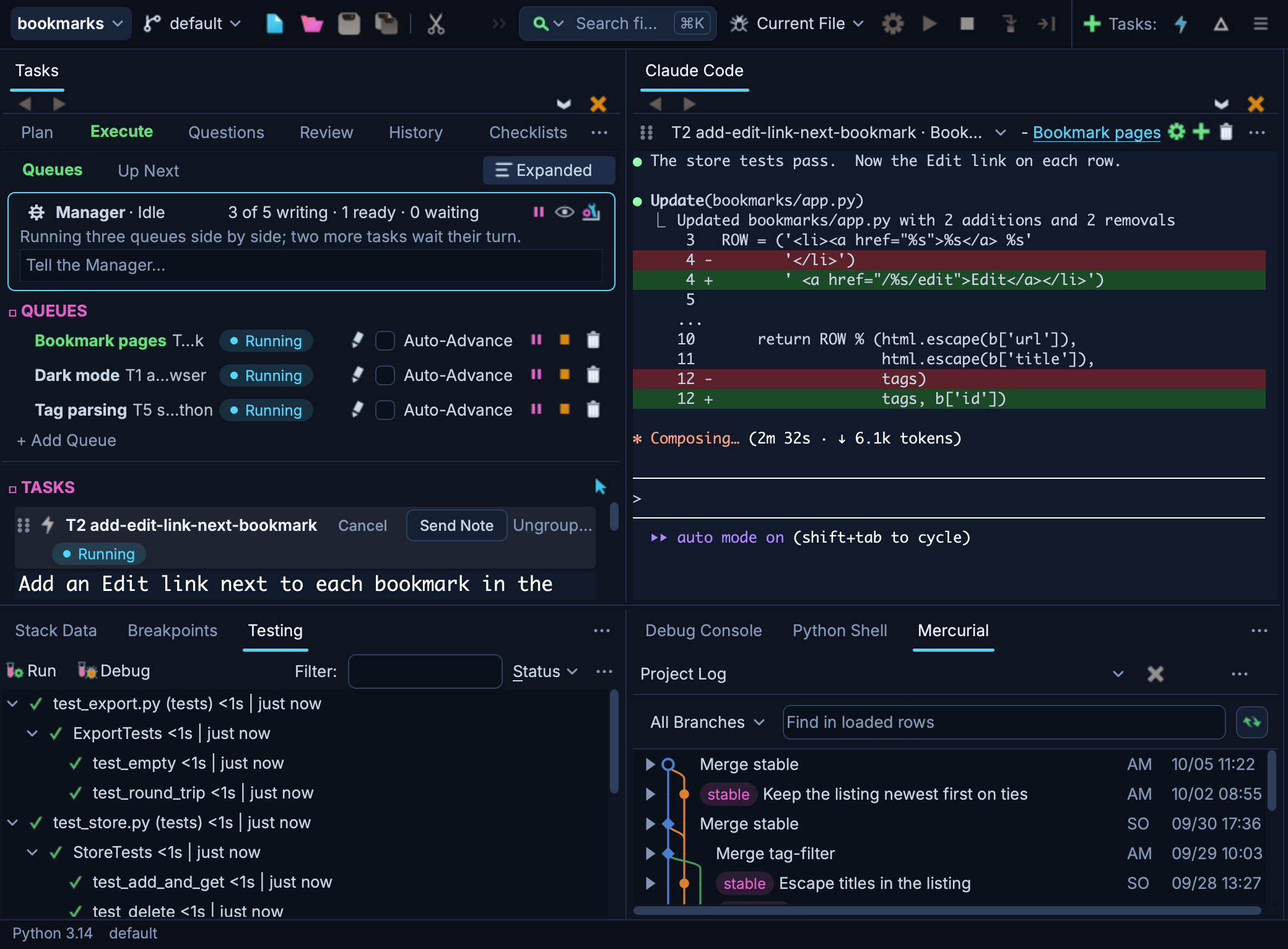
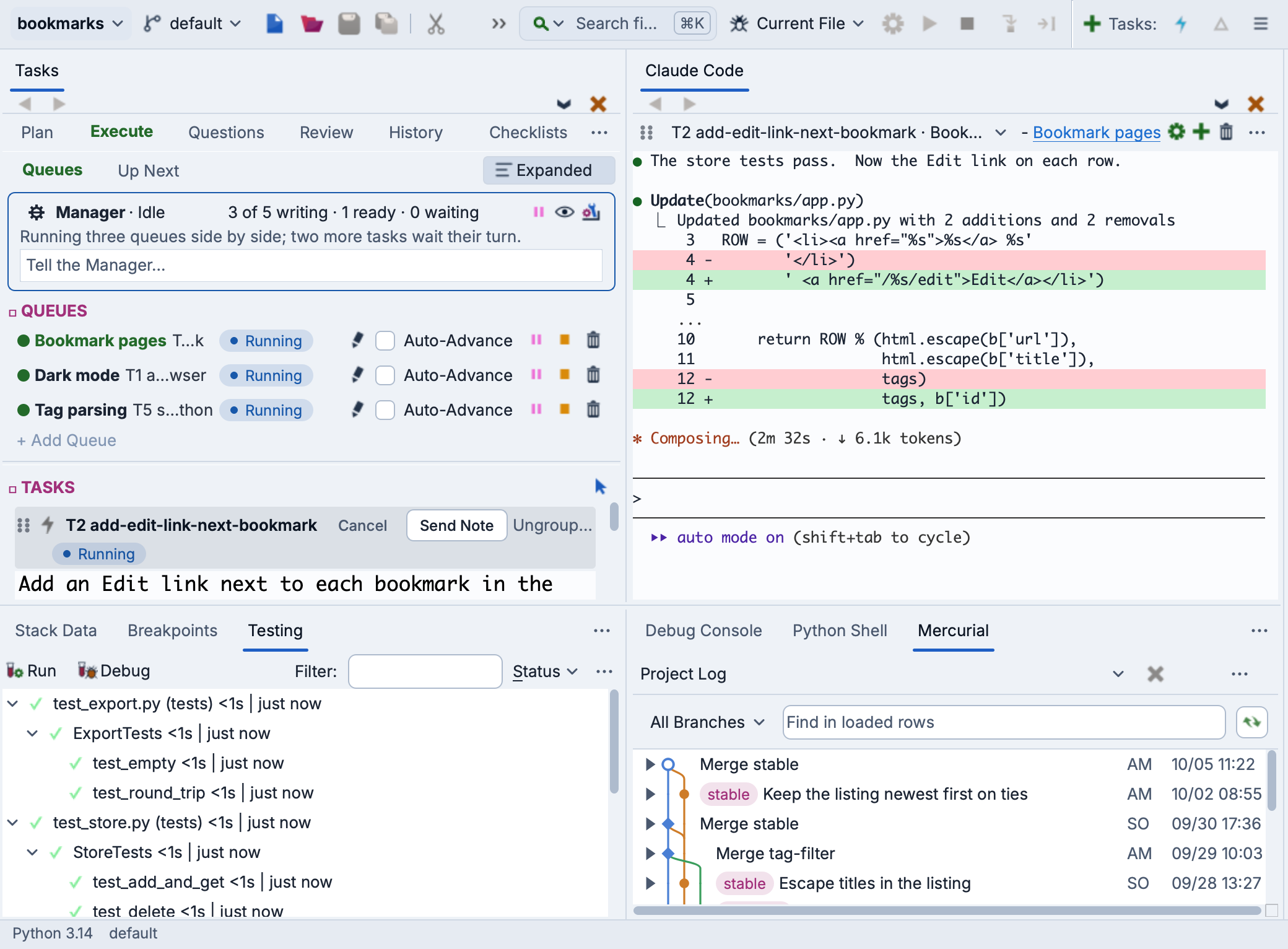
Wing Pro 12 integrates OpenCode, an open source AI coding agent, with the IDE. You can run OpenCode in Wing's AI Agent tool, use the Tasks tool for queueing, tracking, and reviewing agent work, ask the agent to fix failed tests, debugger exceptions, or code warnings, or use the agent to better understand code and run code reviews.
Wing uses the Model Context Protocol (MCP) to give the agent access to the IDE's analysis, debugger, testing, and version control features, allowing it to work more efficiently on most complex coding problems.
If you do not already have Wing installed, download it now.
This How-To covers what OpenCode itself needs and how to set it up in Wing. The workflow that follows is described in Using Wing with an AI Agent.
OpenCode works in Wing but is not recommended: it partly ignores Wing's safety constraints, and is not yet ready for running the Tasks Manager. See the table in AI Agent Safety, which compares the agents' safety and suitability for autonomous development.
Prerequisites
On macOS or Linux, install OpenCode with:
curl -fsSL https://opencode.ai/install | bash
On Windows, install it with:
npm install -g opencode-ai
Wing runs OpenCode's own terminal interface inside the AI Agent tool.
Once OpenCode has been installed, quit Wing and start it again so it picks up your updated PATH.
Quick Setup
To allow Wing to use OpenCode in your project, use Set Up for AI Agent > OpenCode in the Project menu. This opens a dialog asking for the top-level directory where you want the agent to run. This defaults to the Wing project directory, but can be changed. After you submit this dialog, Wing:
- authorizes use of OpenCode in this project
- writes the development guides that tell the agent about this project's conventions, testing regimen, and commit policy
- points AGENTS.md at those guides (creating it if it does not already exist)
- opens the Tasks and AI Agent tools side by side
You can do the same as part of the process of creating a new Wing project, with the Set Up for AI Agent option in the New Project dialog.
Note that you can also set up other agents in your Wing project, by running the same setup process for each.
For the files Wing writes into that directory, and which of them it keeps out of version control, see Setting Up an AI Agent.
Authentication
OpenCode is provider-agnostic: it works with whichever model provider you already use.
To arrange it centrally, choose Sign In to OpenCode from the AI Agent tool's Options menu (the ⋯ button). This starts login with /connect in the OpenCode session, so you can select a provider and enter your API key. You can also run opencode auth login outside of Wing.
To let Wing supply the key instead, set the environment variable your provider's key is read from, such as ANTHROPIC_API_KEY or OPENAI_API_KEY, in the Environment in Project Properties.
Permissions
OpenCode is the one agent Wing supports that configures its permissions rather than asking as it goes. Left to itself it does not prompt before editing files or running commands, so the pre-approvals on the AI Agent tab of Project Properties would have nothing to reach it by.
Wing therefore passes those settings to OpenCode when a session starts, as part of the environment it is launched with. Nothing is written to your project and your own opencode.json is still read as usual. A change to the settings applies to the next session rather than to one already running.
If your own OpenCode configuration sets permissions -- in the project's opencode.json or your global one -- that wins, and Wing supplies nothing. The AI Agent tab says which of these applies.
Advanced: ACP
Wing can also run OpenCode over the Agent Client Protocol (ACP), which Wing manages in its own AI agent conversation UI. This version is listed as OpenCode ACP only when the Show ACP Versions of Agents preference on the AI page under Projects in Preferences is enabled, or while you hold Shift with an agent menu open. It uses the same installation of OpenCode, and has no Auto-Approve.
With the preference enabled, you can also choose Configure Agents... from the AI Agent tool's Options menu, add a configuration for OpenCode, select Provider key set here, choose the provider, and point Wing at your key. A configuration runs OpenCode over ACP. It can be shared with your other projects or kept with this one, so different projects can use different keys.
Next Steps
Once OpenCode is set up, you should be able to try it out in the AI Agent tool, manage tasks from the Tasks tool, and make use of Wing's other agentic development features.
For more information, see Using Wing with an AI Agent.
See also:
- AI Agent-Assisted Development -- the full reference manual.
- The AI agent chapters of the Tutorial -- a step-by-step walkthrough.