 Wingware
The Tasks Tool

The Tasks tool helps you plan and orchestrate work for AI agents. You define goals, break them into tasks, queue those tasks for execution, review the results, and track what was done. This workflow lets you prepare multiple work items in advance and run them sequentially through agent sessions.
The tool has five tabs across the top: Plan, Execute, Questions, Review, and History, which are used for each part of this process. Each tab shows only the tasks that belong to it -- Plan shows unqueued pending tasks, Execute shows queued pending and running tasks, Questions shows everything waiting for your answer, Review shows tasks waiting for your review, and History shows completed tasks. When a task transitions between states (for example, by being queued, sent for execution, or submitted for review), a brief animation flies from the task row to the destination tab so you can see where it went.
An Options menu (the ⋯ button) in the upper right provides settings that apply to the tool as a whole. To its left, a Checklists tab holds steps that you run again and again at milestones, such as before a push or a release. See Checklists below.
Toolbar Status Area
Even when the Tasks tool is not visible, an AI-agent status area at the right end of the main toolbar tracks agent activity across all queues:
- A Lightning Bolt (executing) icon opens a menu of the current agent sessions; selecting one shows that session wherever it lives. Its Run Checklist submenu runs one of the checklists on the Checklists tab. An orange number on the button counts the queues with a task waiting for your input.
- A Review button becomes enabled once one or more queues have a task awaiting review. Its menu groups Start Review and Commit Without Review actions by queue, and an orange number counts the queues with a task ready to review.
These counts mirror the Execute and Review tab counts exactly, so you can watch agent progress and jump straight to work that needs attention without keeping the tool open.
Updates While You Work
While you work in one of the tool's lists, Wing holds back changes that would add, remove, or reorder its rows, so that they do not move under the mouse. Changes are held when you have moved the mouse, turned the wheel, or pressed a key in it in the last two seconds, when one of its text fields has the keyboard focus, or while a menu opened from it is up. Changes to a row's state, dots, and counts still show at once.
Wing applies the changes it held back half a second after you stop. When they have waited more than five seconds, a bar at the top of the list says Updates paused while you work here; press its Update Now button to show them. Your own actions in the list, and switching to another tab or view, update it at once.
When a task leaves a list, a line in its place names the task and says where it went, such as T12 fix-tunnel → running in Q2 on Execute, → Review, → History, → goal Bug Fixes, dismissed, or deleted. Show on the line goes to the task where it is now, and is not offered for a deleted task. ✕ removes the line. Otherwise the line stays until you come back to the tab or view a minute or more after you last worked in the list. A task moved to another goal leaves no line where the list still shows it: on the Incoming view, and on the Goals view when the goal it moved to is open.
For a change you made on the task's row, the line also offers Undo, which puts the task back as it was. This covers Move to Goal, Dismiss, and deleting a task, and on the Review tab Mark Complete, Reset, and Skip. Except after Move to Goal, Undo on the line does nothing once you have made another change that can be undone. The lines on the Questions tab do not offer Undo.
Planning Goals and Tasks
The Plan tab has three views, chosen at the left of the line below its tab:
- Goals -- Each goal is a section that opens to show its tasks.
- Tasks -- One list of the tasks in all goals, for scanning everything at once.
- Incoming -- The tasks agents filed that you have not looked at yet. See Incoming Tasks below.
You can work either with or without defining goals; use them and the Goals view if you have a lot of work to organize, or ignore goals and just use the Tasks view if you do not.
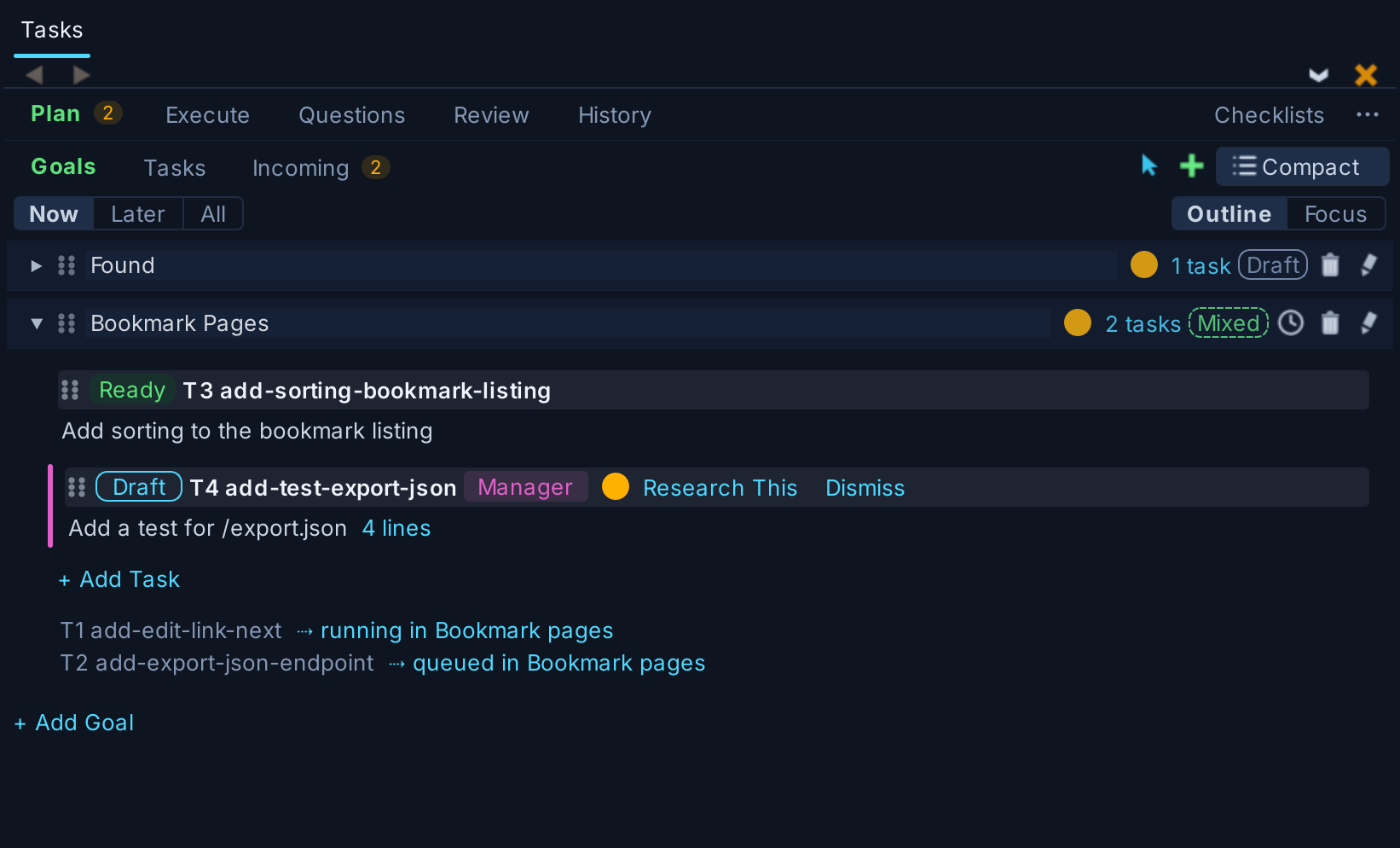
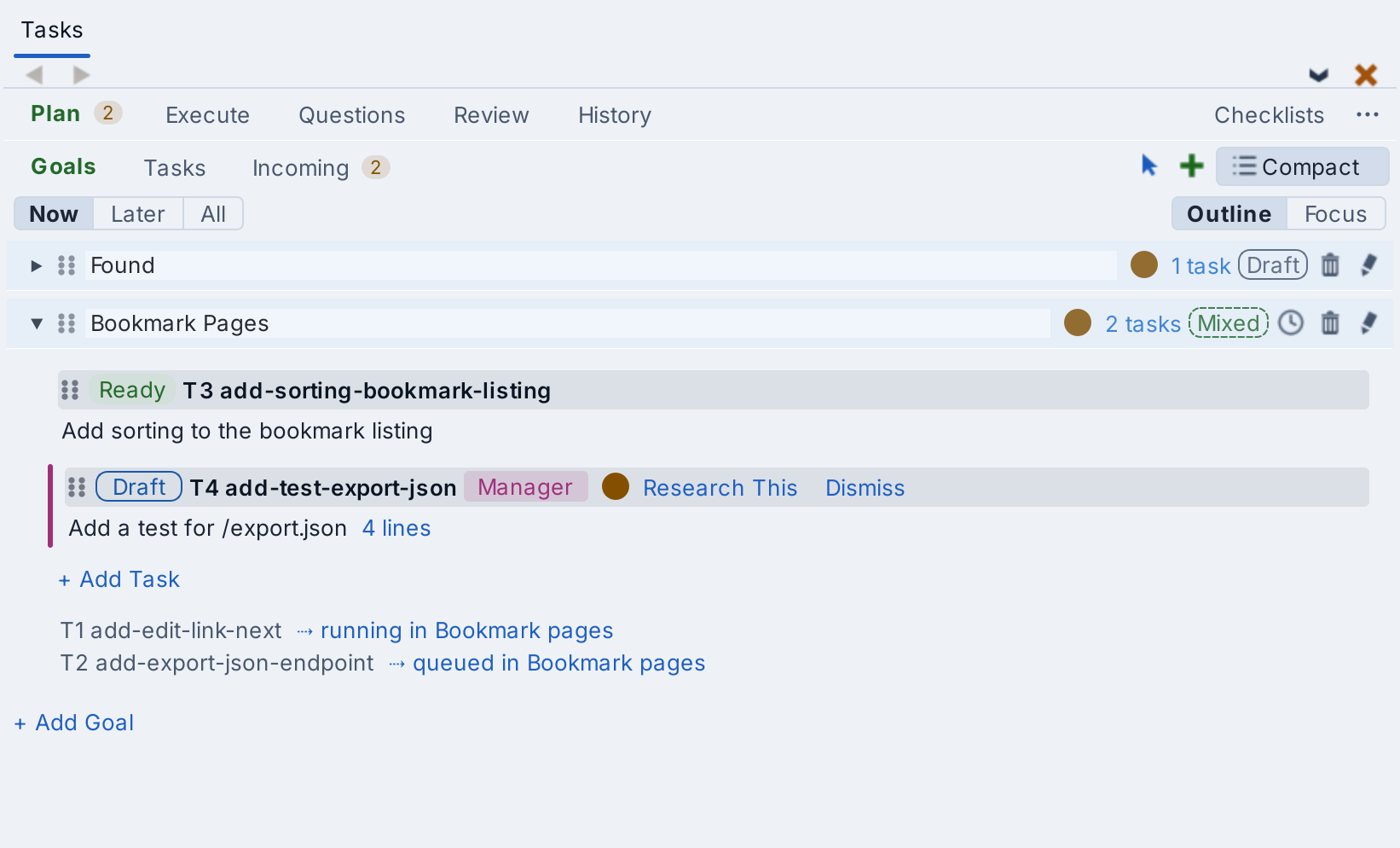
The Compact / Expanded button at the right end of the same line sets how much of each task its row shows on the Plan and Execute tabs. Its label names the current setting, and a click switches to the other. Expanded, the default, shows the whole text of each task. Compact shows one line: the task's first line when a blank line follows it, as one does after a title, and otherwise its first sentence, followed by the number of lines in the whole task. Click that line to show the whole task, and Show less below it to go back to one line. Clicking an empty part of the task's header, away from its links and icons, does either. Following a link to a task always shows the whole task.
Now, Later, and All, on the line below the views, choose which goals the Goals and Tasks views show. Now shows the goals you are working on, Later the goals set aside for later, and All every goal. Now is the default.
To set a goal aside for later, click the clock icon in its header, or select Move to Later from its header's context menu. Its Ready tasks become Drafts, as do tasks added to it, and the Tasks Manager does not make them Ready. To run one anyway, click its own Draft pill to make it Ready: the Tasks Manager may then queue it, with the goal still set aside. The goal's pill reads Later instead of Ready or Draft, and its clock shows a pause sign. Wing's own goals, Found, Bug Fixes, and Checklists, and inbox goals cannot be set aside.
When a move takes a goal out of the goals shown, a line in its place says where it went, with Go to Goal to show it there and Undo. To move a goal back to Now, click its clock again or select Move to Now.
Outline and Focus, at the right of the same line, set how the Goals view opens goals. In Outline, the default, clicking on a goal opens or closes it alone, and the goals stay open or closed as you leave them. In Focus, opening a goal closes the others; Ctrl-click, or Command-click on macOS, opens or closes one goal without changing the others. Double-clicking on a goal switches to Focus on that goal.
To add a task, use the + button in either view. Then enter the task description, which is the text that will be sent to the agent when the task is executed. Enter inserts a newline within the task. Press Shift+Enter to save the task and create another, or click away to save without creating a new one. Any newly created or edited task that no longer has text in it is automatically removed when focus moves elsewhere.
Each pending task has a Ready / Draft pill. A task you type starts as a Draft, so nothing runs it while it is half written; click the pill to mark it Ready (queueing a task also makes it Ready). Editing the text of a Ready task on the Plan tab makes it a Draft again. A goal's pill shows whether its pending tasks are Ready, Draft, or mixed, and clicking it sets all of them at once. Ready tasks that are not in a queue are the ones the Tasks Manager schedules while it is on. While it is off, nothing runs a task just because it is Ready, and the pill is only a note to yourself; queue the task from its Q button to run it.
Problems that agents find outside the task they are working on are filed as Draft tasks in a Found goal, with an orange count of new ones on the Plan tab. Each offers Research This and Dismiss; see Found Problems in The Tasks Manager Agent.
A chip on a task's row on the Plan and Execute tabs says where the task came from when you did not write it: Found for a problem an agent found, Manager for a task the Tasks Manager proposed, Fix for a fix or follow-up you filed from elsewhere in Wing, and Check for a step of a checklist run. A task the Manager filed because you asked it to shows via Manager in an outlined chip. Tasks that agents found or proposed also have a colored bar down the left edge of their row. Click the chip on one of these to show the agent session that filed it.
An open goal ends with a line for each of its tasks that has gone to a queue, saying which queue and whether the task is running or waiting there. Click one to go to the task on the Execute tab.
Every task gets a number, such as T12, and a short name made from its text, such as discuss-link. One or both are shown near the start of its row on the Plan, Execute, Review and History tabs, as set by Show Task IDs As in the Options menu. Click it for a menu with Copy ID, which copies the task's full id, Rename..., and Show Name as items that set the same choice as Show Task IDs As. Double-click it to rename the task. Tasks on History cannot be renamed. Agents name tasks by name and the start of the id, as in "task discuss-link (6d810aca)", and such names in the Tasks tool are links that go to the task. You can refer to a task by its number or its name when talking to an agent.
To add a goal, press + Add Goal at the bottom of the Goals view. In the New Goal dialog, type a name and press Enter. The dialog can also make an inbox goal, which turns files dropped into a directory into tasks; see Inbox Goals below. To change a goal's name or type later, right-click on its header and select Goal Properties.... This is not offered on the goals Wing files work into itself: Found, Bug Fixes, and Checklists.
Tasks and goals can be reordered by dragging the grip handle on the left side of each item. You can drag a task from one goal to another by dragging up to the goal, or into another open goal. If you want to drop in a specific place in a closed goal, drag to the goal and hover until the goal expands, then drag to the desired target position. To move a task into a goal set aside for later, hover over Later or All above the goals until it is shown, then drop the task into the goal.
To move a task to another goal without dragging, right-click on it and use Move to Goal, or in the Tasks view click the goal name on the task's row. Both list your other goals and a New Goal... item that moves the task to a new goal, ready for you to name. In select mode, the Move to Goal button moves all the selected tasks. A move can be undone.
By default, Wing stores your goals, tasks, and completed-task history in a private per-user file under .TASKS/ in the working directory, which is not shared through version control. Checking Share Plan in the Options menu moves that file into a shared TASKS/ directory that can be committed to version control and seen by other developers. When another developer shares their plan, a filter icon appears at the top of the Goals and Tasks views. It chooses whose plans are shown, in read-only form, after your own. See Sharing Tasks via Version Control below for details.
Incoming Tasks
The Incoming view lists the tasks that agents found or the Tasks Manager filed and that you have not looked at yet, under the names of their goals, so you can see what is being added. This includes tasks the Manager filed because you asked it to, and those it made Ready, until they are queued. The number beside Incoming, and on the Plan tab, counts them. Above each task is the reason it was filed. Tasks in goals set aside for later are not listed.
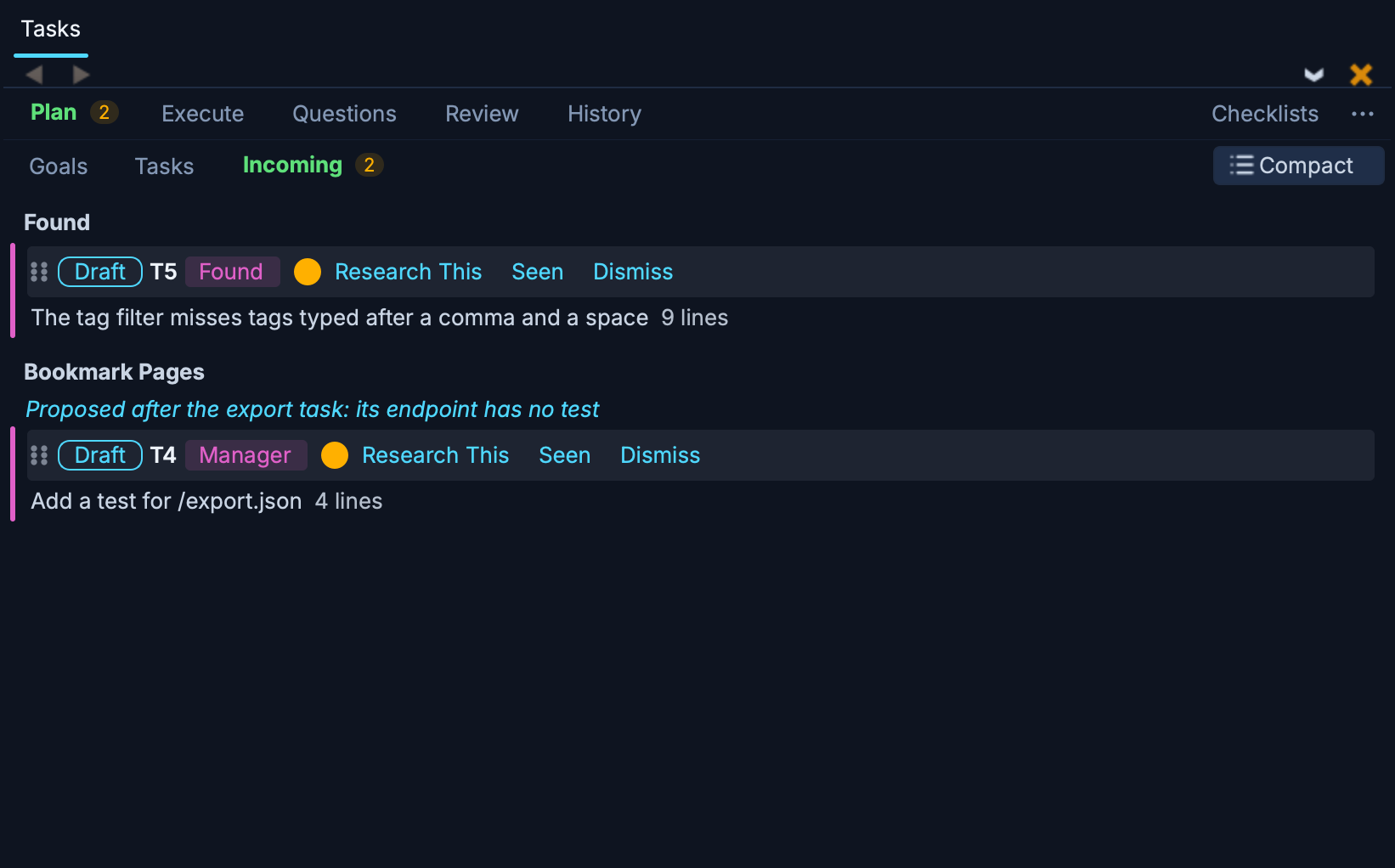
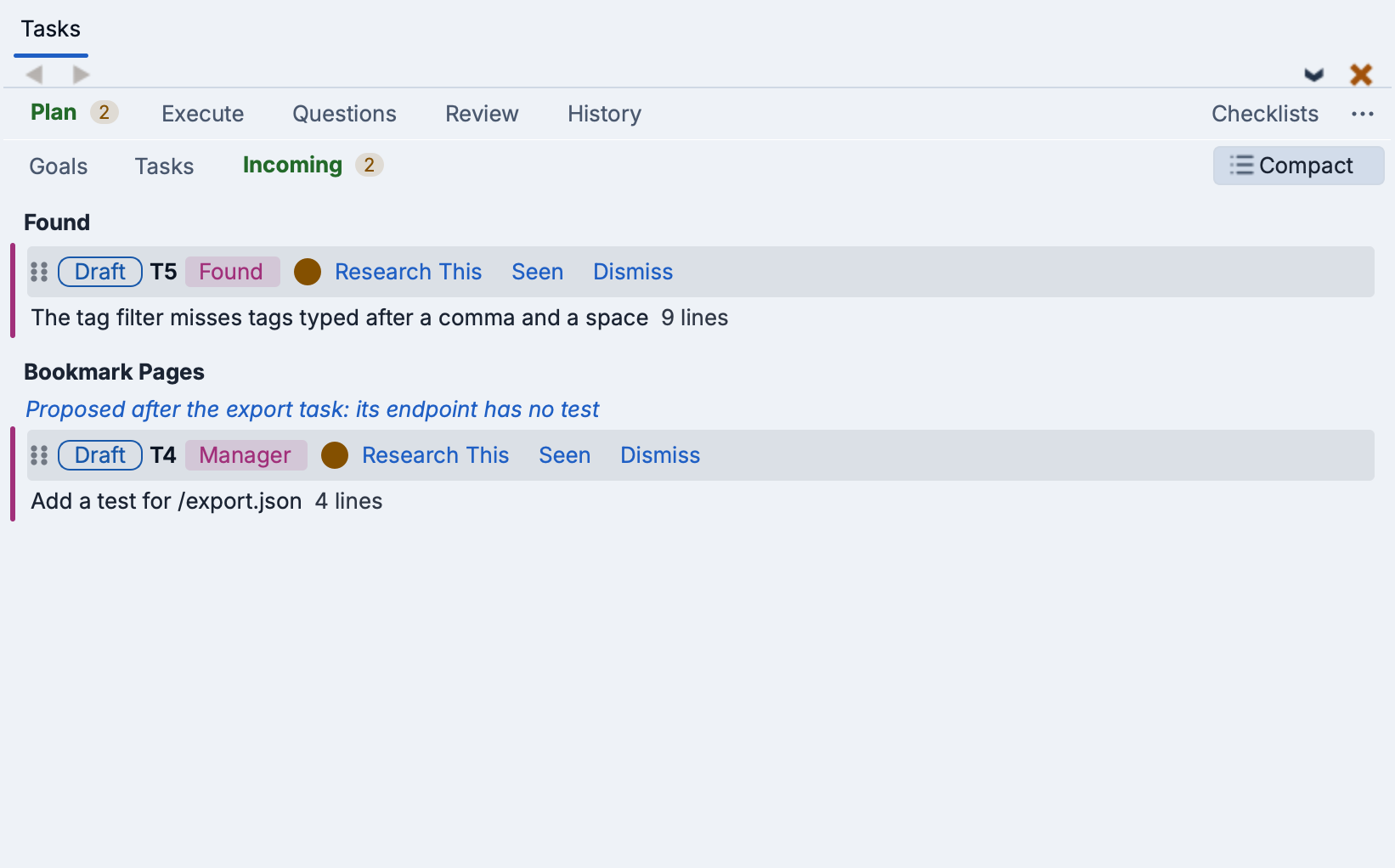
Each task has its usual pill and links. Seen takes it off Incoming and leaves it in its goal as it is, Dismiss deletes it (Undo restores it), and its pill makes it Ready. A task you act on stays where it is, saying what was done, so the rows do not move while you work. It is still listed when you come back to the view within ten minutes, while it is still on the Plan tab.
When the view has the keyboard focus, outside a task's text, J or the Down arrow and K or the Up arrow move between tasks, R makes the outlined task Ready, S marks it seen, and D dismisses it, each then moving on to the next task.
Executing Tasks
Tasks are executed by adding them to a queue on the Plan tab and then running the queue, or individual tasks in it, from the Execute tab. Both are described below.
Queuing Tasks for Execution
Tasks are queued from the Q button in the top right of each task or goal, which also indicates the overall queue status of the task:
- Green Q -- The task is assigned to a queue. Hover to see which one.
- Red Q -- The task is not queued.
In the Modern user interface look, a task's Q button is shown only while the mouse is over the task, along with the buttons that delete the task and add a task before it.
The Q buttons are hidden while the Tasks Manager is on, because the Manager chooses each task's queue and session. Instead, right-click on a pending task on the Plan tab for these items:
- Research First -- Have an agent research the task and propose a plan, changing nothing, before the task is carried out. This is unchecked by default, which leaves the choice to the Manager. In one of your own queues, an unchecked task runs in Auto-Approve.
- Queue -- Manager Decides leaves the task Ready for the Manager to schedule. This is the default. Selecting one of your own queues, or New Queue..., runs the task there yourself, alongside the Manager.
Click the Q button for a popup menu divided into three labeled sections: Queue (where to queue the task), New Session (start a fresh agent session in a chosen run mode), and Reuse Session (options that keep the current session). The Queue section lets you assign the task to an existing queue, create a new queue, or leave the task unqueued. The other two sections set the task's session action, which controls both how the next run for this task is started and what it is allowed to do without asking.
Run Modes
New-Session options start a fresh agent session just before the task is dispatched, replacing any session the queue already had. They give control over what the agent may do without asking, but lose the conversation context that had accumulated on the queue:
- Plan -- The agent investigates and proposes, but changes nothing. It can read the code and write a plan for you to approve; it cannot edit files. Good for research, diagnosis, a large refactor you want to see described first, and for work that runs alongside another session editing the same files.
- Ask For Approval -- The agent asks before it acts. Anything pre-approved on the AI Agent tab of Project Properties is allowed without prompting and everything else stops for you. With the default pre-approval (all project directories) that means edits inside the project run freely and edits outside it, plus commands, prompt.
- Auto-Approve -- The agent's own judgement decides what needs asking about. This is the setting for letting it work without constant interruption, and it is the default for a new task. On Claude Code it needs a Max, Team or Enterprise account and a recent model.
The New Session section is headed with the name of the agent the task's queue runs, because these three do not mean the same thing everywhere, and it lists only the ones that agent supports -- a queue running goose, which has no read-only mode, has no Plan entry. Support also differs between an agent and its ACP version, such as Codex ACP. See Using Wing with an AI Agent for what each run mode selects on each agent, and AI Agent Safety for what each agent's Auto-Approve does and where Wing cannot hold it to its run mode.
Wing warns before a task starts, offering the choice to cancel or run anyway, in three cases:
- The mode is one this agent does more broadly than Claude Code does. On Antigravity, Copilot, Cursor, goose, and OpenCode, Auto-Approve approves everything rather than judging each action, because none of them implements auto-mode safety checks.
- The task is carrying a mode the agent cannot do. A task keeps its run mode when you move it to another queue, and a queue's agent can be changed whenever you like, so a task can arrive on an agent that has no such mode. It is still shown in the menu in that case, marked with the agent's name, so you can see what the task is set to.
- Wing cannot hold the agent to the mode. For example, the plan mode of Codex ACP only instructs the model, and Cursor changes files without asking. See AI Agent Safety for each agent's gaps.
Each warning has a Don't show this again checkbox, remembered separately per agent and mode -- dismissing one does not silence the others. Dismissed warnings are listed under Dismissed Run Mode Warnings in the AI Agent section of Preferences, where you can remove one to see it again.
Reuse-Session options keep the current session running and do not change its run mode; they are about what to do with the existing conversation history before the next task text is sent:
- Compact Context -- Summarize the history to reduce token usage while preserving key context, then send the task. Useful for long auto-advance queues. Offered only for agents that have a compaction command.
- Full Context -- Keep the full conversation history. Appropriate when consecutive tasks build on each other directly.
The default when you haven't explicitly picked one is Auto-Approve (under New Session). Pre-approvals configured in Project Properties are layered on top of the run mode rather than being an alternative to it. See Configuration for details.
To queue multiple tasks at once, use the Select button in the Plan toolbar to enable checkboxes, select the tasks you want, and use the batch Q button that appears to assign them all to a queue.
A goal's Q button queues or unqueues all of its pending tasks at once. It also defines the default queue and queueing state to use for newly added tasks.
Executing Queued Tasks
Switch to the Execute tab to run your queued tasks. It has two views, chosen at the left of the line below its tab, with the Compact / Expanded button described above at the right:
- Queues -- Your queues at the top, with the selected queue's tasks listed below. The currently selected queue's name appears underlined, and blinking dots next to a queue's name indicate that it is currently running. This is the default.
- Up Next -- What runs next in every queue: under each queue's name, its running task and then its waiting tasks, followed by the Ready tasks on the Plan tab that are not in a queue yet. A task the Tasks Manager queued in the last 15 minutes is pointed out above its row. When a queue has a session, click its name, or Show Session at its right, to show that session in the AI Agent tool.

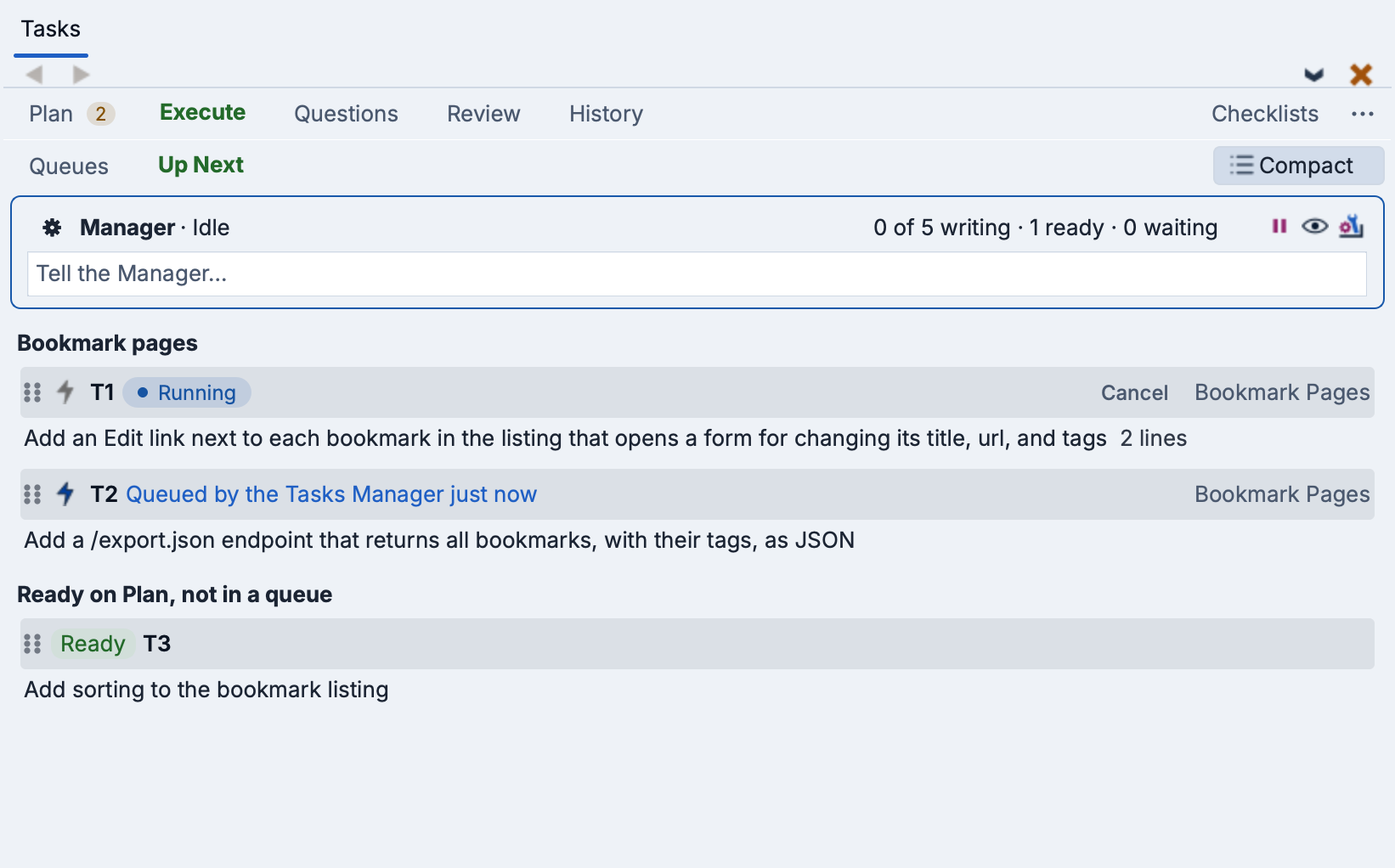
Below the views, in both of them, is the Tasks Manager's bar, which shows whether the Manager is on and what it is doing, and lets you turn it on, halt all work, or tell it something. See The Tasks Manager Agent.
When a file being changed by a queue's running task is also being changed in another queue, the queue's status is marked and its tooltip lists the overlapping files. The two queues' changes will overlap at review and commit, so you may want to let one finish first.
In the Queues view, + Add Queue below the queues makes another one. Clicking it adds a queue on the agent this project uses; its menu also offers New Session to put the queue on a different agent, and Resume <Agent> Session or Resume Session to start it on one of that agent's earlier conversations instead of a fresh one.
Each queue has a one-to-one relationship with a session in the AI Agent tool and (at any given moment) a single agent session. When you start a queue, it creates or connects to a dedicated session, and tasks in that queue run sequentially in it. Tasks whose session action is under "New Session" replace the session before running, so Plan / Ask For Approval / Auto-Approve can be chosen per task; tasks under "Reuse Session" keep the current session so conversation context is preserved between tasks (optionally compacted first).
Queue controls (left to right):
- Rename (pencil icon) -- Edit the queue name.
- Changed Files (diff icon) -- Shown only when the queue has modified files during its running tasks. Clicking pops up a list of the files changed by tasks in this queue since they started. This data also scopes the queue's review and commit actions (see below). Files that are not currently tracked in version control are flagged with a [not in VCS] suffix and the secondary palette color. These are usually files the agent created as a side effect of a shell command (e.g. coverage reports, generator output) rather than with its own file-writing tool, so Wing did not see them being created. Decide per file whether to add it to version control, add it to the ignore list (such as .gitignore or .hgignore), or delete it before committing.
- Auto-Advance (checkbox) -- When checked, the queue automatically sends the next task after the current one completes or is canceled. When set, a running queue without tasks will wait for new tasks to be added and start executing them immediately. This lets you run tasks as soon as they are ready, and you can walk away while the queue runs through all its tasks.
- Start/Next (play icon) -- Send the next pending task. When the queue has not yet been started or was stopped, this starts the queue from the first pending task. When the queue is paused, it sends just the next task.
- Pause -- Stop advancing after the current task finishes. The running task is not interrupted. The queue stays alive so you can use Next to manually advance one task at a time, or resume with auto-advance.
- Stop -- Interrupt the current task (sends Escape) and reset it to pending. The queue returns to its initial state so Start is needed to begin again.
- Remove (delete icon) -- Remove the queue entirely.
To run one task without starting the whole queue, click on the send icon on the task (tooltip Send to the AI agent). This runs the task in its queue's session. While a task is lined up to run, the same icon instead cancels that request and leaves the task in the queue. The send icon is not shown for tasks in an Auto-Advance queue, which runs its tasks in order on its own.
When editing a task's text on the Execute tab, a Done / Cancel bar appears below the editor so edits are never submitted accidentally. Press Shift+Enter to submit the task (and create another), click Done to save without creating a new task, or click Cancel to discard the edits (or remove a freshly added empty task).
Right-clicking a queue provides:
- Bind to Session -- Select which session this queue uses. The submenu lists the running sessions of every agent, and can also resume a saved conversation on any agent Wing is set up for. This is useful for running the tasks in an already-establish context.
- Show Session -- Switch the AI Agent tool to this queue's session. Clicking Running on a queue, or on a running task in either view, does the same.
- New <Agent> Session / New Session -- Start a fresh session for this queue, on its own agent or on another picked from the submenu.
- Resume <Agent> Session / Resume Session -- Put the queue on one of that agent's earlier conversations, picked from the list it reports.
The last two replace whatever session the queue has, so they are also how a queue moves to a different agent, at any point in its life.
If a queue's session is closed while its task is running, the queue shows Session closed, since nothing is working on the task. Click on Session closed, or on the cog on the queue's line, to resume the session so the agent carries on with the task. For a queue run by the Tasks Manager, the Manager resumes the session itself.
When an agent session stops at its AI usage limit, its row in the AI Agent tool shows when the limit resets, and Wing continues the session at that time, as if you pressed Enter in it. To prevent this, press Esc in the session or type your own prompt. Until the limit resets, queues on the same agent's account start no new task and show when they will go on. Queues on other agents are not held.
Task Lifecycle
A task moves through these states as it is executed:
- Unqueued -- The task has been written but is not yet in a queue. It is either a Draft, which nothing runs, or Ready, which the Tasks Manager may schedule. Click its pill to switch between the two, or queue it from the Q icon.
- Pending -- The task is in a queue and waiting to be executed.
- Running -- The task has been sent to the agent and is being worked on.
- Needs Review -- The agent has finished and the task's changes are ready for review.
- Completed -- The task has been reviewed and accepted (or review was skipped) and committed. A timestamp shows when it was completed. The task is recorded in the History tab.
In the Modern user interface look, each task is shown as a card with its state in a colored chip, such as Running, Needs Review, or Completed. The task's actions are buttons on a second line of the card. In the Classic look, the state is colored text and the actions are links.
While a task is running, its Cancel action interrupts the agent to stop the task. This action is not shown on the Review tab. A task that has not changed any files goes back to the Plan as a Draft; otherwise it moves to Needs Review so its changes can be reviewed, committed, or reverted.
A running task's Send Note action, shown both under queues and in Up Next, opens a dialog for writing more instructions for the agent. The note is sent into the task's session as if typed there, and becomes part of the same task. If anything is typed into the session's input box but not yet sent, the note waits until that text is sent or cleared. For a task run by the Tasks Manager, the Manager is told of the note.
Other actions appear on the Execute tab according to the task's state:
- Start and Commit -- Shown for a task in Needs Review that has work to commit. These start a review of the task's queue or commit it without review, in the same way as Start Review and Commit on the Review tab described below, and are disabled when there are no uncommitted changes. They are not shown while the Tasks Manager still plans to commit the queue itself.
- Mark Complete -- Shown for a task in Needs Review, and for a task shown as Done - no changes, which finished without changing any files. This moves the task to the History tab. For a task in Needs Review when version control is not available, it is labeled Done.
- Move to Review -- Shown for a task left interrupted on the Execute tab. This promotes it to the Review tab so you can act on it there.
- Reset -- Shown for a task in Needs Review, an interrupted task, and a task shown as Done - no changes. This returns the task to the Plan tab, where it can be edited and/or re-queued later.
If a task is stuck in Running (for example, after a crash), it resets to Pending on the next load.
Select Mode
The blue mouse cursor icon in the top right of the Tasks tool views lets you enter selection mode, where each task and queue displays a checkbox for selecting it. The batch actions that appear depend on which tab you are on:
- Plan -- Batch delete, set the queue used by all the tasks or goals, or split selected tasks into a new goal. The latter is useful for breaking a large goal into smaller pieces that can be worked on independently. A Select All / Deselect All toggle is available on the flat Tasks view.
- Review -- Mark selected tasks complete without reviewing, or reset them back to Plan. A Select All / Deselect All toggle is available.
- History -- Export only the selected history records with Export History..., as described in Exporting History below.
Note that you can also drag tasks between goals, and use Undo any time to undo drags or deletions.
The Questions Tab
The Questions tab collects everything that is waiting on you, from all queues: questions that autonomous tasks ended with, the Tasks Manager's own questions, permission prompts, sessions waiting for input, and tasks that stopped with a message. Each item can be answered in place. See The Tasks Manager Agent for details.
Reviewing Tasks
The Review tab collects all tasks that are awaiting review in one place. Tasks are grouped by the queue they ran in, with a header above each group showing the queue name and a summary of the number of files changed by tasks in that queue. From the header you can pop up the list of changed files, start a review scoped to just that queue's files, or commit them directly. Tasks rows within the group show a per-task changed-files icon when the task has its own tracked changes.
The group whose queue finished a task last is listed first. While you stay on the tab, the groups keep their order, and a group new to the tab is added at the top. They are sorted again the next time you show the tab.
You can review one task at a time as you work, or let tasks pile up and review them in groups when it is convenient. A review always covers the whole queue, since multiple tasks may have changed the same file; Wing uses per-task snapshots to scope the review to the files the queue actually touched, so unrelated uncommitted changes elsewhere in the tree are excluded. You can also tell the agent to commit just specific files by interacting with it directly -- for example "commit all the source files but not the documentation, which I am still working on" -- and it will start a file-scoped review in Wing that skips the irrelevant changes.
Starting Review
Once one or more tasks in a queue reach Needs Review state, the queue header on the Review tab shows the following links:
- Start Review -- Ask the agent to open Wing's diff viewer on the queue's changed files. Disabled when there are no uncommitted changes or while another review is already in progress; a second request is queued and runs automatically when the active review finishes.
- Commit -- Ask the agent to commit all of the queue's changes without opening the diff viewer first.
Each individual task row on the Review tab shows:
- View Changes -- Show only this task's changes in the diff/merge tool. When the task's work has already been committed and Wing can open a review of those commits, this is Review Changes, where you can revert, edit, or comment on the changes and then submit your requests. They become a review comment on the task, as with Revise..., also once the task is in History.
- Revise... -- Say what to change, for the whole task or for one of the decisions it reported. The Tasks Manager or an agent addresses what you write, changing the code as needed. The task's status shows at once what is happening with your revision: with the Tasks Manager, sent to the task's session, being done in the tasks named, or that no change was needed. Meanwhile the link reads Revise Again. The task's row lists your review comments, each with its state and what was done about it. Withdraw closes a comment that no longer needs to be addressed.
- Show Session or Resume Session -- Switch to the agent session that ran the task, or open a new instance of the agent that resumes it if nothing is using that session anymore. Typing a follow-up there moves the task back to the Execute tab. This is shown only when the session can be resumed.
- Mark Complete -- Move the task to the History tab without reviewing or committing. When version control is not available, this shows as Done.
- Reset -- Return the task to the Plan tab as Unqueued so you can edit it and re-run.
The triangle at the left of each task row (tooltip Show/hide this task's details) collapses the row to its heading and report summary, and expands it again. When the agent's response is available, the Transcript link at the bottom of the row shows or hides it.
A task that ran autonomously also shows its report: a summary of what it did and the judgement calls it made on your behalf, with the reasoning and alternatives for each, so you can object, either before or after committing. Work that has already been committed, by the agent or by the Tasks Manager, is marked Committed and stays on the Review tab until you mark it complete. When an agent commits a queue, a task in it that changed no files also stays on the Review tab while it has questions or a report for you to read.
A task that ran in plan mode, or researched a found problem, may report a plan of work instead of changes. It waits on the Review tab marked Plan to act on, and the Make Tasks link in its header opens a dialog for choosing which steps become tasks. Its Save Draft button files them as Draft tasks in the task's goal, to run later, and Run Now runs them. With the Tasks Manager off, you also choose one task for the whole plan or one per step, and Run Now starts them one after another in the default queue. With the Tasks Manager on, the Manager makes the tasks, and for Run Now it schedules and runs them.
A plan-mode task that is still planning waits on the Questions tab instead, each time it asks you something or finishes its plan. Answer its questions, if any, and add comments in the box below them, then click one of:
- Implement Plan -- Send your answers and comments, and have the task carry out its plan in its own session, as the same task. The arrow beside the button chooses whether it asks for approval before acting.
- Revise Plan -- Send your answers and comments, and have the task revise its plan first. It changes nothing, and comes back to the Questions tab with more questions or the revised plan. You can also edit the plan's notes file yourself and click Revise Plan for the task to re-read it.
- Make Tasks... -- Once the plan is finished, make separate tasks of it, as on the Review tab.
When such a task is blocked until you do something, its buttons are Done, Implement Plan and Done, Keep Planning.
In one of the Tasks Manager's queues, Implement Plan accepts the plan, and the Manager decides whether to carry it out as the same task or as separate tasks. When you click it while the task still has questions, the task first revises its plan with your answers, and the revised plan goes to the Manager without asking again.
Once tasks are made from its plan, the task stays on the Review tab naming them, and moves to History when they have all finished. Mark Complete moves it there sooner.
When a task revises its plan after tasks were made from it, the tasks from the earlier plan that have not started move to History, even ones you edited. The link reads Plan Revised: Make Tasks, and the task does not move to History until the revised plan is made into tasks. The dialog leaves unchecked the steps that tasks kept from the earlier plan already do.
You can also start a review from the REVIEW icon in the top right of the AI Agent tool: it appears once the session's queue has a task here on the Review tab and is scoped to that queue's changed files, just like Start Review above. A diff/merge dropdown beside it lists those files.
However you start a review, Wing opens its diff/merge viewer on the relevant changes, which lets you:
- Navigate between changed files and individual hunks.
- Use the pencil icon between hunks to add per-hunk comments as feedback for the agent.
- Revert individual hunks you don't want to keep.
- From the toolbar, finish the review with the green check mark, or reject the task with an overall comment using the toolbar's pencil icon.
The toolbar check mark normally commits the changes using the configured commit mode. If you have left any per-hunk comments, however, those comments are agent feedback (not commit annotations), so the task transitions back to Execute for the agent to act on instead of committing. The toolbar pencil icon always sends the task back to Execute for iteration, regardless of whether per-hunk comments are present.
Task History
The History tab provides a record of completed tasks and commits, organized by goal, including also the run time and token consumption for the different tasks. This serves as an audit trail of the work that AI agents have done in your project.
Each goal appears as a collapsible section with a summary showing the number of tasks and total time spent. Within each section, entries are sorted with the most recent first and include:
- Task entries -- Each completed task shows its completion timestamp, how long it ran, the tokens it consumed, the review outcome (if reviewed), and the full request text that was sent to the agent.
- Commit entries -- Version control commits made through the review process are shown with the revision number, date, and full commit message.
- Follow-up prompts -- If additional prompts were sent while a task was running (for example, to provide clarification or redirect the agent), these appear as separate entries alongside the original task.
The triangle at the left of a task entry's heading (tooltip Show/hide this task's details) collapses the entry to its heading and report summary, and expands it again.
The Filter field at the top of the tab shows only the records whose task text, summaries, goal or task id contain what you type.
A task that the Tasks Manager retired without running it, or merged into another task, offers Restore to Plan, which puts it back on the Plan tab as a Draft.
A task with a report offers Revise..., which works as on the Review tab. The Tasks Manager or an agent addresses what you write, on top of what the task committed.
Completed tasks are automatically removed from the Plan tab and recorded in the History tab, so the audit trail is not lost. Tasks that are explicitly deleted before completing are not recorded.
The History tab also shows the completed tasks of the other developers chosen with the filter icon on the Plan tab, at the end of the list, below a divider.
The Journal
The Journal is a short, permanent record of the project's work, as a list of its phases. A phase is a broad step of the work, such as a new request, a new part of the code, a validation pass, or a run of bug fixes. Each phase is one line, with the time it began and a short label, under a heading for its day.
Wing records the work in sittings. A sitting is a stretch of work in one working copy that ends once nothing has happened for 20 minutes. Breaks, sleeps, and pauses only mark where sittings end. When a sitting ends, Wing saves its facts: what you asked for, which tasks started and finished, what was committed, tasks done on peers, and trouble such as failed tasks.
When the Tasks Manager is on, it names each sitting's phases from these facts, and Wing times each phase from the event where it began. A phase may run across several sittings, and a sitting that only continues the phase before it adds no line. A sitting that ended while the Manager was off is named when the Manager next starts. Until then, including for the sitting still open when you export, the sitting shows one phase for each prompt you typed, labelled with its first words. A sitting with no typed prompts shows one phase naming its goals.
A task sent to another machine is counted in the Journal of the machine that sent it, in the sitting where its returned work was applied or refused. If the other machine's Tasks Manager writes a sentence on what the task did within a minute or two, this machine's Manager sees it when naming phases.
The Journal is kept apart from History, so History Settings... never removes a sitting once it is saved. Each user and working copy has one Journal file. By default it is kept in the private .TASKS/journal/ directory, which is not under version control. Checking Share Journal in the Tasks tool's options menu has each commit Wing makes copy the file into TASKS/journal/ and commit it with your work, so other developers' exports can include your phases. The file in .TASKS/journal/ stays the one Wing writes, so TASKS/journal/ changes only in Wing's commits. Unchecking it has the next commit remove the copies of all your working copies' Journals. This choice applies to all your working copies, and is independent of Share Plan. See Sharing Tasks via Version Control below for details.
The Journal is read in an export of the History, described below.
Exporting History
Export History... in the Tasks tool's options menu writes the project's History to one document: the Journal, followed by the details of each task. It is available whether or not Record History is on. Its dialog stays open beside the IDE until you export or cancel. The document contains:
- A header naming the project, the range, and whose work is included
- The Journal phases of the sittings that overlap the chosen tasks, grouped by day, with the user and working copy named when more than one appears
- Totals of tasks, task time, elapsed time, tokens, questions, judgement calls, findings, commits, and Tasks Manager decisions
- A Timeline of when each task started, asked questions, was answered, finished, and was committed
- A Tasks section for each task, oldest first: its origin, goal, run times, outcome, commits, token usage, prompt, questions and answers, judgement calls, findings, typed follow-ups, the agent's response, and its changes, one diff for each file changed
- The Tasks Manager's questions to you and its decisions
- Notable events: failed or blocked reports, checks that found issues and the tasks they filed, reruns, unanswered questions, your typed follow-ups, and Tasks Manager decisions you reverted
- Tasks not run in the range, and Notes on the data, such as History removed by History Settings... before the range began
The dialog's options are:
Range -- All goals (the default), or only the tasks of the goal selected with Goal. When records are checked in the History tab's selection mode, Selected History records exports only those, and is chosen by default. Checking Only from limits any of these to the tasks that ran between the two dates given.
Users -- A filter icon, or the text beside it, whose menu chooses whose work is exported: Only Self (the default), All Users, or you and the users checked in its list. Your own work comes from every working copy whose plan or Journal Wing can read here, which for other working copies means those you share. Other users' work is their shared plans and Journals.
Format -- Markdown (the default), HTML, or Text. The HTML file is self-contained, with each task and its diffs collapsible.
Include -- Diffs of changed files includes the changes made to files; unchecked, only their names are kept. Typed follow-ups and relayed messages includes what you typed to tasks as they ran and the messages the Tasks Manager sent them; answers to questions are kept either way. Token usage includes token counts, models, and tool call counts. All are checked by default.
Scrub -- Replaces what is found with a placeholder. Secrets covers API keys, tokens, passwords, private keys, and credentials in URLs. It is checked for every export, and unchecking it shows a warning. Emails, Names, Paths, Hosts (host names and IP addresses), Peer names, and Other URLs are unchecked by default. Peer names are replaced by peer 1, peer 2, and so on, so peers can still be told apart. Dates only removes the times of day, so Journal phases keep their day but not their time. Also scrub takes a comma-separated list of other words to remove, such as codenames or customer names. Text quoted from other sources, such as customer data in a prompt, cannot be found by scrubbing; uncheck the diffs and follow-ups under Include, or list its words in Also scrub.
Open in Wing after export -- When checked (the default), Wing opens the file once it is written, showing Markdown and HTML rendered.
Pressing Export... asks where to save the file, by default history-<project>-<date> with the format's extension. Wing remembers the dialog's choices for the project, except Secrets and the selected records.
Checklists
A checklist is a group of steps that you run whenever the project reaches a milestone. A step is a prompt, such as a security review before a push, a docs update before a release, or the release itself. Each run of a step is an ordinary autonomous task, which goes through the Execute, Questions, Review and History tabs like any other.
Each checklist is named for when its steps are run. + Checklist at the top of the tab, or below the explanation shown when a project has no checklists, adds one. Its dialog offers common names such as Before Push, Before Merge and Before Release to fill in, or you can type a name of your own. Click a checklist's header to fold or unfold it.
Each step has a title, a prompt that is about the whole project, and one of three kinds, described under the Kind choice in the step editor:
- Report -- Looks at the project and reports, changing nothing. It runs in Plan mode. This is the default.
- Fix -- May change the project's code, and runs in Auto-Approve mode. Its changes go to the Review tab like any other task's.
- Action -- Does something with the project rather than to its code, for example a build, a push, a release, or a deploy. It runs only once the checklist's other steps pass, and in Ask For Approval mode, so it asks before each command or edit.
To add a step, click + Step at the bottom of the checklist, or select Add Step... from the checklist's menu. The step editor sets the title, kind and prompt. Its Shared with everyone working on the project checkbox stores the step in your own file in the TASKS/checks directory of the project, which Wing adds to version control and includes in its commits whenever it has changed, so you never commit it yourself. This is independent of Share Plan. The checkbox is checked by default. An unshared step is stored in the per-user project file (.wpu) and only you see it. New checklists are shared, but a checklist goes into your file only once it has a shared step, so an empty one is never committed. To make a checklist and your steps in it personal, or shared again, uncheck or check Shared in the checklist's menu. Each developer's shared steps are in a file of their own, so changes that two developers make at the same time merge without conflicts. Wing removes your file from the project and from version control when you have no shared steps left.
Each step's row has a checkbox that includes it when you run its checklist. This setting is yours alone, so other developers who share the step can leave it out. The row also shows the step's kind, its last result, and a run button. The result is one of:
- ✓ -- Passed, or found issues that the tasks it filed to fix them have since fixed.
- ⚠ -- Found issues that are worth a look but do not block, or that the tasks it filed are still to fix.
- ✗ -- Failed.
- – not run yet -- The step has not run.
A * after the result means that the step was edited, or the repository has changed, since that result. Click the result to show the report of the task that produced it. The checklist's header summarises its last run.
The ⋯ menu on a step's row offers Edit..., Duplicate, Move to Checklist, Shared, and Delete Step.... The ⋯ menu on a checklist's header offers Add Step..., Rename..., Run Sequentially (see below), and Delete Checklist.... Deleting a shared checklist deletes it for everyone once the change is committed.
To reorder checklists or steps, drag them by the grip at the left of the checklist's header or the step's row. Dragging a step onto another checklist moves it there.
Other developers' shared steps are hidden by default, along with their checklists that hold none of your steps. When other developers have shared steps, a filter icon appears at the top of the tab, to the left of + Checklist. It shows no other users (the default), all other users, or the users checked in its list. Their steps and checklists then show the developer's name. Before you edit, move, or delete another developer's step, or rename or delete their checklist, Wing asks you to confirm, because the change is made in their file. Hidden steps are not run with the rest of their checklist.
Running Checklists
Run All on a checklist's header runs its checked steps, and the run button on a step's row runs just that step. Checklists can also be run from the Run Checklist submenu of the toolbar's Lightning Bolt menu, or by asking the Tasks Manager to run one by name. You can also ask the Manager to list the checklists, to run a single step, or to add, change, or remove one of your steps. A step it runs stays in its checklist, as with the run button.
Wing makes each step into a task in a Checklists goal and puts the run's tasks in a new queue of their own, named like Before Push run 14:02, which runs them one at a time in the checklist's order. While the Tasks Manager is on, the tasks are instead marked Ready for the Manager to schedule. Each task ends by reporting a verdict of pass, issues or fail, which becomes the step's result on the Checklists tab.
Action steps wait until the other steps have finished. If any of them failed, or ended without a verdict, the Action steps are not run. Issues do not hold them back.
When steps depend on the work of earlier ones, check Run Sequentially in the checklist's ⋯ menu. Each step then starts only once the one before it passed, Action steps last. A step that finds issues files a task to fix each one, and these run before the next step starts. A step that fails, or a fix task that ends without finishing its work, stops the run. The setting is part of the checklist, so it is shared with other developers when the checklist is.
Reviewing a Run
The Review tab shows each run of a checklist in a section of its own, headed by the run's name and its verdict, such as "4 passed, 1 with issues: Ready to Push" or "Not Ready to Push". A run is ready when none of its steps failed or ended without a verdict. The ready phrase comes from the checklist's name, so Before Release gives "Ready to Release". Each step's report is shown with its task. Mark Run Complete moves the run's tasks to the History tab, and their results stay on the Checklists tab. On the History tab, grouping by goal shows each run as a section of its own.
To make a step from a task you keep retyping, right-click on the pending task on the Plan tab and select Save to Checklist.... The task's first line becomes the title and its text becomes the prompt. The task itself is left in place.
Inbox Goals
An inbox goal is a goal on the Plan tab that uses a directory on disk as its inbox. Files dropped into the inbox, by you or by other software, are read by the Tasks Manager and turned into tasks in the goal. This is useful for processing user bug reports or feature requests, or any other source of requests for work. Tasks created this way then run like any other task. Files dropped into the inbox directory can be in any format an AI agent can read, such as saved mail (.eml), text, logs, PDFs, or screenshots.
Creating an Inbox Goal
To create an inbox goal, such as one named Bug Reports for your users' bug reports, press + Add Goal at the bottom of the Plan tab's Goals view and select Inbox Goal as the Type in the New Goal dialog. To make an existing goal into an inbox goal, or change an inbox goal's settings, right-click on the goal's header and select Goal Properties..., which shows the same dialog. The dialog properties are:
- Name -- The goal's name.
- Directory -- The inbox. Type its path, either absolute or relative to the agent working directory, or press Browse... to choose it. When the agent working directory is on a remote host, the inbox is on that host too.
- Create the directory if it does not exist -- When checked, Wing makes the directory when you press OK. This is checked for a new goal or one being made into an inbox goal, and unchecked when you change the settings of an existing inbox goal.
- File Tasks As -- Whether the Tasks Manager files tasks as Ready, so they start to run immediately, or holds them for your review as Draft. The default is Ready.
- Instructions -- Anything the Tasks Manager should know about the files in this inbox, such as who sends them or which part of the project they concern. This is optional.
Each inbox goal needs a directory of its own, so Wing refuses one that is inside, or contains, another inbox goal's directory. If the directory already holds files at its top level and was not used as an inbox before, Wing asks before using it, since the Tasks Manager reads each of those files and may make them into tasks.
An inbox goal's header shows its directory after the goal's name; see Inbox Goal Details. Its tasks come from its files, so it has no + Add Task.
Changing an inbox goal's Type from Inbox Goal back to Goal stops Wing from watching its directory. Any tasks already filed stay in the goal.
There can be any number of inbox goals, for example one for bug reports and one for feature requests.
If several instances of Wing use the same inbox, only one of them reads each file, to avoid creating redundant tasks.
See Inbox Goal Details for the inbox directory's layout, how the Tasks Manager triages the files, and how to set up several inboxes.
Sending Tasks to Other Machines
A task can be sent to Wing on another machine to run there, for example to check or fix it on another operating system. Its report and any changes come back to this machine, to review and commit here. A peer with another repository can also be asked for a report, or handed work to do and commit in its own working copy. To set this up, select Peers... in the Options menu; to send a task that has not started, right-click on it and select Send to Peer.... See Sending Tasks to Other Machines for details.
Options Menu
The Options menu in the upper right of the Tasks tool provides:
- Share Plan -- When checked, your goals and tasks are stored in a shared file that can be committed to revision control.
- Share Journal -- When checked, your Journal is committed with your work, from all your working copies. See The Journal above for details.
- Show Task IDs As -- Sets how Wing names tasks to you: by Task Number (T123), Task Name (task-name), or Both (T123 task-name, the default). A task not yet named, such as one you are still typing, shows its number. Agents cite tasks by name, but the Tasks tool shows the tasks cited in what they write, such as the Tasks Manager's status and notes, in the form you chose.
- History Settings... -- Opens a dialog with a top-level Record History toggle and auto-clear thresholds (remove records older than a given number of days and/or keep at most N records per developer). A Clear All Now button removes all history immediately, and a checkbox controls whether these actions also apply to other developers' history. Thresholds are shared across developers when sharing is enabled.
- Show History in Reverse Order -- When checked, the History tab shows the most recent entries first. Enabled by default. Hidden when history recording is off.
- Export History... -- Exports the Journal and History to a Markdown, HTML, or text file. See Exporting History above for details.
- Show Task Session on Execute -- When checked (the default), Wing shows the AI Agent tool and switches it to a task's session when the task starts running on one of your queues. Tasks the Tasks Manager runs never switch the session you are viewing, and no task switches away from a session while you are typing in it.
- Keep Current Queue and Session in Sync -- When checked (the default), Wing keeps the current queue on the Execute page in sync with the session shown in the AI Agent tool: selecting a queue shows the session bound to it, and switching sessions in the AI Agent tool selects the matching queue.
- Alert Me When Questions Arrive -- When checked (the default), Wing bounces its Dock icon or flashes its taskbar button when something new appears on the Questions tab while you are in another application.
- Show New Review Tasks Expanded -- When checked, tasks arriving on the Review tab show their text, decisions, and commits. Otherwise (the default) they show only their header and reported summary, and clicking either one expands or collapses the task.
- Use Tasks Manager Agent -- Turns the Tasks Manager on or off for this project, the same as Task Scheduling in Project Properties. Pausing and resuming it is done from its bar on the Execute tab.
- Tasks Manager Settings... -- The Manager's agent, answer mode, worker limit, commit policy, which found tasks it may start, and the research notes directory.
- Autonomous Decisions -- Whether autonomous tasks Decide and Report or Ask Me First. Available while the Manager is on.
- Run Ready Tasks -- Shown only while the Manager is on: have it schedule every Ready task now, resuming it first if it is paused.
- Peers... -- Sets up the other Wings, on this machine or others, that this one sends tasks to and takes tasks from. See Sending Tasks to Other Machines.
See The Tasks Manager Agent for details on the four Tasks Manager items above Peers....
Sharing Tasks via Version Control
Each developer owns exactly one plan file, identified by the email from your version control configuration (git config user.email or hg config ui.username). A display name is also extracted and recorded in the file's metadata.
Wing shares three kinds of data, each by a choice of your own. Each choice applies to all your working copies of the project, and never changes what other developers share:
- Share Plan -- Shares your goals, tasks, and History. Off by default.
- Shared -- Set on each checklist step and checklist, as described in Checklists above. On by default for new ones.
- Share Journal -- Shares your Journal. Off by default.
When Share Plan is off, the plan file lives under a .TASKS/ directory in the agent working directory, which Wing adds to the version control ignore file. Checking Share Plan moves the file into a sibling TASKS/ directory and adds it to version control, so team members can see what work is planned, in progress, and completed. Unchecking it removes the file from version control and moves it back into .TASKS/. In both cases Wing keeps only one copy of your plan in each working copy and updates it as you work. Your other working copies follow the change once they update to your commit. A working copy that had a private plan then merges it into the shared one, and one whose shared plan is removed keeps it as its private plan.
Your shared checklist steps are always in your own file in TASKS/checks/, whatever Share Plan says. Wing 12.1.1 shows and runs the steps in a checks file written by later versions, but treats it as read-only: it cannot edit, move, or delete those steps. Steps that Wing 12.1.1 had kept in .TASKS/checks/ because Share Plan was off become your personal steps, so they are never committed.
Share Journal is stored in a small settings file of your own in .TASKS/settings/, which Wing's commits copy into TASKS/settings/ so that your other working copies follow it. Your Journal files are copied into TASKS/journal/ the same way. See The Journal above for details.
Commits made through Wing include your shared plan file, checklist steps, Journal, and settings file whenever they have changed, including their removal when you stop sharing. Before an agent merges, Wing commits these files on their own so that the merge starts from a clean working copy. An agent stops instead of merging when any other change is uncommitted. Until a merge is committed or aborted, including one you started outside Wing, Wing holds its own changes to these files and to the ignore file, and saves them once the merge ends. Only the agent that started the merge edits files meanwhile, and other tasks that may write files wait to start. A merge also runs alone: before merging, the agent waits until every other agent session has finished its current turn, and a task whose text asks for a merge or rebase starts only once other sessions are idle, holding back other writing tasks until it is done. Quitting Wing during a merge waits for the agent to commit it, and offers Abort Merge to put the working copy back as it was before the merge, or Abort Merge and Quit Now to do that and quit without waiting. Each developer only ever writes to their own file, so multiple developers can commit task changes simultaneously without producing merge conflicts.
Queues are always stored privately in the per-user project file and are never shared, since they represent active execution state tied to local agent sessions.
Other developers' shared data is hidden by default. Each place that can show it has a filter icon, shown only when there is such data, whose menu offers No Other Users (the default), All Other Users, or a list of the developers to check one by one:
- At the top of the Goals and Tasks views, for plans. The chosen developers' goals, tasks, and completed-task history appear in a read-only section below your own, in muted text with a colored header. The History tab follows the same choice.
- At the top of the Checklists tab, for checklist steps.
- In the Export History dialog, as Other users, for plans and Journals.
These choices are made separately in each working copy. The TASKS/ directory is watched for external changes, so updates from other developers appear without restarting Wing once you update to their commits.
Section Contents