 Wingware
Wing Tips: Fixing Code Warnings with the AI Agent in Wing Pro 12
This Wing Tip looks at fixing code warnings with Wing Pro 12's Claude Code agent integration. For the manual workflow -- disabling warnings, configuring scopes, sharing configurations across projects -- see the parallel Code Warnings Wing Tip.
Code warnings have always told you what might be wrong in your code. With the agent, the next step -- making it right -- is no longer your problem alone.
Fix in the Editor
When Wing flags a warning in the editor (an undefined name, an unresolved import, an unused variable, a syntax issue), the warning tooltip now includes a FIX action. Click FIX and the agent receives the warning text plus the surrounding code as a small, scoped task: fix this warning, in this place.
Most fixes are mechanical and arrive in seconds: imports get added, typos get corrected, dead code gets removed. The change appears in the task review interface (see the agent change review Wing Tip) so you can accept, reject, or refine like any other agent edit.
This is the same FIX action you'll find on a failing unit test in the Testing tool and on an exception in the debugger -- each hands the problem, with its context, to the agent in a single click.
For warnings that don't have an obvious fix -- a possible logic error, say -- the agent will explain what it's doing and ask before making changes that could alter behavior.
If you have external checkers configured (such as Pylint, Ruff, or mypy), their warnings can also be fixed this way.
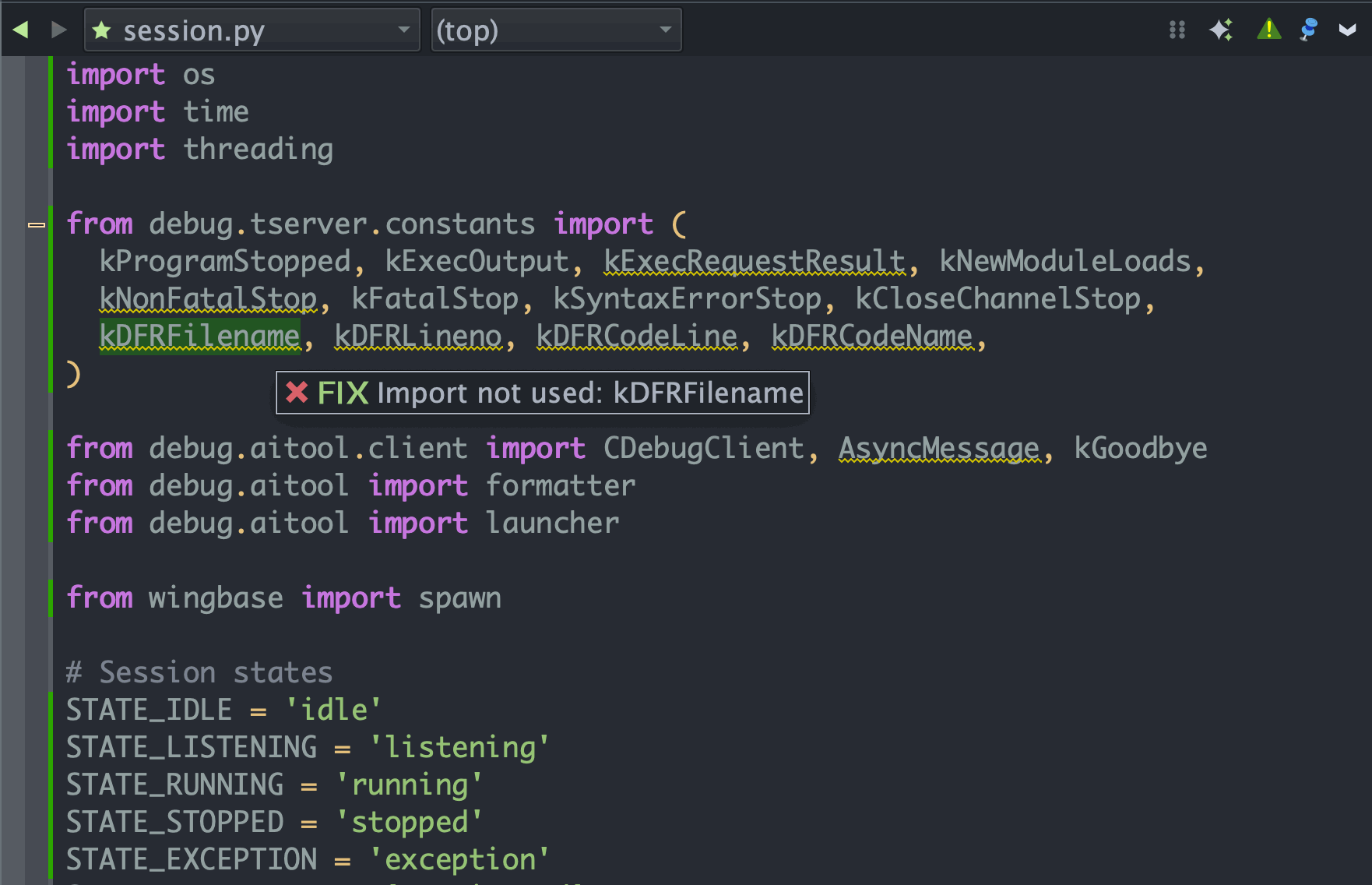
Shown above: Hovering over a warning indicator in the editor to reveal the FIX action, which sends the warning to the agent for resolution.
Fix Many at Once
To clean up more than one warning in a pass, use Fix Code Warnings in the Code Actions menu at the top right of the editor. It hands the code you point it at -- the selection, the enclosing function or class, or the whole file -- to the agent as a single request: fix the issues that would cause warnings, such as unused imports, undefined names, type errors, and style problems, using its judgment about which are real and which are false positives.
This works from the agent's own read of the code, not the Code Warnings tool, so it doesn't depend on Wing's warnings or any external checkers being configured. As with a single fix, the result comes back through the task review interface for you to accept, reject, or refine.
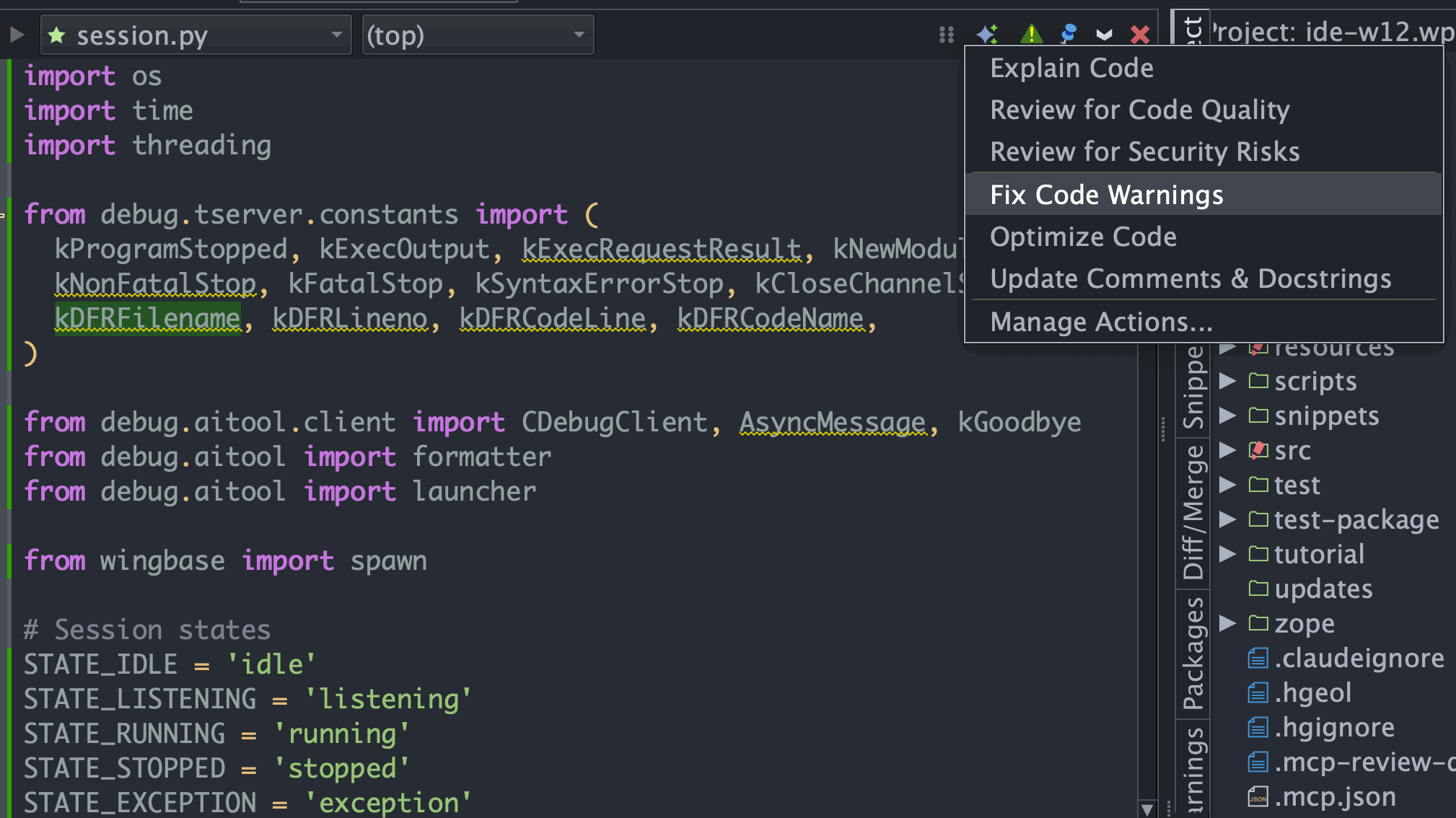
Shown above: Choosing Fix Code Warnings from the Code Actions menu at the top right of the editor to fix a file's warnings in one pass.
For full reference on Wing's code warnings system, see the Code Warnings documentation. For the agent integration, see Wing's Claude Code Agent Integration.
That's it for now! We'll be back soon with more Wing Tips for Wing Python IDE.
As always, please don't hesitate to email support@wingware.com if you run into problems or have any questions.