 Wingware
Wing Tips: Reviewing and Accepting Agent Changes in Wing Pro 12
This Wing Tip continues the series on the Claude Code agent integration in Wing Pro 12. It covers what happens after the agent finishes a task and before you commit it.
Change Tracking and Review
When a task finishes running in the Claude Code tool, it will transition from the Execute tab of the Tasks tool to the Review tab, where it waits for you to inspect and accept or reject the work that was done.
The Review tab has a section for each queue that is running tasks, and lists all the completed but unreviewed tasks under each queue. Review is done on a per-queue basis. If you accept all changes from a queue, that does not necessarily commit all files. However, granularity of commits is at the file level so you may end up committing changes made in other queues. Wing keeps track of who changed what and will warn in this case.
If a task or queue has made changes, you can click on the diff/merge icons in the Review tab to visit the changed files or view the changes for a file.
In most cases, however, you will use the Start Review or Commit Without Review links on the queue to process all the files changed by that queue at once.
Start Review shows you a diff/merge session in Wing where you can move through all the files and changes, accepting or rejecting each one or making comments on changes using the pencil icon visible in the floating icon set between changes. Pressing the pencil icon in the toolbar lets you make an overall comment and reject the changes. This transitions the task back to Execute and works on changes until it's ready to review again. Review mode is entered again automatically. If you want to accept all the changes instead, press the green check mark icon in the toolbar. Wing will then commit that change set.
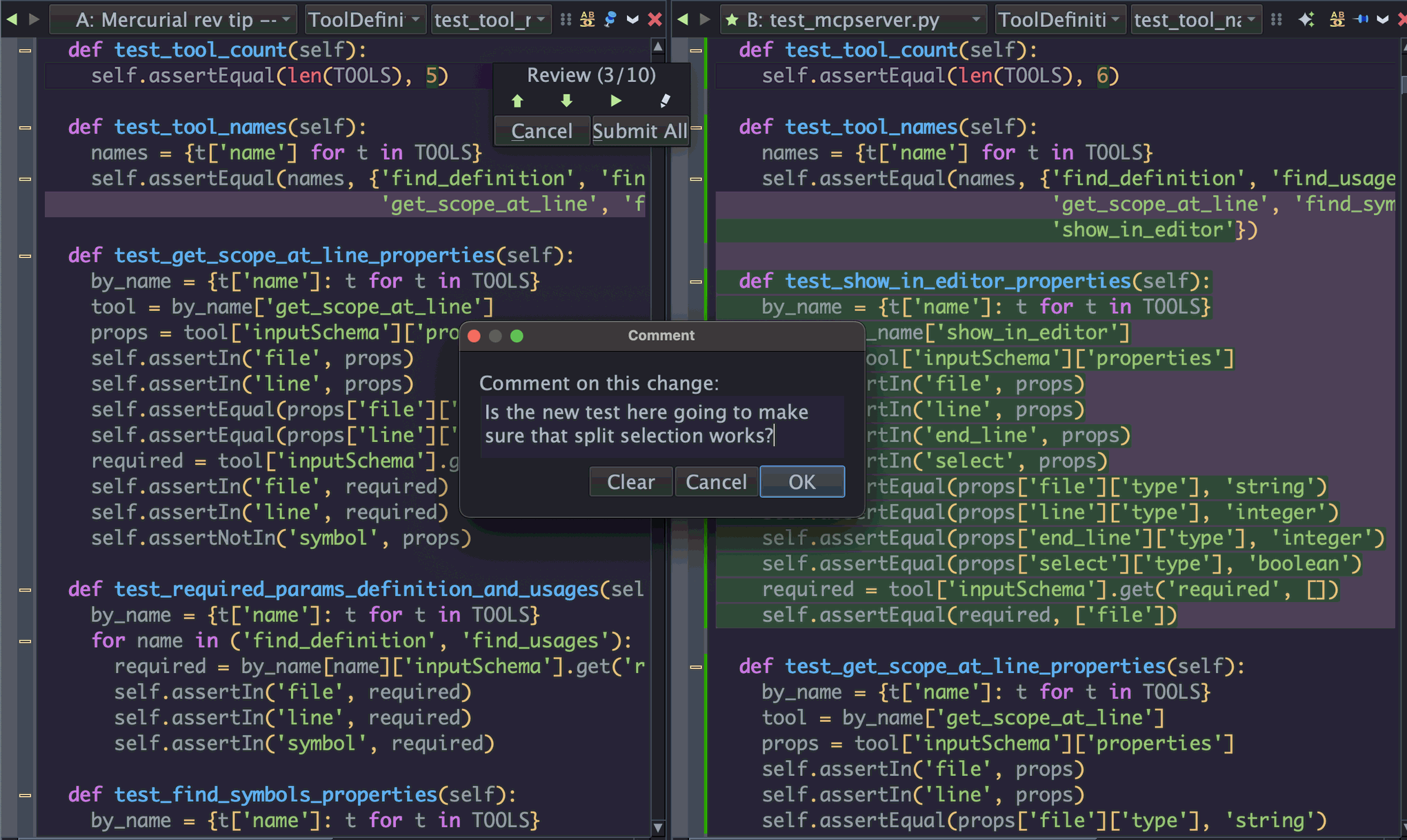
Shown above: Reviewing the agent's proposed change side-by-side with the original file and commenting on a particular change.
Commit Without Review just executes the latter part of that process, skipping the review phase. This is appropriate if you have already reviewed the changes or trust that unit tests or other measures have sufficiently vetted the changes in other ways. Looking at diffs is by no means the only way to check Claude Code's work. You can also run tests or ask another Claude instance to review the work. We'll talk more about that in a later Wing Tip.
Commit Modes
Once you actually get to the point of committing, who commits and how is controlled by Commit Mode in the AI Agent tab of Project Properties. There are five choices:
Claude commits only when asked -- The default. Claude never commits on its own; when you start a review or use Commit Without Review, it uses a record of the work done by the relevant tasks to decide on a short commit message and then does the commit. This works well when you have run a series of tasks and don't want a long commit message.
Claude commits after each task -- Claude commits on its own at the end of every completed task, without waiting for you.
Claude commits at its discretion -- Claude commits on its own at the logical stopping points it chooses, deferring when work is incomplete or problems are unresolved.
Wing commits with generated message -- Wing commits immediately, without involving Claude, using a commit message made out of the work summaries for each of the tasks being committed.
Wing presents commit message for review -- Wing builds the commit message from the task summaries and brings it up in Wing's VCS tool, waiting for you to review the message and complete the commit yourself.
History
Once you have committed work done by a task, it transitions to the History tab in the Tasks tool. You can control whether and how history is kept from the History Settings item in the Task tool's Options menu.
From here (and in fact also from the Review tab) you can expand each task to see Claude's responses and any follow-up tasks made in the same session (often as typed directly into the Claude Code tool).
The history for each task also shows the run time and number of tokens consumed by that task. A total for all tasks is at the top of the History tool. This is a good way to estimate how expensive tasks were.
The Resume Session link on tasks lets you resume the Claude Code session, if it is still available, to reinspect what was done.
Further Reading
Wing's Claude Code integration is deep and powerful, but should be usable also if you don't fully understand it. When in doubt, ask Claude Code!
See also Wing's Claude Code Agent Integration and AI Agent-Assisted Development in Wing's documentation.
That's it for now! Next time we'll cover combining the agent with Wing's testing tools.
As always, please don't hesitate to email support@wingware.com if you run into problems or have any questions.