 Wingware
Wing 12.1 Beta: Getting Started with Autonomous Development
Wing Pro 12.1, now in beta, adds an autonomous software development system. You provide a high-level specification for a new product or a major feature. Wing's Tasks Manager fleshes out the specification, plans the work, splits it into tasks, and assigns them to a team of AI agents. It keeps the agents moving and on track for hours or days, as needed. The agents write the code, unit tests, and documentation, commit in logical units, and find and fix bugs along the way.
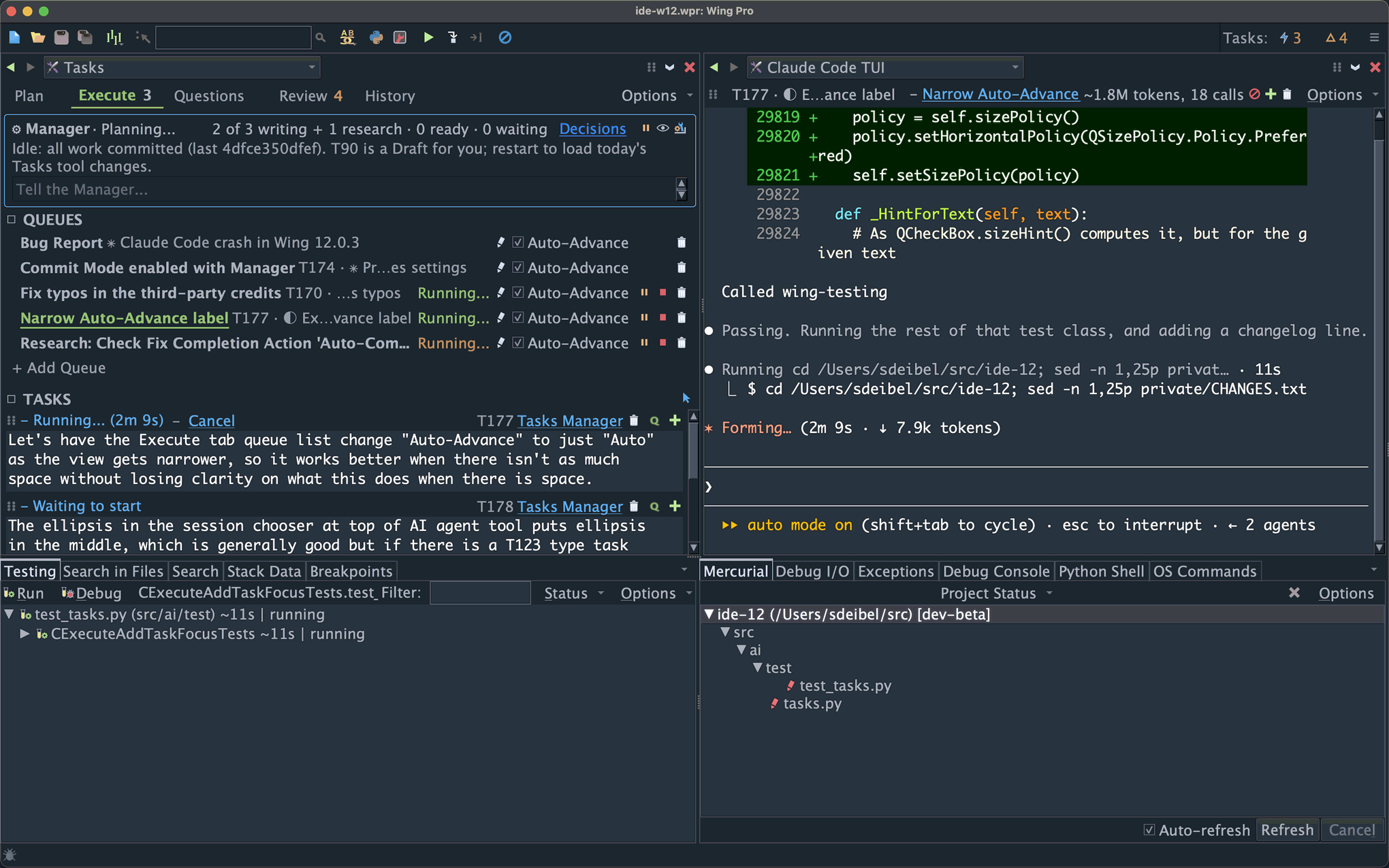
Instead of reading individual agent sessions, you answer questions and review results in one place, the Tasks tool. Each finished task reports a summary of its changes and the decisions made in it. You can look at the code and diffs for any change, but we've found that the task and decision summaries are often the better level at which to ask for revisions. Your job is to describe what you want, answer strategic questions, and review the finished work. You are the product designer, and the agents do the rest.
We're looking for beta testers to try this on a real project and tell us how it went: where you got stuck, what confused you, and whether the result is something you'd keep. Please email us with your feedback.
This page explains how to get started. For downloads and everything else that's new in Wing 12.1, see the Wing 12.1 Early Access page.
Getting Started
We recommend using a reasonably isolated environment, such as a virtual machine, when using AI agents. At the very least, you should prevent agents from accessing the keys to your server infrastructure, reading sensitive data, or pushing to your main repository. Although agents do not in general try to access data or systems that are out of scope of your requests, it is still a good idea to take these extra precautions, particularly if you plan to use an agent other than Claude Code or Codex.
To get started you will need to:
(1) Install an AI agent and set up an account for it that covers the amount of work you expect to do. For sustained use, a subscription is generally much cheaper than paying for usage on an API key. The cost is between $20 and $200 per month depending on your level of usage. If your agent reaches its usage limit, Wing continues its sessions and the Tasks Manager once the limit resets.
Claude Code and Codex are best for autonomous development, since they self-check the safety of the commands that they run. Antigravity, Copilot, and Cursor also work but don't implement the same level of safety. OpenCode and goose are not currently recommended for autonomous development. For details, see AI Agent Safety in the AI Agent-Assisted Development chapter of the manual in Wing 12.1's Help menu.
Setting Up an AI Agent in the AI Agent-Assisted Development chapter of the Wing 12.1 manual, available from Wing's Help menu, describes how to set up each type of agent.
(2) Install a revision control system such as git or Mercurial, if you don't already have one. Wing uses it to track, review, and commit each task's changes. If you aren't sure which to choose, use git. You don't need to learn how to use it, since Wing and the agents do that for you.
(3) Install and start Wing Pro. Install Wing Pro 12.1 from the Wing 12.1 downloads. Wing 12.1 replaces Wing 12.0 when it is installed, but you can revert to Wing 12.0 by reinstalling it at any time.
To start Wing on Windows, select Wing 12 from the Start menu. On macOS, double click on Wing 12 in your Applications folder. On Linux, select Wing 12 from your desktop's applications menu, or run wing12 from the command line.
The first time you start Wing, the Set Up Wing dialog lets you choose a display theme, keyboard personality, and whether the New Project dialog shows its Simple page or All Options. Everything there can be changed later in Preferences. Next, the Welcome to Wing window offers New Project..., Open Folder..., Clone from GitHub..., and your recent projects. Click New Project... and go on to step (4) below.
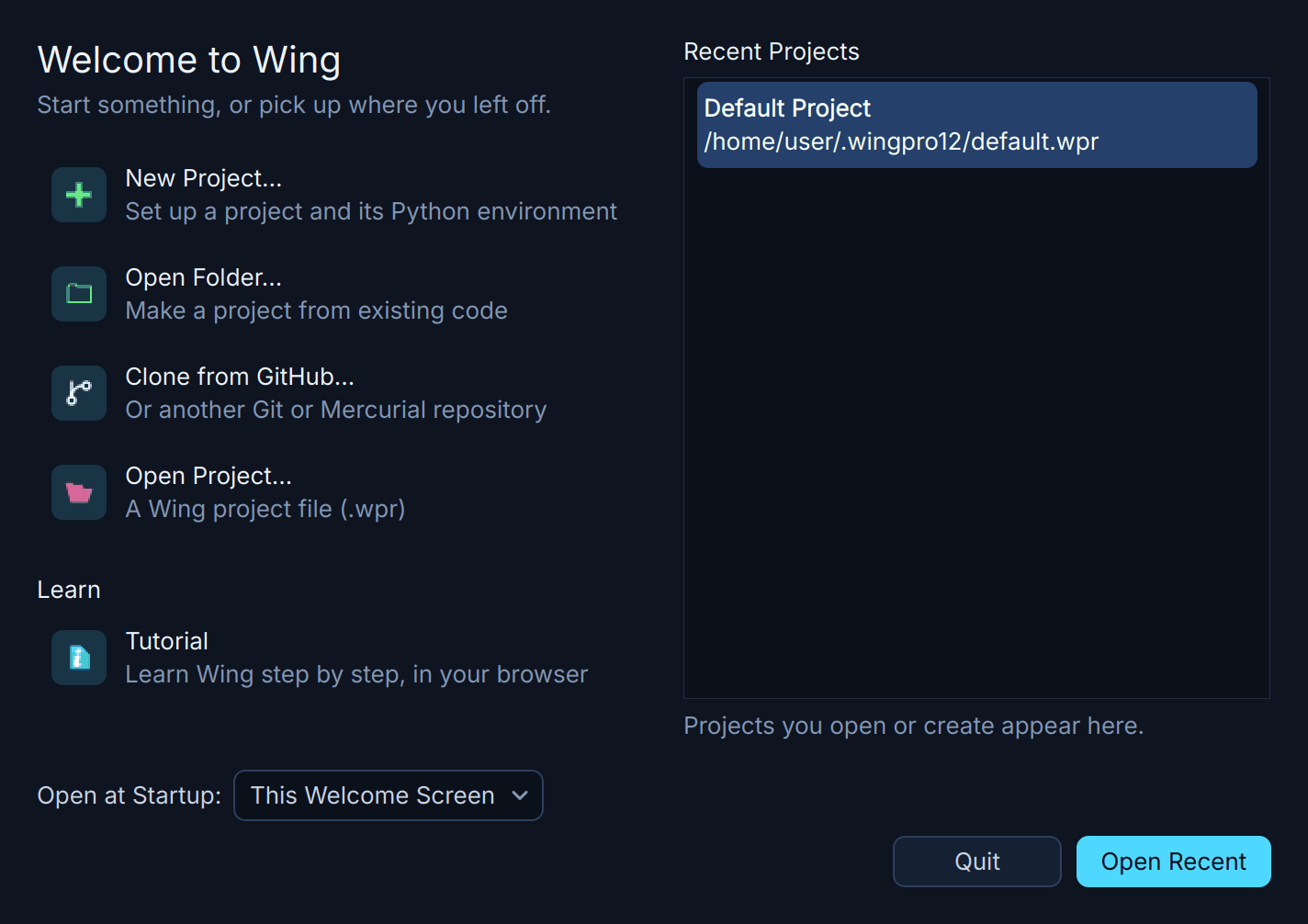
Shown above: The Welcome to Wing window, shown at startup.
Once the project is created and Wing's window opens, Wing starts your free trial of Wing Pro automatically. No sign-up is needed, and by using Wing you agree to its license. If Wing doesn't find a supported version of Python, it offers to install one.
Wing checks for updates the first time you start a new version and while you are running a beta, and offers to install any it finds, restarting once the update is installed. We are releasing frequent updates during the beta, so please install them when they are offered. You can also check at any time with Check for Updates in Wing's Help menu.
(4) Create a new project with New Project... in the Welcome to Wing window, or later with New Project in the Project menu. To start from scratch, choose New directory at the top of the dialog and enter a Name for it. Under AI Agent, choose your agent in Set Up for AI Agent. Under Python, the default is a new virtualenv in the project's .venv directory, but you can choose another environment manager such as uv, Poetry, pipenv, or Conda Env, or use an existing environment or Python. Under Version control, leave Create a Git repository checked so that Wing sets up revision control for you. To put the project on GitHub, also check Publish to GitHub, which signs you in to GitHub if needed. Then click Create Project. Wing shows each step of creating the project as a checklist, and you can click Retry if a step fails.
If you instead choose Existing directory and it isn't already under revision control, you can ask your agent to set up a repository for it once the project is created. Clone repository clones from GitHub or another git or Mercurial repository.
Setting up the project for an agent turns on the Tasks Manager and lets it commit autonomously. To change those choices, click All Options at the bottom left of the dialog and look under AI Agent for Autonomous Tasks Manager and Autonomous Commits. Wing also writes guides that tell agents how to work with Wing and your project into a .wing directory and a new section of AGENTS.md.
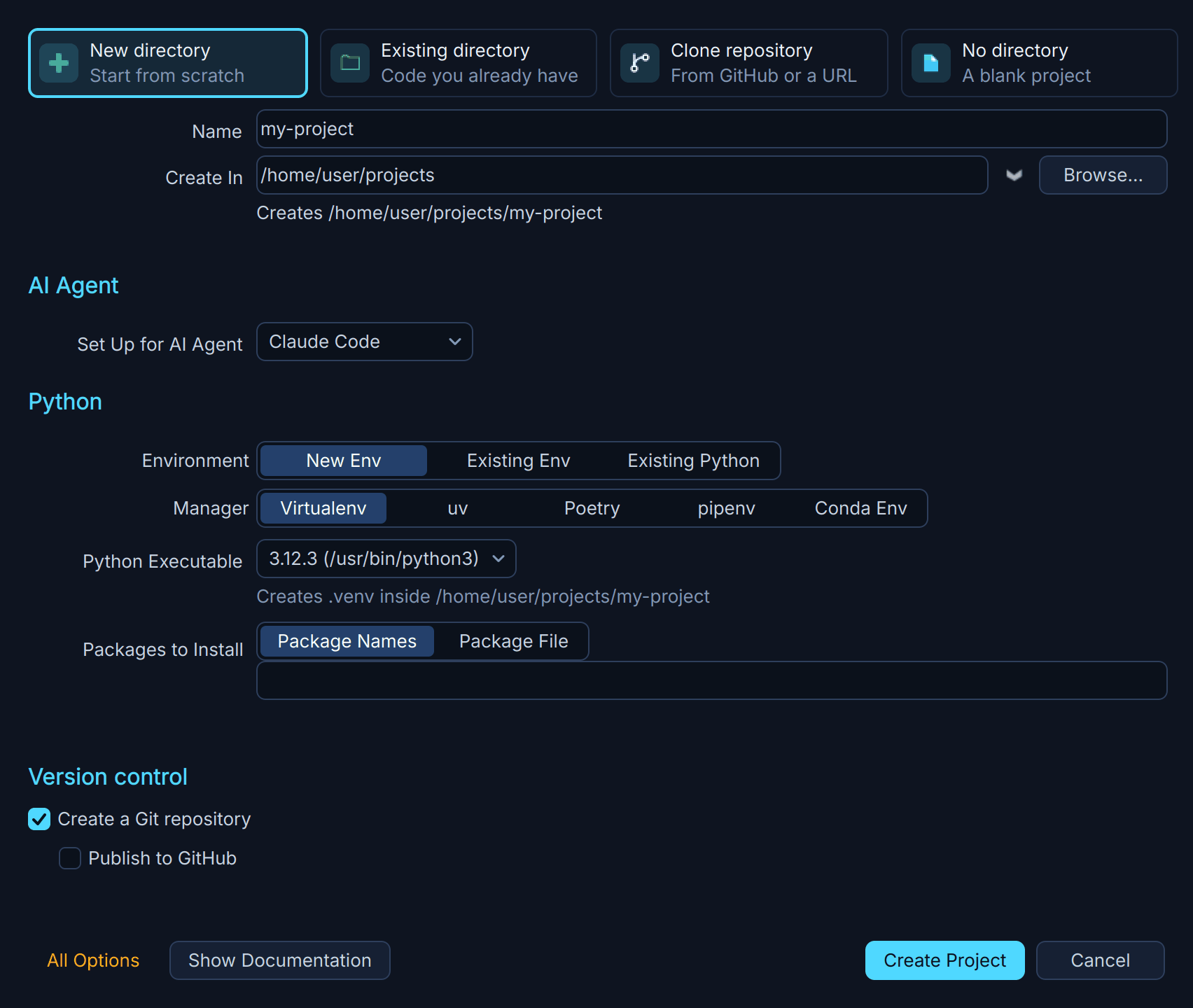
Shown above: Setting up a new project for an AI agent in the New Project dialog's Simple view.
(5) Check the Tasks Manager's settings. The Tasks Manager's bar is at the top of the Execute tab of the Tasks tool. To review or change its settings, click the settings icon rightmost in that bar. This lets you control task scheduling, agent permissions, and whether code is automatically committed.
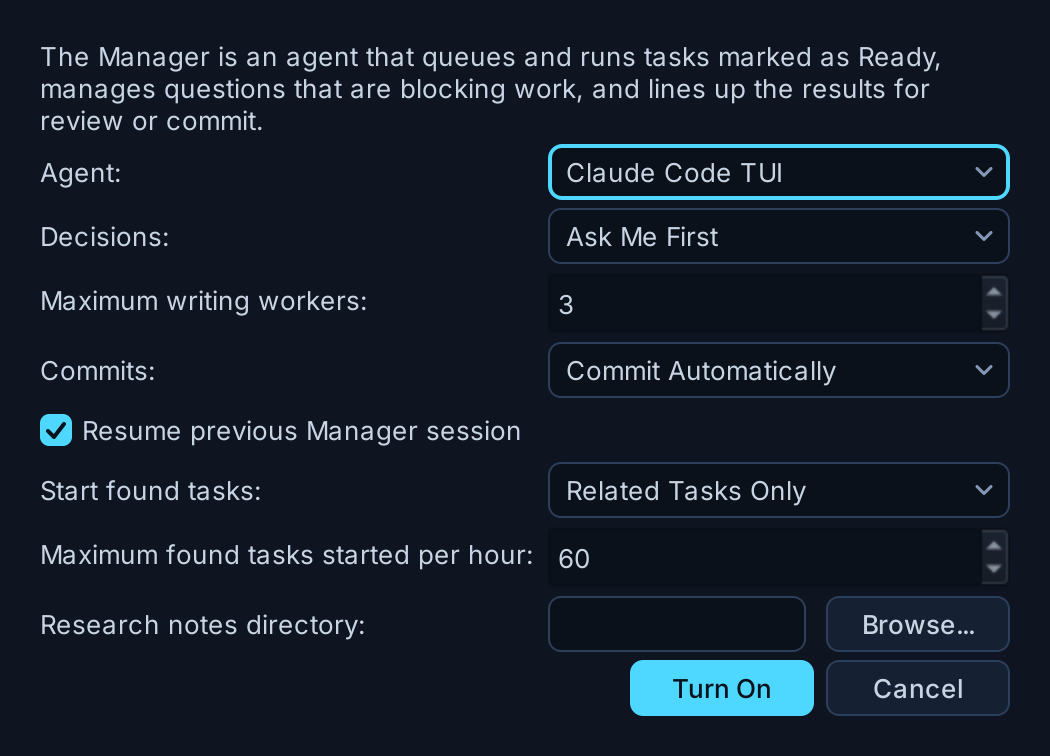
Shown above: The Tasks Manager's settings.
The default settings should be OK to get started with. Note that turning off automatic commits here on the Commits tab prevents your work from progressing autonomously for longer periods of time, since you will be asked to review and commit work as it progresses. It's best to leave that enabled. You will still be able to look over every committed task on the Review tab, and can request any changes that you want.
(6) Write a specification or tasks. On the Plan tab of the Tasks tool, add one or more tasks and mark them Ready. A task can be anything from a bug report to a high-level specification for a whole new application. Specifications should describe the purpose and key features, and any technical constraints that matter from the start, but they don't need to be detailed. It's fine if you are unsure about some aspects of the work or don't understand how it will function or be packaged. If you focus on what the code should do, the Manager will research and flesh out the plan, ask you questions along the way, and then create the development strategy and write out tasks on the Plan tab, ready to be executed. This works for an empty project as well as an existing one. See Usage Tips below for help on getting good results.
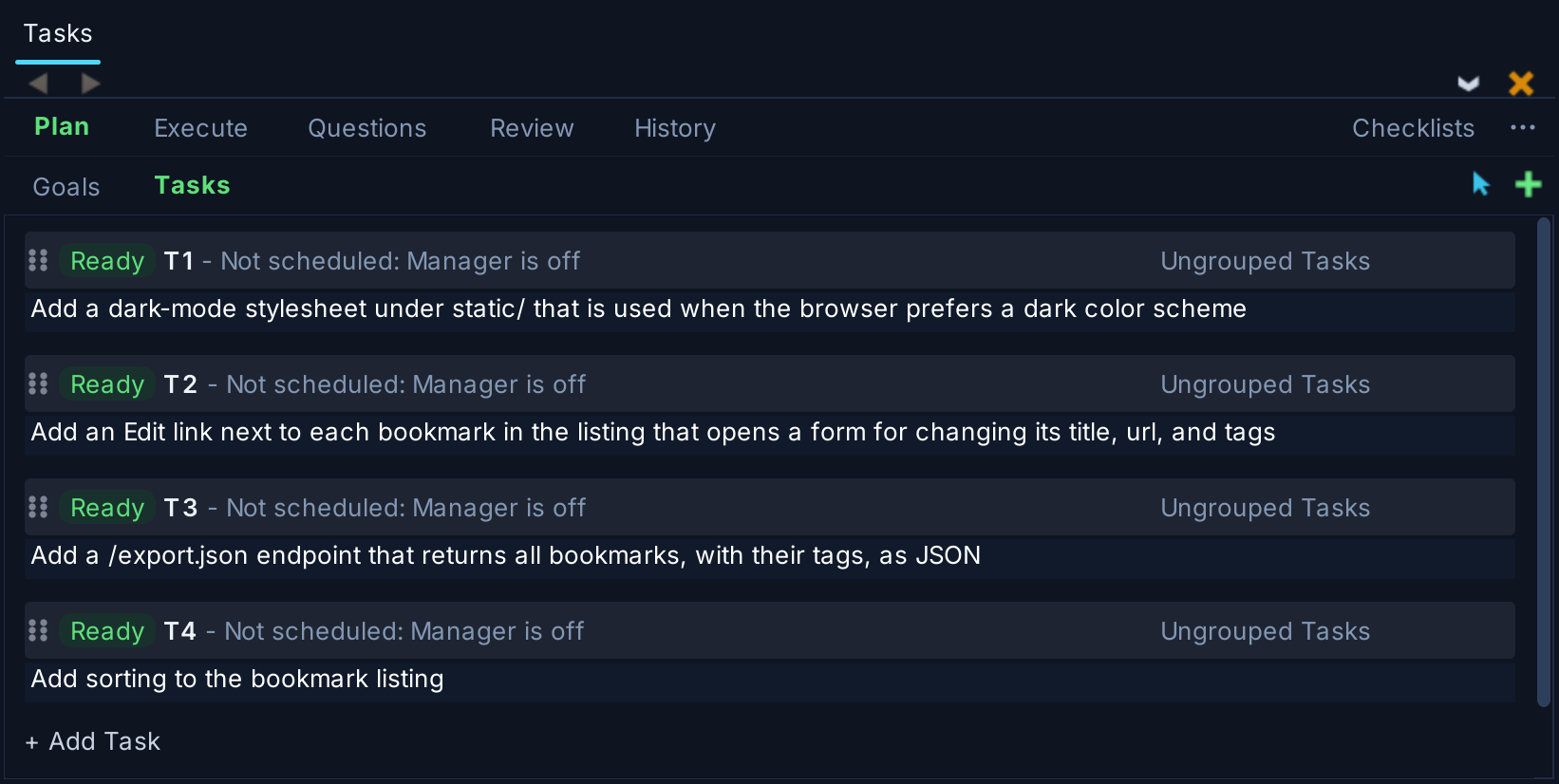
Shown above: Tasks on the Plan tab, marked Ready.
The Manager starts running tasks as soon as you mark them Ready by clicking on their Draft buttons. You can watch its progress from the Execute tab of the Tasks tool. Click on a queue's name on the Queues view to see a task's session in action in the AI Agent tool. The Up Next view focuses on what each queue is running and will run next, regardless of whether tasks are already queued or still waiting in the Plan area.
Problems that agents notice along the way, and follow-up tasks the Manager proposes, are added as drafts to the Incoming view on the Plan tab. Closely related work is run right away, while other tasks are left as Draft. From here you can review, edit, and make Ready the ones you want done, or dismiss those that you don't want.
(7) Answer questions. The Manager uses the Questions tab to ask about any issues that are holding up agent decision-making and progress. The Manager may in some cases answer questions on its own, if its research finds an answer. Other tasks may be started to run while the Manager is waiting for your response.
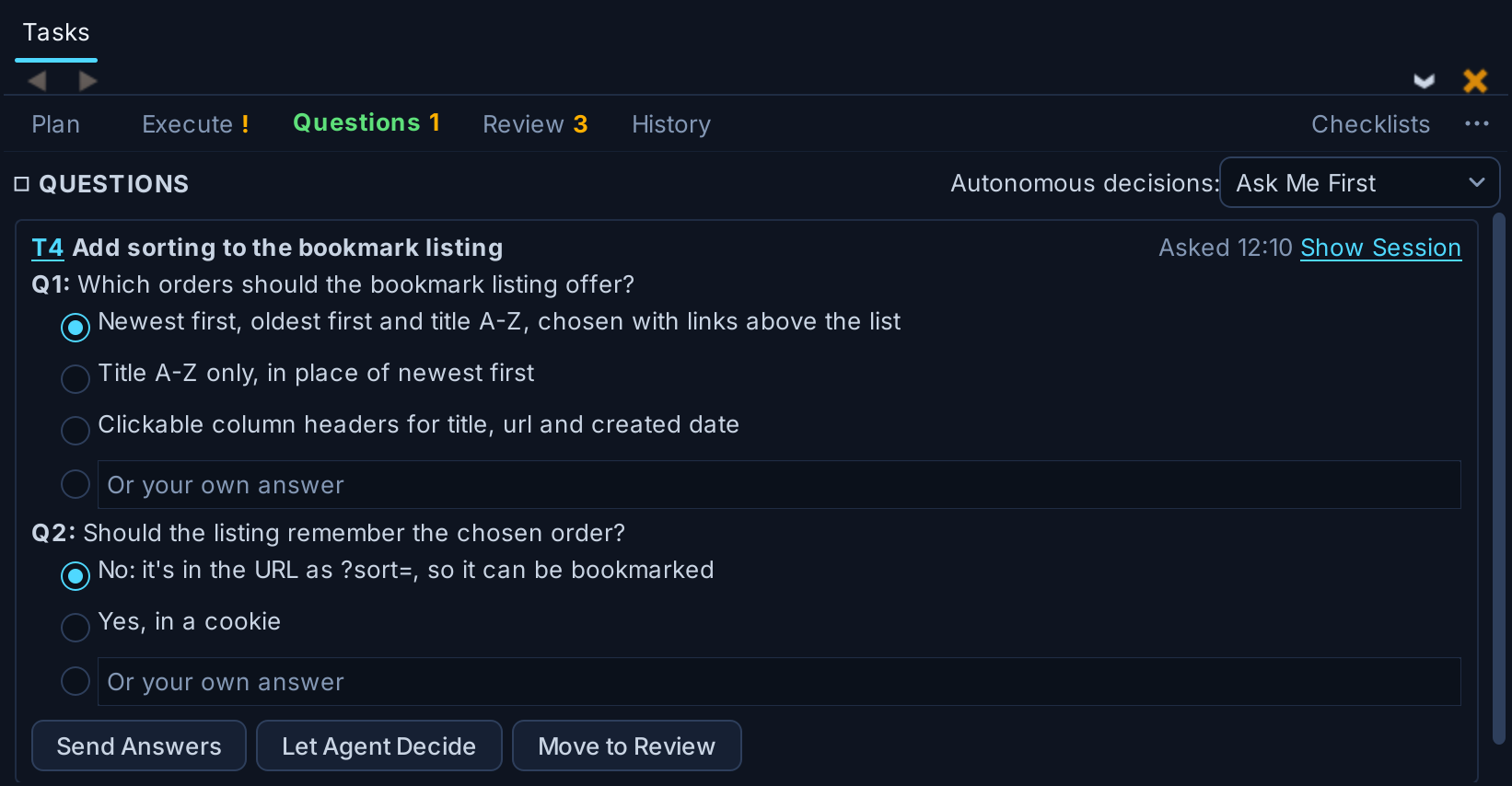
Shown above: A question from a worker, waiting on the Questions tab.
You can also talk to the Manager directly from the Execute tab of the Tasks tool or in its session, to ask about task status, tell it about your preferred development workflow, or give it instructions such as "work autonomously but ask me first about anything that changes a file format." It can remember your instructions either in local memory or project-wide in files that will be committed and shared by other developers. To tell a task that is already running something new, click Send Note on its entry in the Execute tab.
(8) Review finished work. Finished tasks move from the Execute tab to the Review tab. Each task reports a summary of the decisions and changes it made, and you can reject or revisit each one. If you are committing work yourself, you can do that from here with Start Review to view and comment on code-level changes, or Commit to commit without detailed review. If the Manager committed autonomously, you can still read its report here and use Revise to ask for changes to any of its listed decisions or the task as a whole. Comments you add while reviewing code are addressed by the Manager or an agent. Research and planning tasks offer Read Report or Read Plan and Make Tasks, which turns a proposed plan into tasks on the Plan tab.
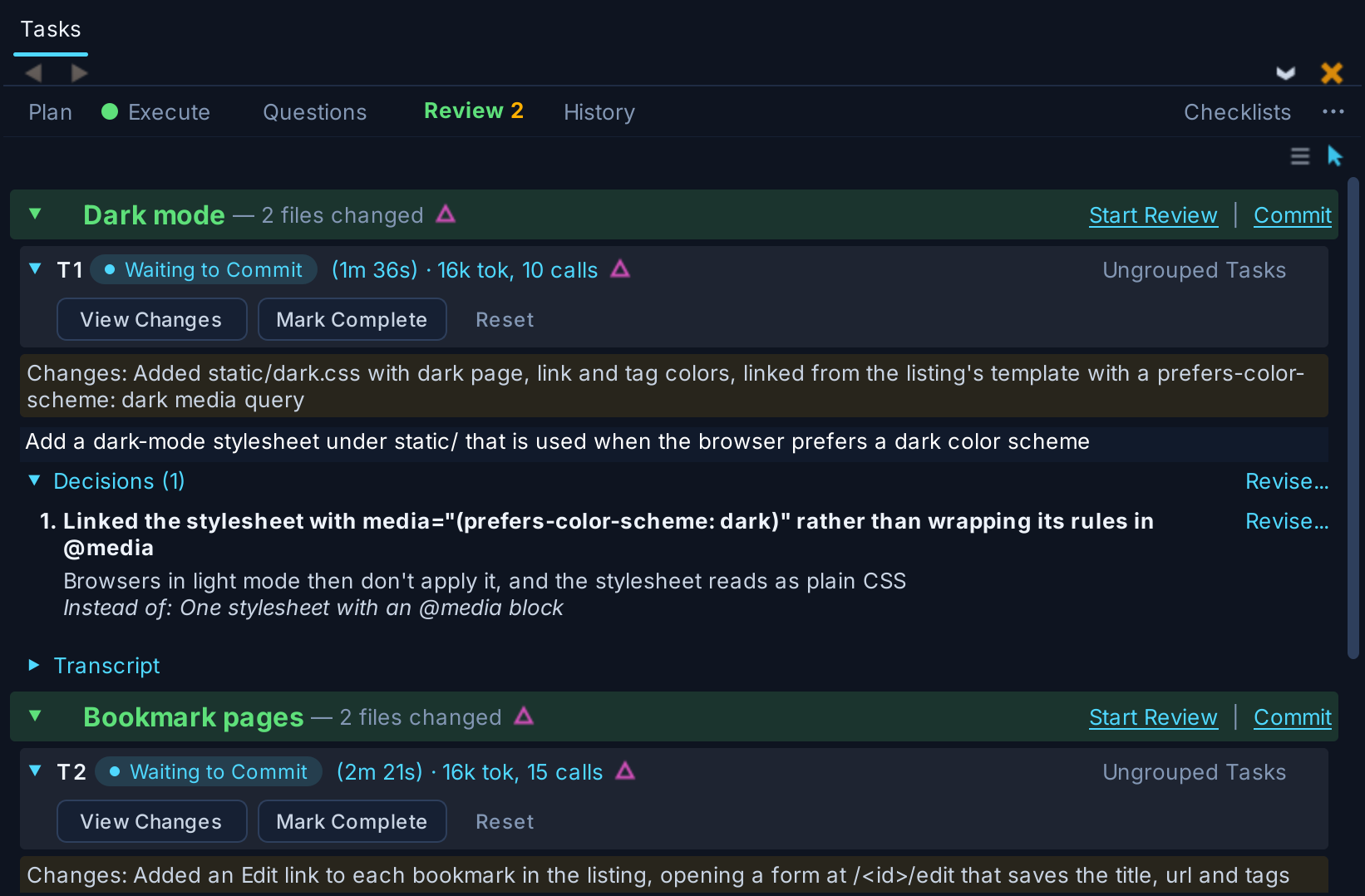
Shown above: A finished task's report on the Review tab, in this case with auto-commit disabled.
Moving to Autonomous Development
Whether you start right away using the autonomous development mode in Wing Pro 12.1 is up to you. If you are unfamiliar with agentic development, you may prefer to start with a single agent and review every change at the code level. Your comfort with this will change over time. Once you see that agents write and run tests reliably for your project, you may find yourself reading task completion reports and committing without looking at the code. That may be the right time to move on to autonomous development, shifting your focus from individual agents and their output to specifying tasks, answering questions, and reading completion summaries. At this point you will rarely if ever look at the code itself.
Usage Tips
There are some things to know about, for a smoother autonomous development experience and better results:
- Treat the Manager like a human development team by focusing on what you need, not how to implement it. If something about the development process is clunky, or you can't figure out how to get started using Wing Pro with your existing process, or you aren't happy with some aspect of your application but don't know what to do, just ask the agent for help. It can investigate and solve just about any problem with a high level of competence, accuracy, and quality.
- Enable agents to see your application by running your code the same way an end user would, so they have access to the real user experience. Ask the Manager to set this up for you early in your development. It can figure out how to do it for your application and toolkit. If you're developing a GUI, also ask that test windows be shown offscreen, so you can continue to work even while agents are running tests.
- Schedule review passes at key points using separate tasks that look for security flaws, data loss bugs, gaps in test coverage, missing functionality, compatibility problems between versions, or anything else that is important to you. Each one can turn up issues that become new tasks that agents will automatically fix.
- Commit automatically on a separate branch. If you let the Manager commit on its own, development can go on for long periods of time without your involvement. Putting that work on a separate branch lets you apply deeper reviews to it before you merge it back into your main branch. Using Checklists in the Tasks tool is one way to set up recurring automated reviews.
- Describe your development workflow and policies on the AI Agent tab in Project Properties from the Project menu, in the Settings accessed with the rightmost icon in the Manager area of the Tasks tool's Execute tab, and by talking directly to the Manager on the Execute tab of the Tasks tool or in the Manager's session in the AI Agent tool. To share policies with other developers, ask it to write them to AGENTS.md. Otherwise ask it to write a local memory. The Manager will learn over time and work will proceed more and more smoothly.
- Use the application yourself, as much as you can, and add tasks for the bugs and improvements you find. This adds to the agents' own testing, especially for how the application feels to real human users.
The common thread in all this is to build tests and cross-checks into your process, and to give agents the means to see the results of their own work so they can auto-correct any problems. In autonomous development, the work is done by many agents, each checking and building on the work of others.
Limitations
AI agents are not yet supported for projects that run Python in a container or cluster. Please let us know if this is an issue for you.
Further Reading
The Wing 12.1 documentation is currently available only from Wing's Help menu. See the AI Agent-Assisted Development chapter, especially AI Agent Safety, The Tasks Manager Agent, and Using AI Agents Effectively, for setup instructions for each type of agent and a full description of the autonomous Tasks Manager.
This is a beta release. Please try it and email us if you find problems, have suggestions, or have any questions.