 Wingware
Tutorial: The Autonomous Tasks Manager

In the previous part of the tutorial you drafted three tasks. Now we'll have the Tasks Manager run them. The Manager is an agent that schedules and oversees the work of other agents. We strongly recommend using it for everyday work, because:
- It works out which tasks can run concurrently and which can't, by reading the tasks and the code they touch.
- Tasks run autonomously and end with a report, and all their questions are collected on the Questions tab in the Tasks tool. There is far less to read through and respond to than when you watch each agent session yourself.
- Problems that agents notice along the way are added to the Plan tab as draft tasks, so you can review and queue them later instead of losing track of them.
- You can talk to the Manager. It acts as a mentor: it can explain what is going on, and explain or fix any workflow issues that come up.
The Manager never edits files itself. It schedules the work onto ordinary queues, which you can watch and review just as before.
Checking the Manager's Settings
Set Up for AI Agent in the New Project dialog turned the Manager on when you created your project. Before giving it any work, let's look at its settings. Click on the Execute tab of the Tasks tool. The Manager's bar is at the top of the tab. Click the settings icon at the right of the bar to see its settings:

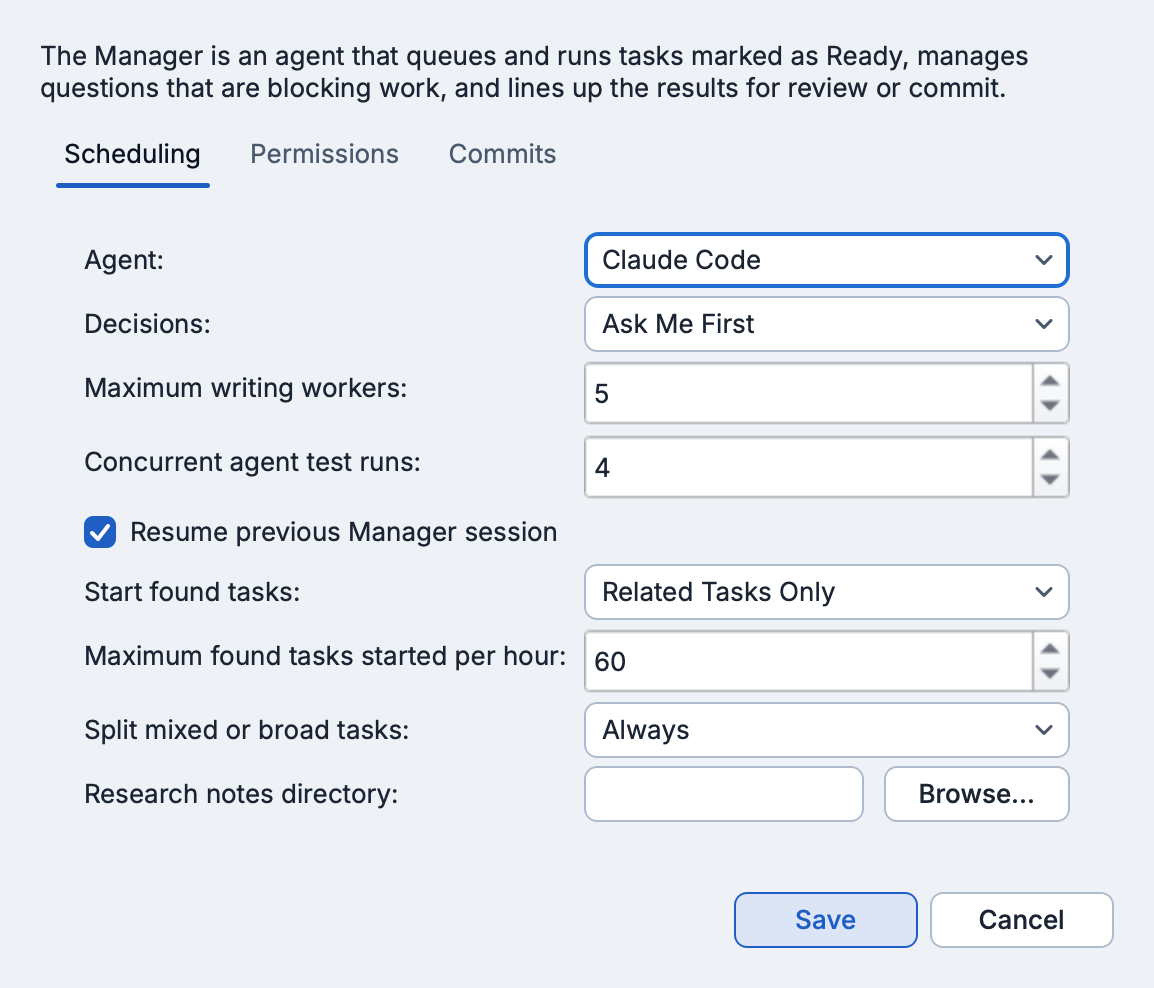
- Agent is the agent that runs the Manager. Leave it set to the agent you've been using. However, note that not all AI agents are well suited to run the Manager. See the table in AI Agent Safety for details.
- Decisions is how tasks handle decisions they would otherwise stop to ask about. For this tutorial choose Ask Me First, so you'll see questions arrive. In day-to-day use, Decide and Report is often better: the agents make the call, and every decision is listed on the Review tab so you can object to it.
- Maximum writing workers is the most tasks that may change files at the same time. All the work shares one working copy, so the Manager treats it as a ceiling, not a target, and runs writers side by side only when their tasks touch different files. The default is five.
- Commits, on the Commits tab, should be Review/Commit Manually for now, so you review the results before anything is committed.
Leave the remaining settings as they are, and press Save.
If you unchecked Autonomous Tasks Manager under All Options when you created the project, the Manager's area on the Execute tab shows that it is off instead of showing its bar. Press Turn On there, choose the settings above, and press Turn On at the bottom of the dialog.
The bar shows what the Manager is doing, how many workers are running, how many tasks are ready, and how many items are waiting for you. The Manager's own session is in the AI Agent tool.
Marking Tasks Ready
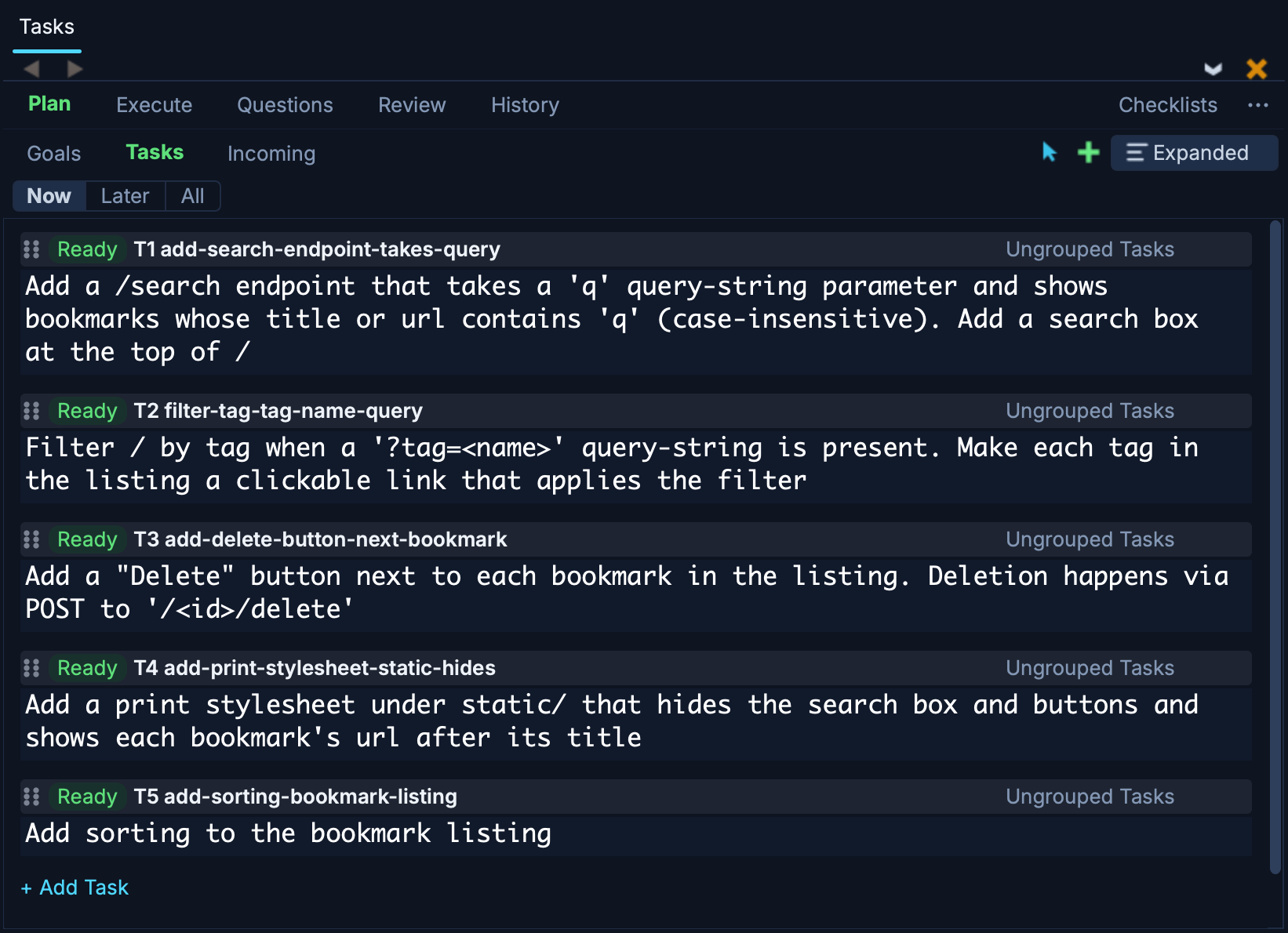
On the Plan > Tasks tab of the Tasks tool, add two more tasks:
- Add a print stylesheet under static/ that hides the search box and buttons and shows each bookmark's url after its title
- Add sorting to the bookmark listing
The last one is deliberately vague, so we'll get a question from the agent that works on it.
When a task is ready to run, click its Draft pill to change it to Ready. Do that now for all five tasks.

Watching the Manager Work
The Manager looks at your Ready tasks and decides where and when to run each. It creates worker queues as needed on the Execute tab, named for the work they do, and starts them. It writes a short note on its bar and on waiting tasks explaining what it decided -- for example that one task is held until another finishes, because both change app.py.
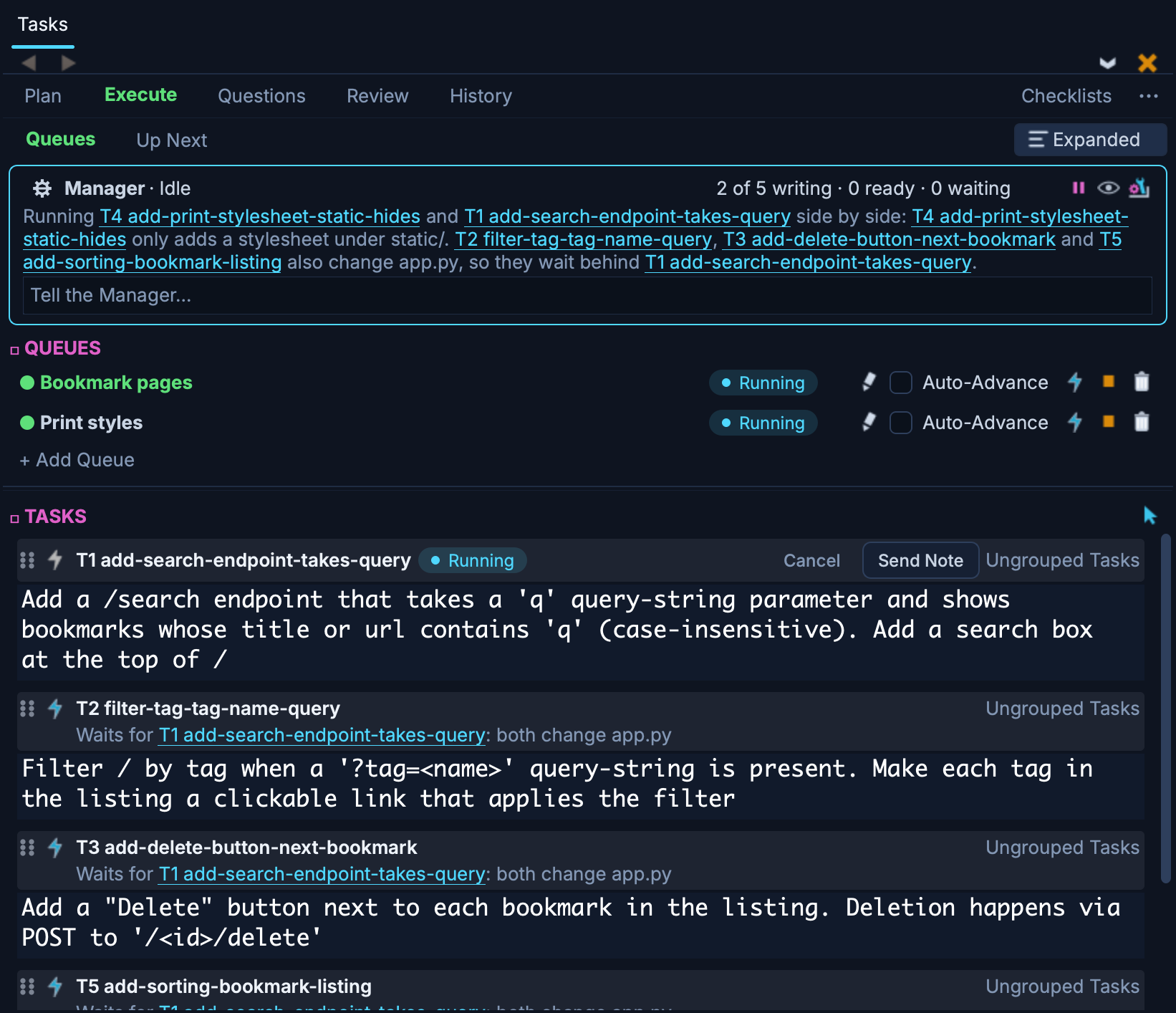

The Queues view shows the tasks of one queue at a time. Click Up Next below the Execute tab to see what runs next in every queue, with the tasks the Manager queued in the last 15 minutes pointed out.
Notice the short label, such as T3, at the right of each task's row. The Manager and the agents use these labels to refer to tasks, and a task named in the Tasks tool, as in "task T3 (6d810aca)", is a link to that task. You can use the labels too when you talk to the Manager or any worker agent.
You don't need to do anything while this happens, but you can ask the Manager about it. Type into the Tell the Manager... field on its bar:
Why did you order the tasks this way?
The Manager answers in its session in the AI Agent tool, which you can bring up with the Show button on its bar. You can also give it instructions there or in the Tell the Manager... field, such as run the search task before the others.
Answering Questions
When the agent working on the sorting task gets to the point of deciding how to sort, it stops and asks. The question appears on the Questions tab, with an orange count on the tab. Click on the tab to see it.
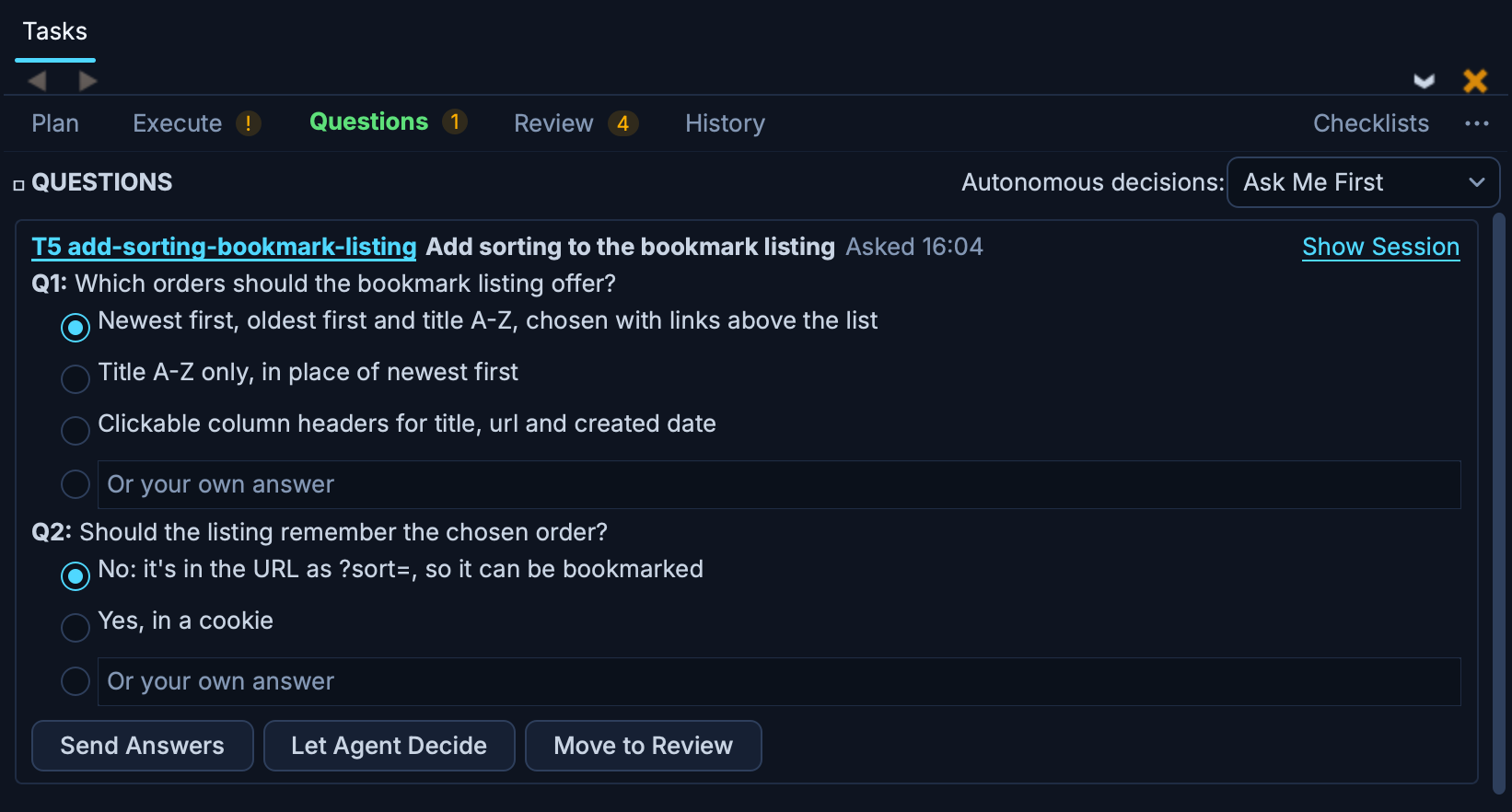
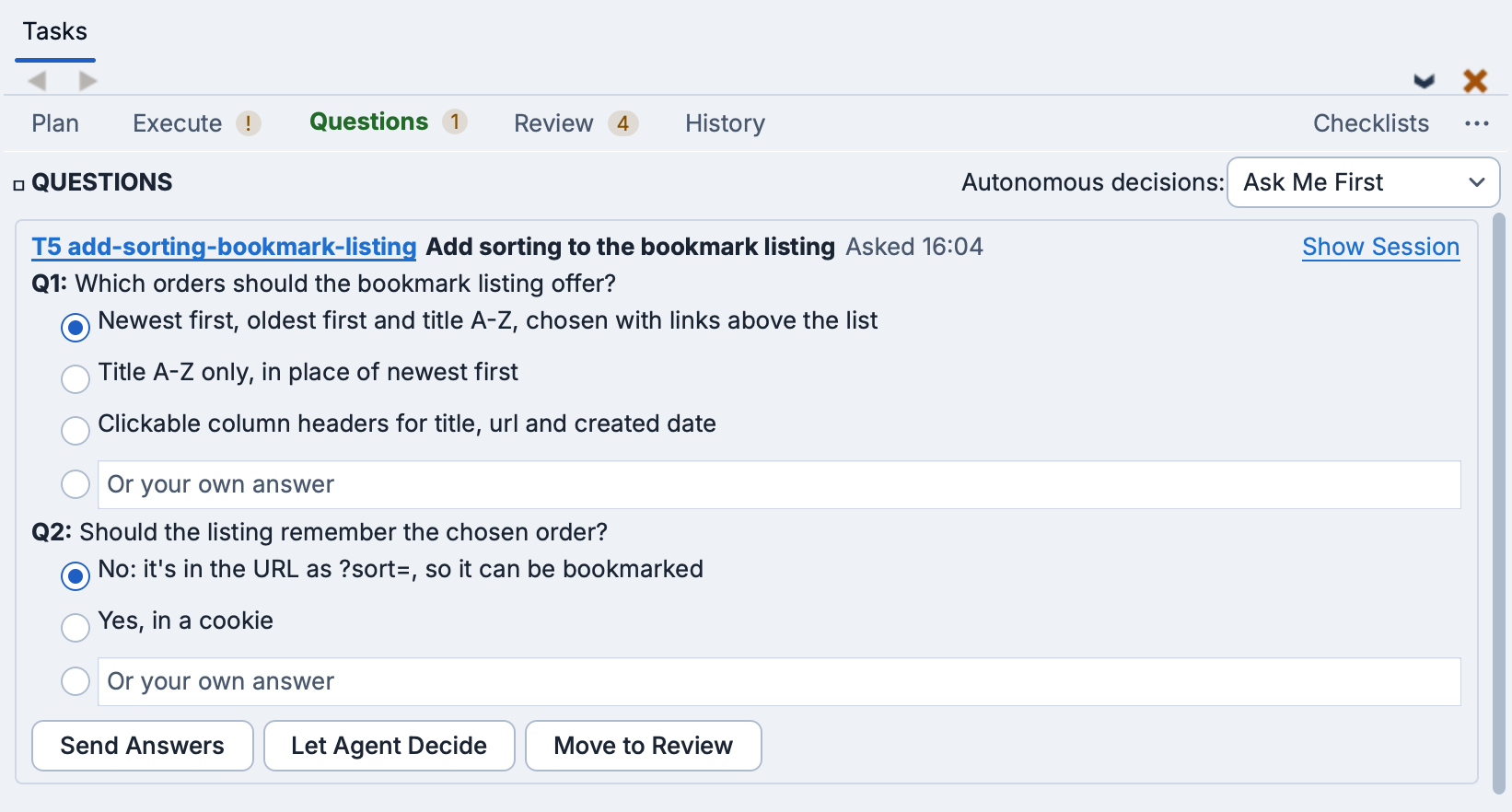
Each item on the Questions tab stands on its own: it shows the task, what the agent has found so far, and each question with the options the agent suggests. Choose an option, type your own answer, or click Let Agent Decide, and then click Send Answers. The task picks up where it left off, and the Manager goes on scheduling the rest.
Everything else that is waiting on you shows up here too, from every queue: questions from the Manager itself, requests for permission to use a tool, and tasks that stopped with a message. You no longer need to look through each agent's session to find out what it needs.
Found Problems
While working on a task, an agent may notice a real problem elsewhere in the code -- for example a missing check or a broken link. Instead of fixing it without telling you, or forgetting about it, the agent files it as a new Draft task on the Plan tab, in the Bug Fixes goal for a bug to fix or else in the Found goal, and an orange count appears on the Plan tab.
If this happens in your project, look at the found task in the Plan tab's Incoming view, which lists what agents have filed that you haven't looked at yet. Research This asks an agent to look into the cause and propose a fix without changing any code, and Dismiss deletes it. When it's worth doing, mark it Ready and the Manager will schedule it.
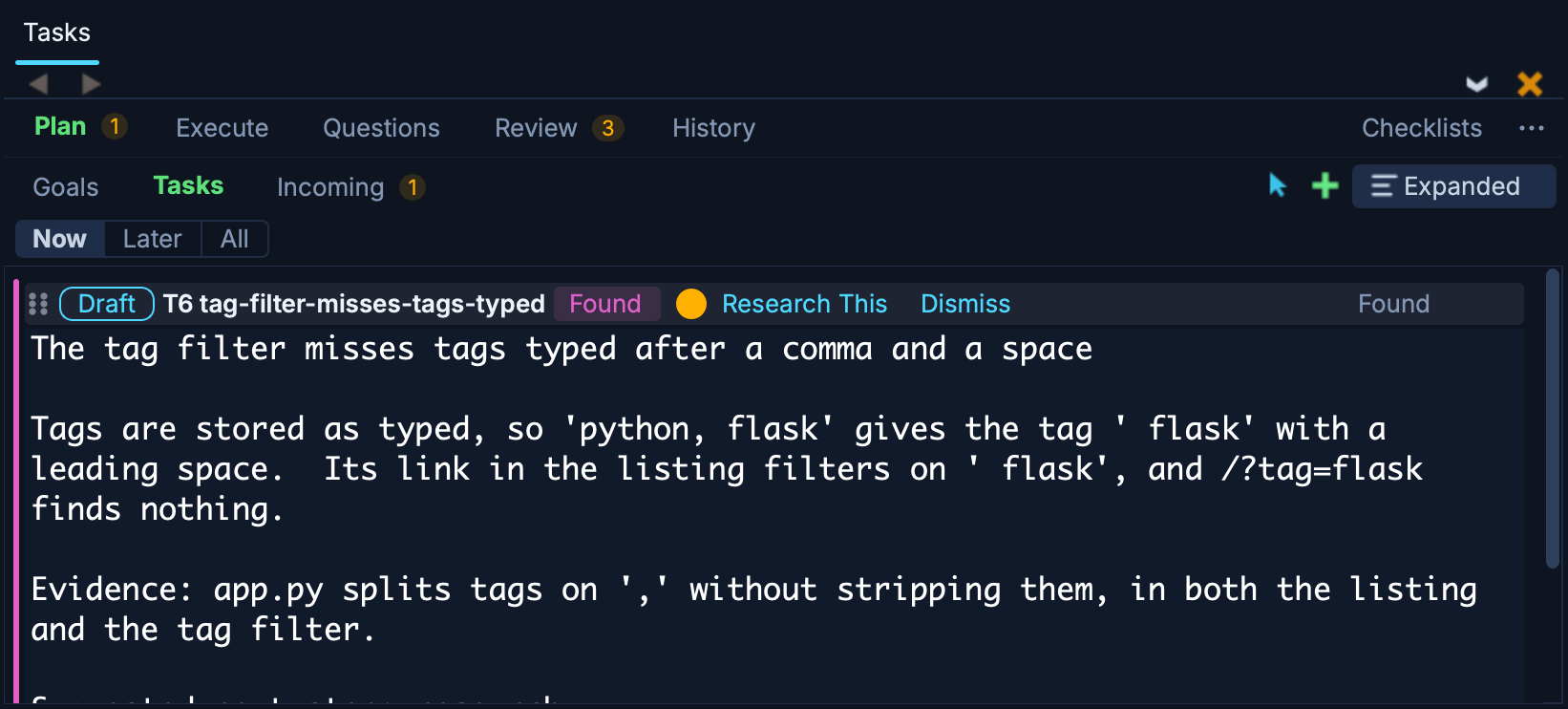
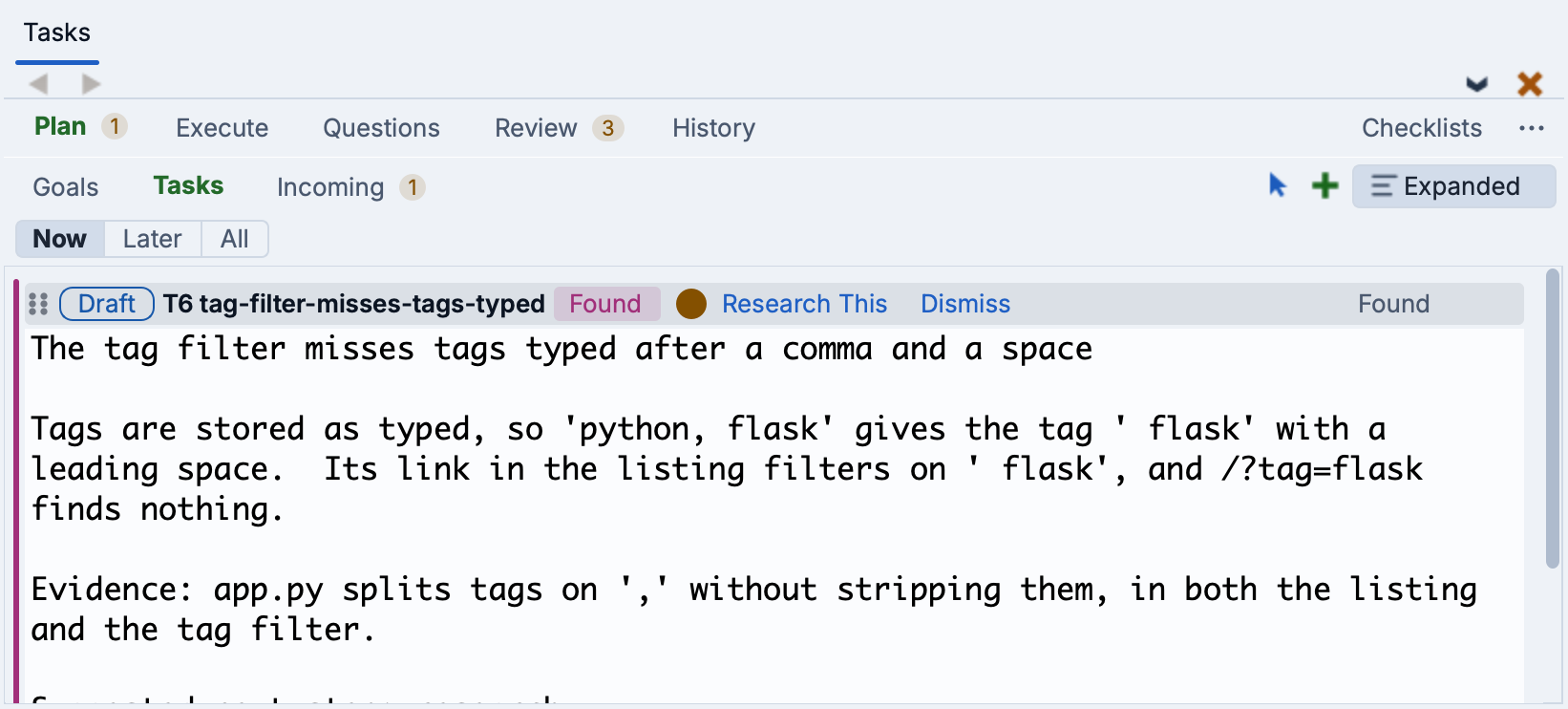
The Manager may also mark a found task Ready itself, so it will be fixed right away. Which found tasks it may start is set with Start found tasks in the Manager's settings: never, only those that repair or finish the work of a task you ran, any it judges you would want, or as you describe in your own words. Everything else stays a Draft until you decide.
Every change the Manager makes to your tasks, like this one, is listed under Decisions on its bar, where you can revert any of them.
Reviewing the Results
As tasks finish, they arrive on the Review tab as before. Each one now also shows its report: what the agent did and the judgement calls it made along the way. Read these, then review and commit the work as you did in Reviewing and Committing.
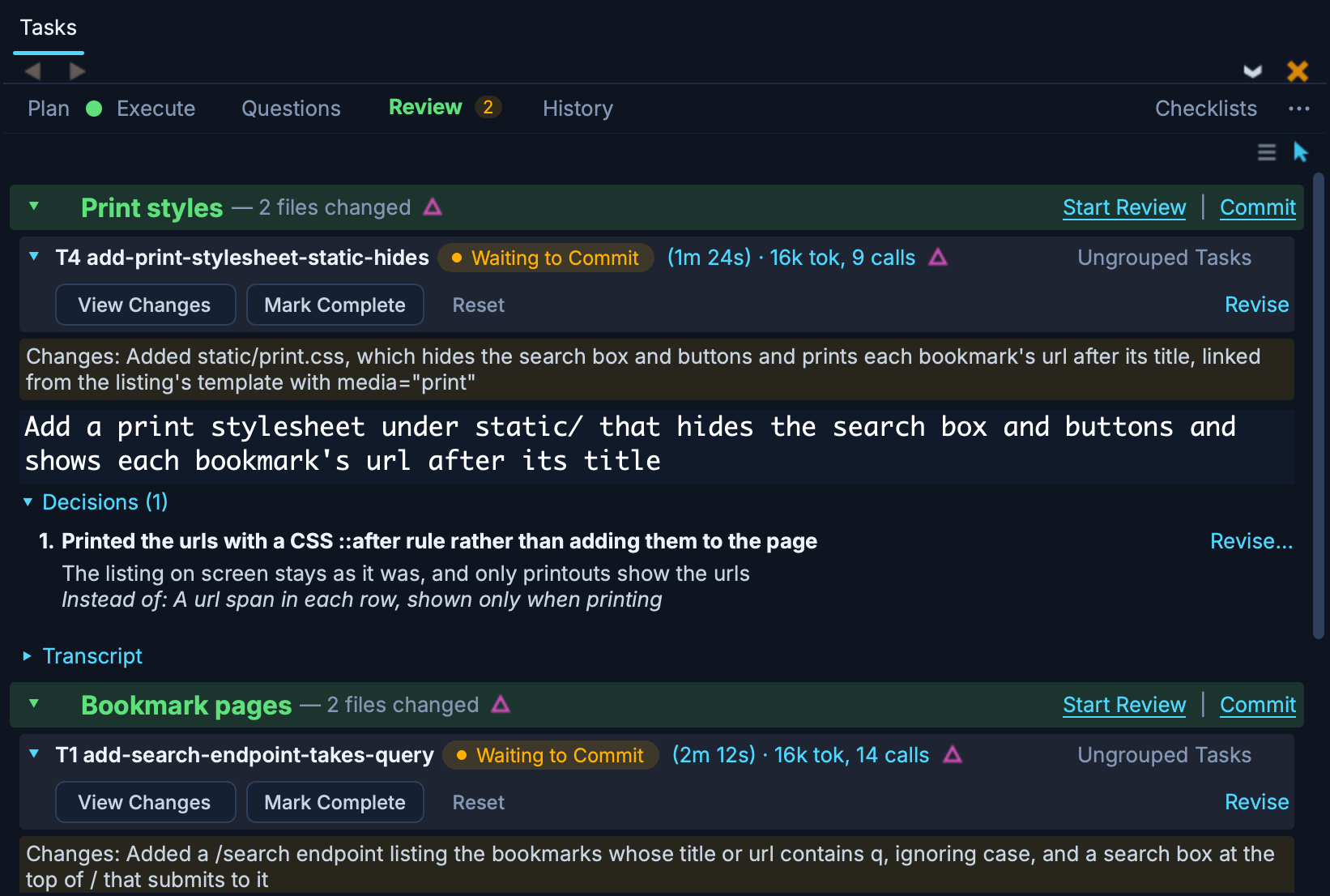
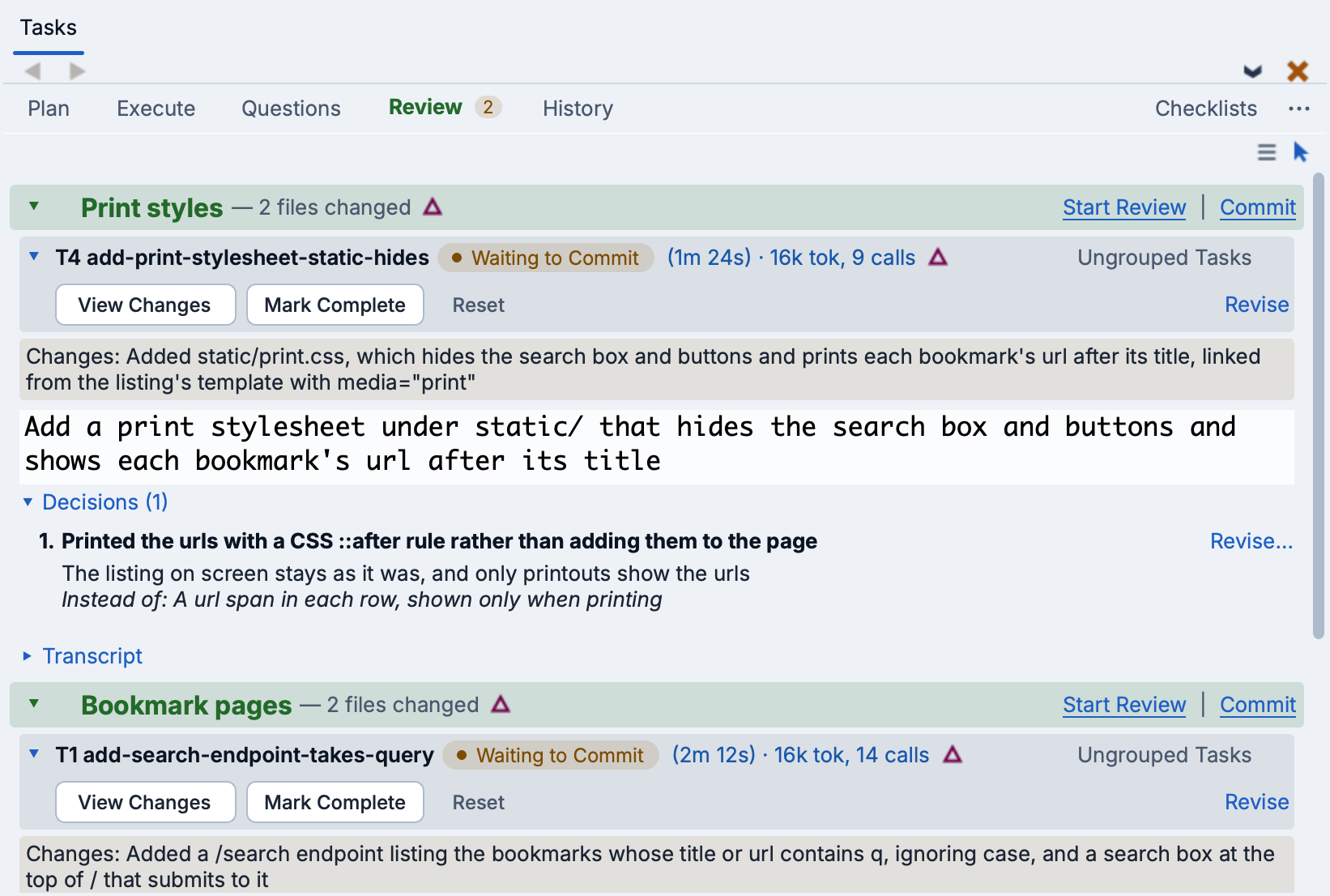
When all five tasks are done, reload http://localhost:5050/ in your browser to see the results.
Pausing and Turning Off
The pause icon on the Manager's bar holds new work: the tasks already running finish and the Manager still commits them, but nothing new starts until you click it again. Use this before restarting Wing.
The cog to the left of Manager pauses the Manager itself, so it stops scheduling and committing until you click the cog again. The Manager also pauses if you interrupt it with Esc in its session. A Manager that was running when you quit Wing starts again by itself the next time you open the project.
To stop using the Manager, uncheck Use Tasks Manager Agent in the Options menu. You can go on queueing tasks by hand at any time, even while the Manager is on: right-click on a task on the Plan tab and select one of your own queues from its Queue submenu. A task you put in a queue yourself stays there.
See The Tasks Manager Agent for the full details.