 Wingware
Planning Goals and Tasks
 Pro Only
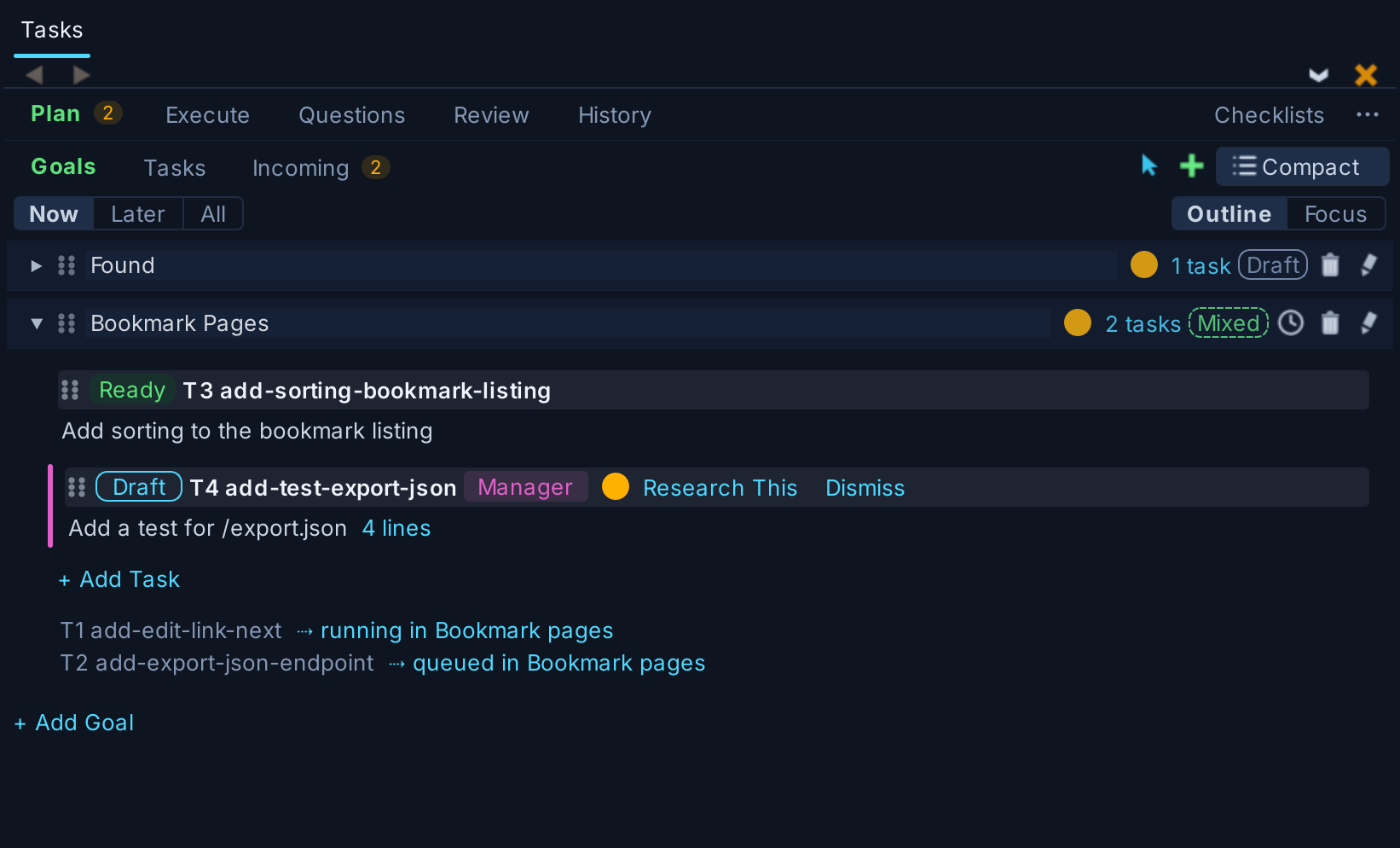
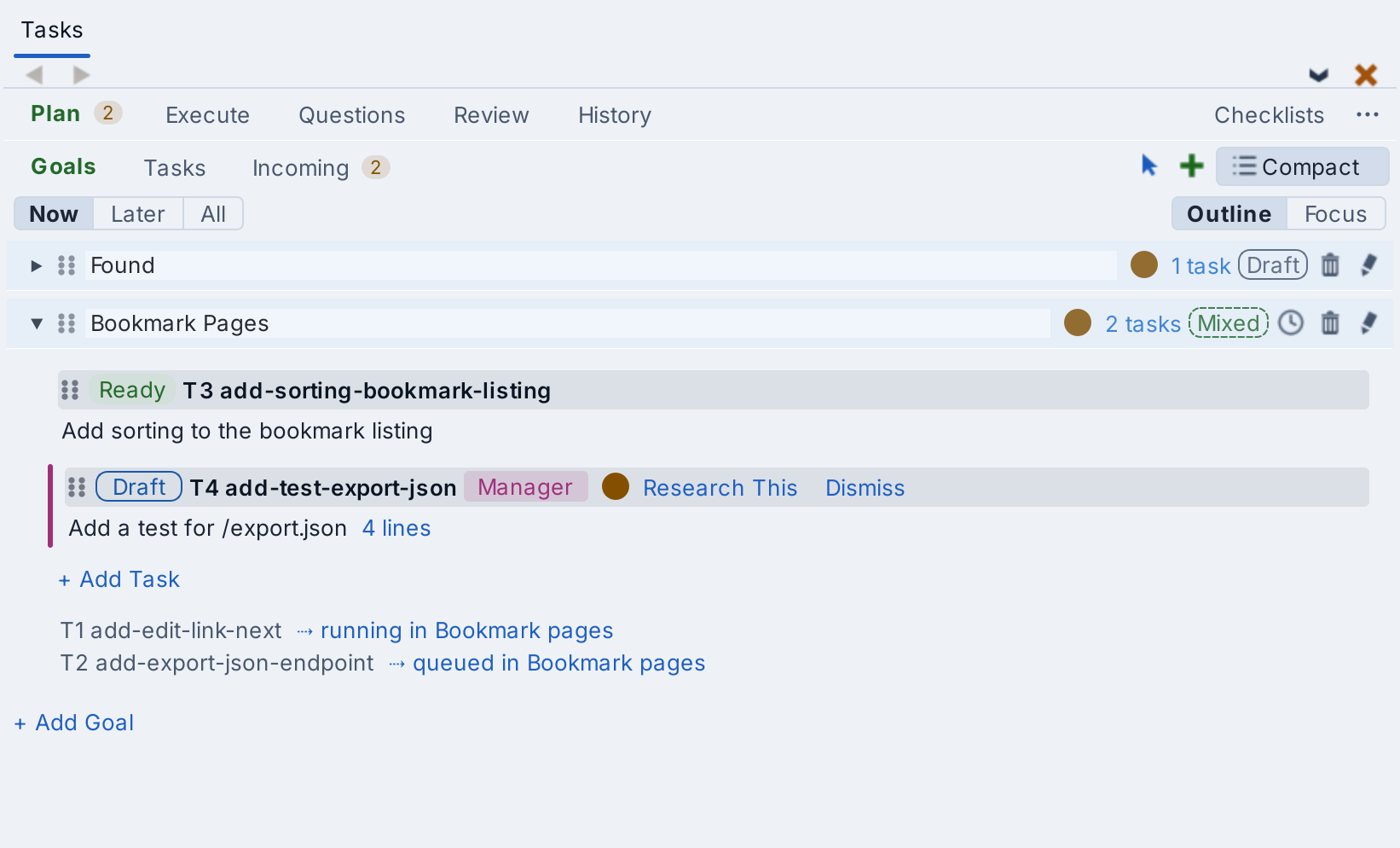
The Plan tab of the Tasks tool holds the tasks that are not yet queued, grouped into goals. It has three views, chosen at the left of the line below the tabs:
- Goals -- Each goal is a section that opens to show its tasks.
- Tasks -- One list of the tasks in all goals.
- Incoming -- The tasks that agents filed and you have not looked at yet, described below.
Goals are optional. Use them and the Goals view to organize a lot of work, or use only the Tasks view.
Adding Tasks
To add a task, press the + button at the top right of the view and type the task's text, which is what the agent is sent when the task runs. Enter inserts a newline. Shift+Enter saves the task and starts another, and clicking elsewhere saves it. A task left with no text is removed.
Ready and Draft
Each pending task has a Ready / Draft pill. A task you type starts as a Draft, so nothing runs it while it is half written. Click the pill to mark it Ready when you are done. Editing the text of a Ready task on the Plan tab makes it a Draft again. A goal's pill shows whether its pending tasks are Ready, Draft, or mixed, and clicking it sets all of them at once.
While the Tasks Manager is running, it picks up Ready tasks as they appear and schedules them. It never runs a Draft, except for found tasks as set by Start found tasks in Tasks Manager Settings. Tasks the Manager proposes itself also arrive as Draft unless you asked for them.
The Manager fills its queues only a task or two ahead, so Ready tasks may wait on the Plan tab for a while. Each shows a short note from the Manager saying when it will run, such as "Next on Test discovery" or "Held: overlaps task T7", or Seen by Manager when the Manager will queue it once it fits. Before a task starts, the Manager may add a dated note to the end of its text with context the agent will need.
While the Manager is off, nothing runs a task because it is Ready, and the pill is only a note to yourself. See Running Tasks Without the Manager.
Where Tasks Came From
A chip on a task's row on the Plan and Execute tabs says where the task came from when you did not write it: Found for a problem an agent found, Manager for a task the Tasks Manager proposed, Fix for a fix or follow-up you filed from elsewhere in Wing, and Check for a step of a checklist run. A task the Manager filed because you asked it to shows via Manager in an outlined chip. Tasks that agents found or proposed also have a colored bar down the left edge of their row. Click the chip to show the agent session that filed the task.
Problems that agents find outside the task they are working on are filed as Draft tasks in the Found goal, with an orange count of new ones on the Plan tab. See Found Problems.
An open goal ends with a line for each of its tasks that has gone to a queue, saying which queue and whether the task is running or waiting there. Click one to go to the task on the Execute tab.
Goals
To add a goal, press + Add Goal at the bottom of the Goals view, type a name in the New Goal dialog, and press Enter. The dialog can also make an inbox goal, which turns files dropped into a directory into tasks; see Inbox Goals. To change a goal's name or type later, right-click on its header and select Goal Properties.... This is not offered for the goals Wing files work into itself: Found, Bug Fixes, and Checklists.
Now, Later, and All, on the line below the views, choose which goals the Goals and Tasks views show. Now shows the goals you are working on, Later the goals set aside for later, and All every goal. Now is the default.
To set a goal aside, click the clock icon in its header, or select Move to Later from its header's context menu. Its Ready tasks become Draft tasks, as do tasks added to it later, and the Tasks Manager does not make them Ready. The goal's pill reads Later, and its clock shows a pause sign. To run one of its tasks anyway, click the task's Draft pill to make it Ready. To move the goal back, click its clock again or select Move to Now. Wing's own goals and inbox goals cannot be set aside.
When a move takes a goal out of the goals shown, a line in its place says where it went, with Go to Goal to show it there and Undo.
Outline and Focus, at the right of the same line, set how the Goals view opens goals. In Outline, the default, clicking on a goal opens or closes it alone. In Focus, opening a goal closes the others; Ctrl-click, or Command-click on macOS, opens or closes one goal without changing the others. Double-clicking on a goal switches to Focus on that goal.
Moving Tasks
Drag the grip handle at the left of a task or goal to reorder it. To move a task to another goal, drag it onto that goal, or into the goal when it is open. To drop it at a specific place in a closed goal, hover over the goal until it opens. To move a task into a goal set aside for later, first hover over Later or All until the goal is shown.
To move a task without dragging, right-click on it and select Move to Goal, or in the Tasks view click the goal name on its row. Both list your other goals and New Goal..., which moves the task to a new goal for you to name. Undo reverses a move, a drag, or a deletion.
Compact and Expanded Rows
The Compact / Expanded button at the right end of the line below the tabs sets how much of each task its row shows on the Plan and Execute tabs. Expanded, the default, shows the whole text of each task. Compact shows the task's first line when a blank line follows it, as one does after a title, and otherwise its first sentence, followed by the number of lines in the task. Click that line, or an empty part of the task's header, to show the whole task, and Show less to go back. Following a link to a task always shows the whole task.
Incoming Tasks
The Incoming view lists the tasks that agents found or the Tasks Manager filed and that you have not looked at yet, under the names of their goals. This includes tasks the Manager filed because you asked it to, and those it made Ready, until they are queued. The number beside Incoming, and on the Plan tab, counts them. Above each task is the reason it was filed. Tasks in goals set aside for later are not listed.
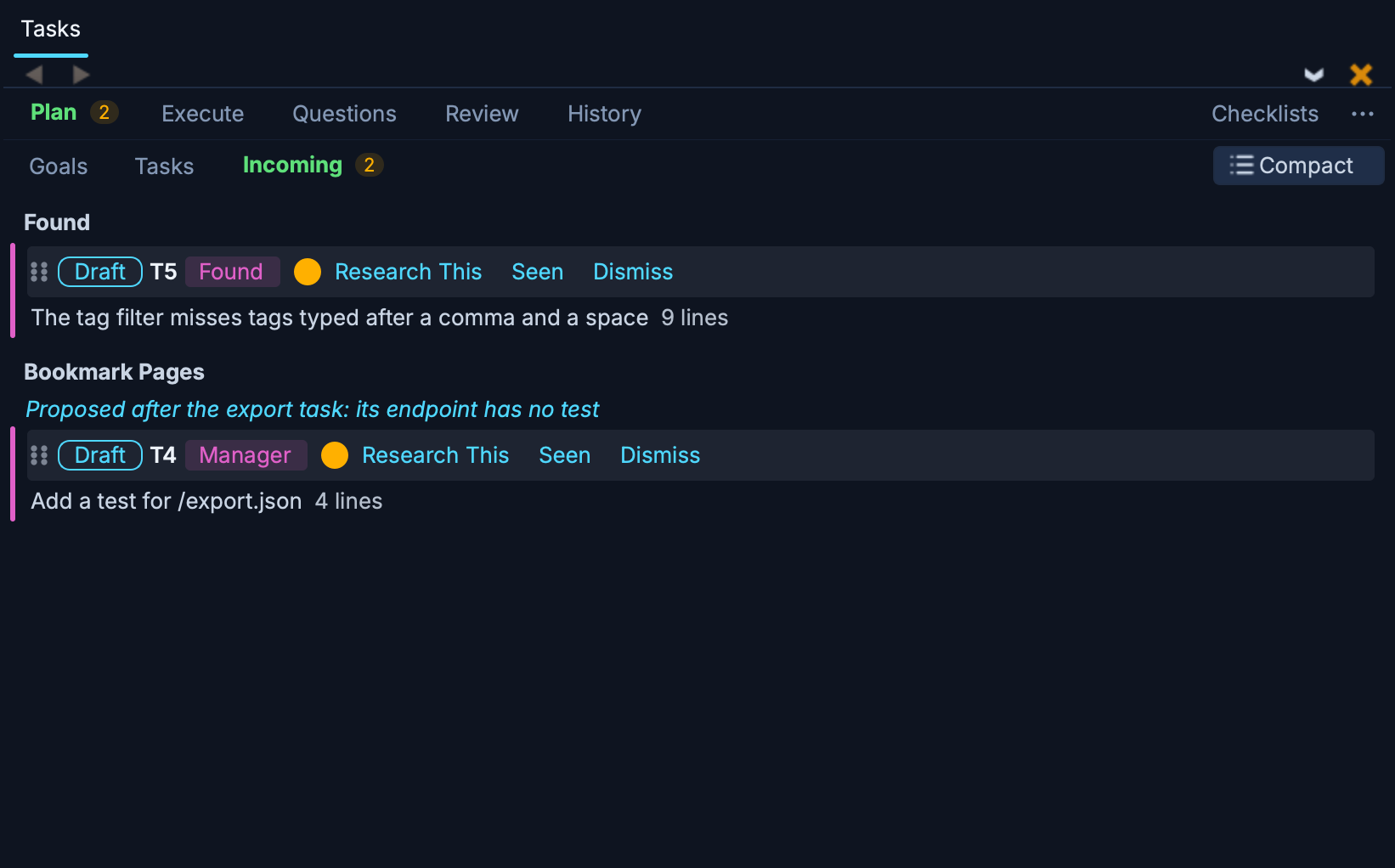
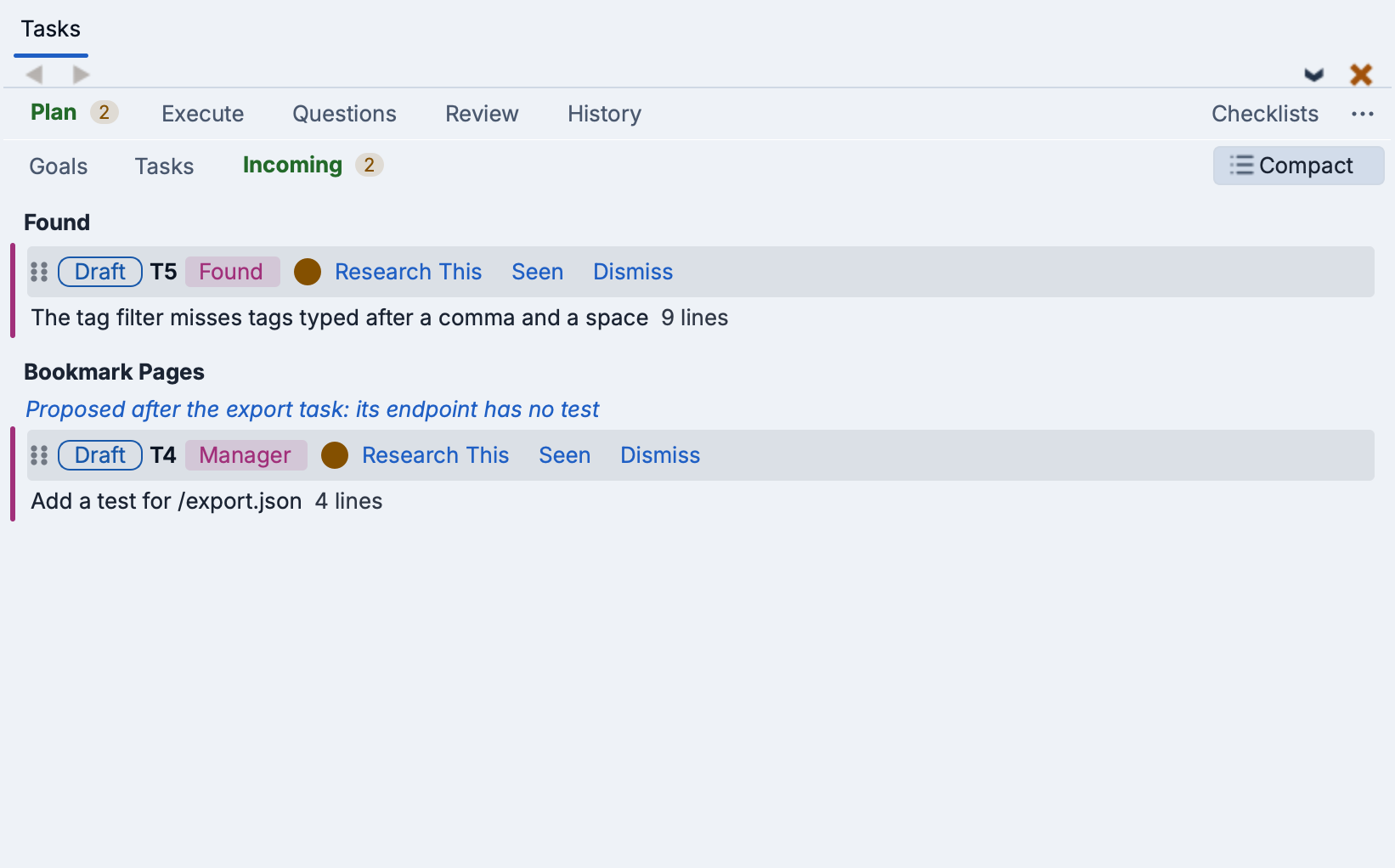
Seen takes a task off Incoming and leaves it in its goal, Dismiss deletes it, and its pill makes it Ready. A task you act on stays in the list, saying what was done, so the rows do not move while you work. It is still listed when you come back to the view within ten minutes, while it is still on the Plan tab.
When the view has the keyboard focus outside a task's text, J or the Down arrow and K or the Up arrow move between tasks. R makes the outlined task Ready, S marks it seen, and D dismisses it, each then moving on to the next task.
Select Mode
The blue mouse cursor icon at the top right of the Plan, Review, and History tabs shows a checkbox on each task, for acting on several at once:
- Plan -- Move to Goal and delete the selected tasks. On the Goals view, Split Goal moves them to a new goal, and on the Tasks view Select All selects every task. While the Tasks Manager is off, a queue icon also sets the queue the selected tasks and goals go to.
- Review -- Mark the selected tasks complete without reviewing them, or reset them back to the Plan tab.
- History -- Export only the selected records with Export History...; see Task History and the Journal.
Where the Plan Is Stored
By default, Wing stores your goals, tasks, and History in a private file under .TASKS/ in the working directory, which is not under version control. Checking Share Plan in the tool's options menu moves the file to a shared TASKS/ directory, to be committed and seen by other developers. When another developer shares their plan, a filter icon at the top of the Goals and Tasks views chooses whose plans are shown, read-only, after your own. See Sharing Tasks via Version Control for details.