 Wingware
Executing Tasks
 Pro Only
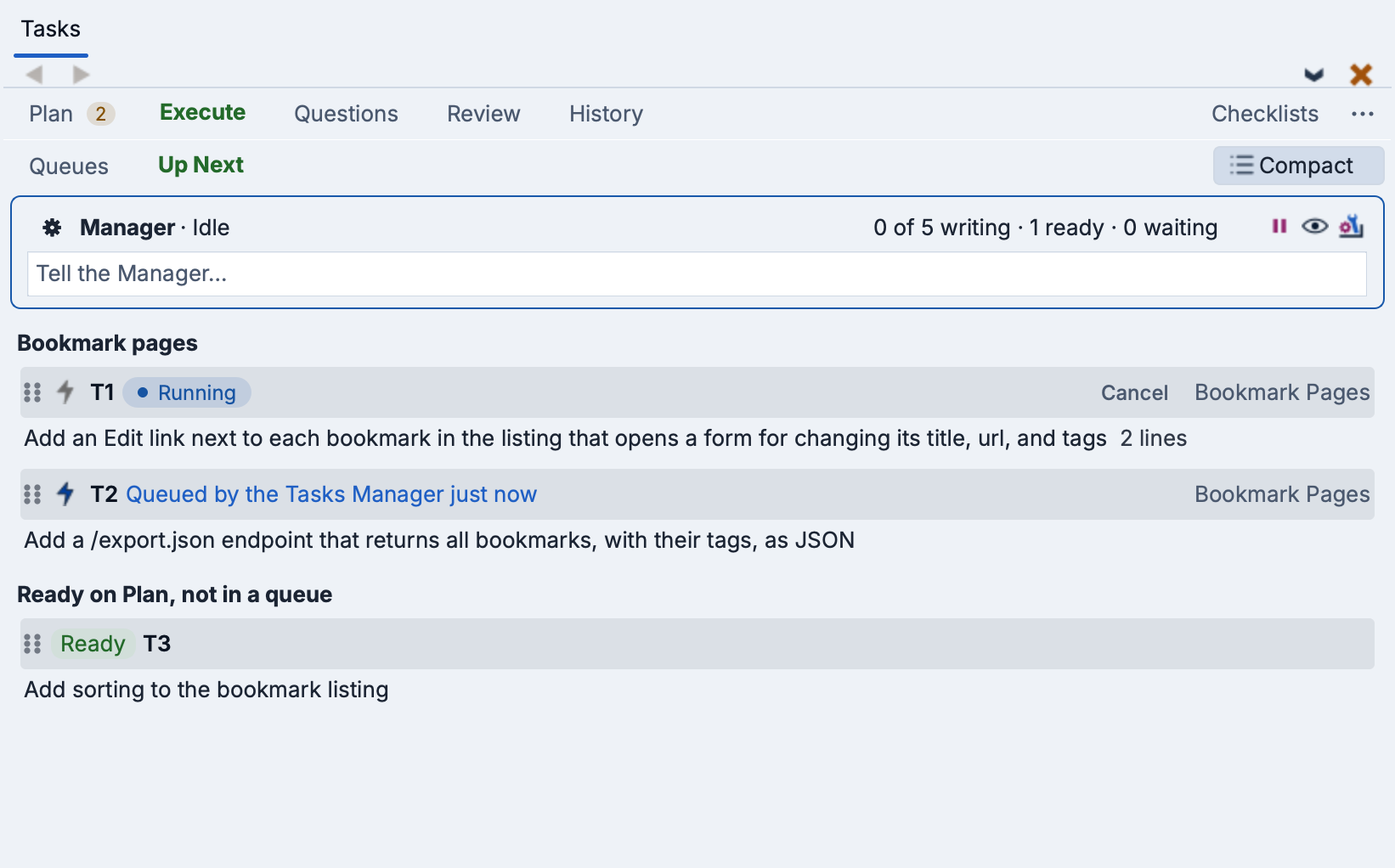
The Execute tab shows the tasks that are running or waiting to run, in the queues that run them. Each queue runs its tasks one at a time in its own agent session, shown in the AI Agent tool.
At the top of the tab is the Tasks Manager's bar, which shows what the Manager is doing and lets you turn it on, halt all work, or tell it something. While the Manager is on, it makes the queues, fills them with Ready tasks from the Plan tab, and starts them. See The Tasks Manager Agent for details. To fill and run queues of your own, see Running Tasks Without the Manager.
Views
The line above the Manager's bar chooses one of two views, with the Compact / Expanded button described in Planning Goals and Tasks at its right:
- Queues -- The queues at the top, with the selected queue's tasks listed below. The selected queue's name is underlined, and blinking dots next to a queue's name show that it is running. This is the default.
- Up Next -- What runs next in every queue: under each queue's name, its running task and then its waiting tasks, followed by the Ready tasks on the Plan tab that are not in a queue yet. A task the Tasks Manager queued in the last 15 minutes is pointed out above its row. To show a queue's session in the AI Agent tool, click its name or Show Session at its right.

When a file that a queue's running task is changing is also being changed in another queue, the queue's status is marked and its tooltip lists the overlapping files. The two queues' changes will overlap at review and commit, so it can help to let one finish first.
While you edit a task's text on the Execute tab, a Done / Cancel bar appears below the editor. Press Shift-Enter to save the task and add another, click Done to save it, or click Cancel to discard the edits, or the task if it was just added and is still empty.
Task Lifecycle
A task moves through these states:
- Unqueued -- The task is on the Plan tab as a Draft or Ready task, as described in Planning Goals and Tasks.
- Pending -- The task is in a queue, waiting to run.
- Running -- The task has been sent to the agent, which is working on it.
- Needs Review -- The agent has finished, and the task's changes are ready for review.
- Completed -- The task was reviewed and committed, or its review was skipped, and it is on the History tab with the time it was completed.
In the Modern look, each task is shown as a card with its state in a colored chip, such as Running or Needs Review, and its actions as buttons on a second line. In the Classic look, the state is colored text and the actions are links. A task's actions depend on its state:
- Cancel -- Shown for a running task. This interrupts the agent to stop the task. A task that changed no files goes back to the Plan tab as a Draft, and any other task moves to Needs Review so its changes can be reviewed, committed, or reverted.
- Send Note -- Shown for a running task. This opens a dialog for more instructions, which are sent into the task's session as if typed there and become part of the task. If text is typed into the session's input box but not yet sent, the note waits until that text is sent or cleared. For a task run by the Tasks Manager, the Manager is told of the note.
- Start and Commit -- Shown for a task in Needs Review that has uncommitted changes. These start a review of the task's queue, or commit it without review, as Start Review and Commit do on the Review tab. See Reviewing Tasks. They are not shown while the Tasks Manager plans to commit the queue itself.
- Mark Complete -- Shown for a task in Needs Review, and for a task shown as Done - no changes, which finished without changing any files. This moves the task to the History tab. When version control is not available, this is labeled Done.
- Move to Review -- Shown for an interrupted task. This moves it to the Review tab.
- Reset -- Shown for a task in Needs Review, an interrupted task, and a task shown as Done - no changes. This returns the task to the Plan tab, where it can be edited and queued again.
A task left in Running, for example after a crash, is reset to Pending when the project is next opened.
Closed Sessions and Usage Limits
If a queue's session is closed while its task is running, the queue shows Session closed. Click on Session closed, or on the cog on the queue's line, to resume the session so the agent carries on with the task. The Tasks Manager resumes its own queues' sessions itself.
When an agent session stops at its AI usage limit, its row in the AI Agent tool shows when the limit resets, and Wing continues the session at that time, as if you pressed Enter in it. To prevent this, press Esc in the session or type your own prompt. Until the limit resets, queues on the same agent's account start no new task and show when they will go on. Queues on other agents are not held.