 Wingware
Wing Tips: Using the Tasks Tool with the Claude Code Agent in Wing Pro 12
This Wing Tip takes a look at the Tasks tool in Wing Pro 12, as a way to work with the Claude Code agent.
There are actually two ways to talk to the agent: (1) by typing directly in the embedded Claude Code tool or (2) through the Tasks tool, which runs each request as a queued unit of work. Both feed the same agent process, and both track tasks through their Plan -> Execute -> Review -> History lifecycle in the Tasks tool.
Using the Tasks tool makes sense if you are entering new tasks while all your Claude Code agents are busy. It can also be used as a higher-level "To Do" list, by creating Goals and organizing tasks under them. Tasks may start out as a brief bulleted description, before being fleshed out in preparation to feed them to the AI agent.
Entering and Queueing Requests
If not already visible, you can open the Tasks tool from the Tools menu, navigate to the Plan tab, select Tasks sub-view, and use + New Task to type in a new task. You can also enter tasks under the Goals page of the Plan tab. In fact all tasks belong to a goal, by default the To Do goal.
Tasks entered this way start out in draft mode by default and will not run until you queue them. This is done from the task item's Q menu, or you can queue a whole goal at once from its Q menu. If a goal already has selected a queue, new tasks are immediately moved to that queue.
Once a task is queued, it moves to the Execute tab of the Tasks tool. If the queue is active and has Auto-advance enabled then it will start each queued task automatically. If not, you can use the cog icon to start tasks. If a running task stalls, or you want to stop it early, the Execute tab's per-task actions let you Move to Review to keep what it has done so far, or Reset it back to pending.
Queueing makes it easy to batch related work and walk away. It often makes sense to run a Bug Fixes queue for small fixes as you think of them, while using other queues to manage one or more larger development tasks. You do need to be mindful about multiple Claude Code instances modifying the same code concurrently, but often it's possible to work on different parts of code. You can also ask Claude to constrain its edits to specific files or directories, as part of your requests. Wing does keep track of which files a task actually changes, so you can independently commit work done in different queues.
Even when the Tasks tool isn't visible, the AI agent status area at the right end of the main toolbar shows what the agents are doing at a glance: a running indicator while work is in progress, a count of queues waiting for your input, and a review button that jumps straight to changes ready to look at.
After a task is completed, it transitions to the Review tab, from which you can review and accept or reject edits that were made. That and the History tab will be covered in a future Wing Tip.
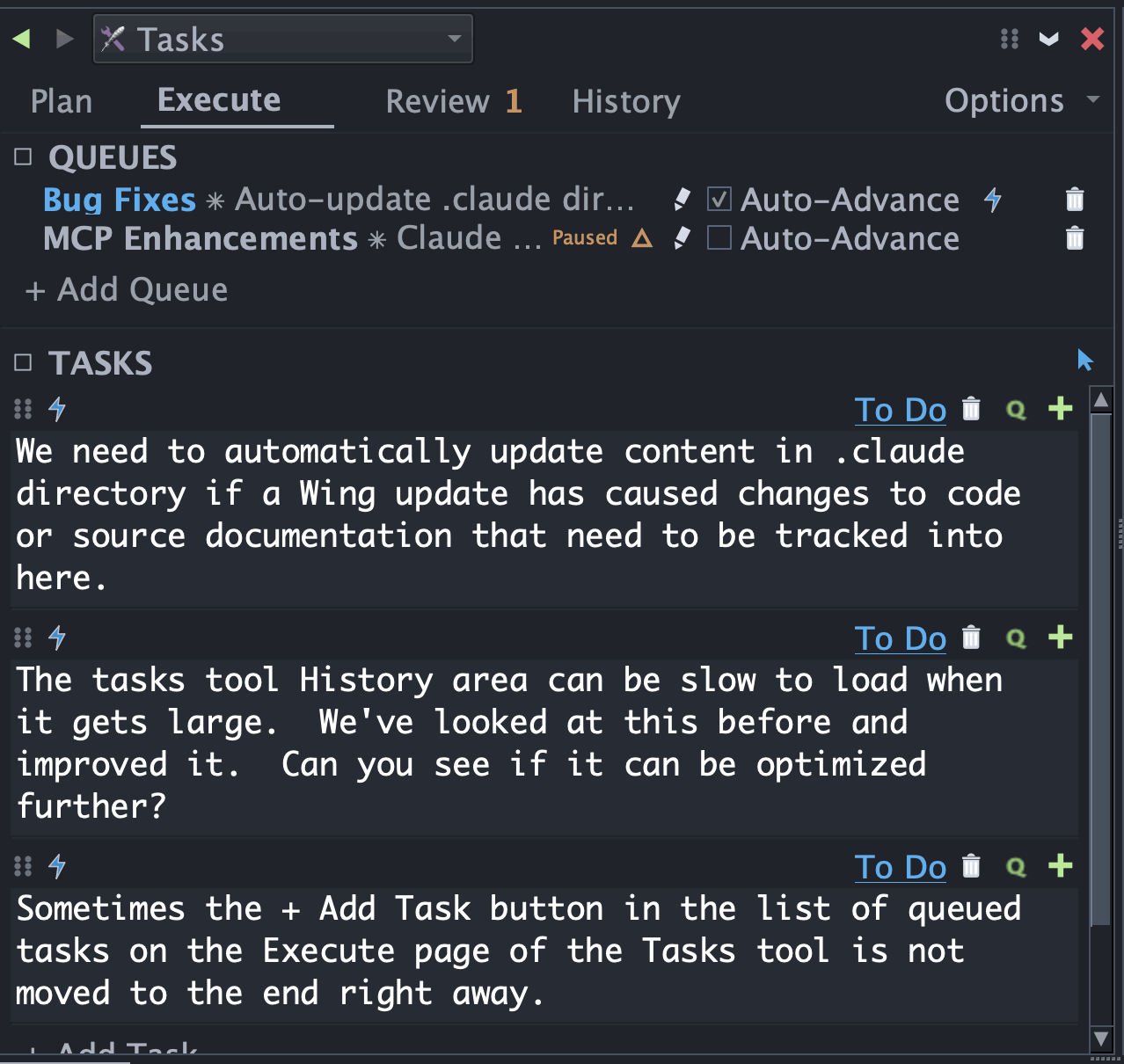
Shown above: Queueing three requests in the Tasks tool to run in sequence.
Following Up Within a Task
While a task is running, or after it completes, you can send follow-up requests within the same Claude session. The agent has the full context of what came before, so you don't need to re-explain. Typical follow-ups:
- "Did you add unit tests for that?"
- "Actually, let's left justify the button instead"
- "Also update the user documentation for the features we just added"
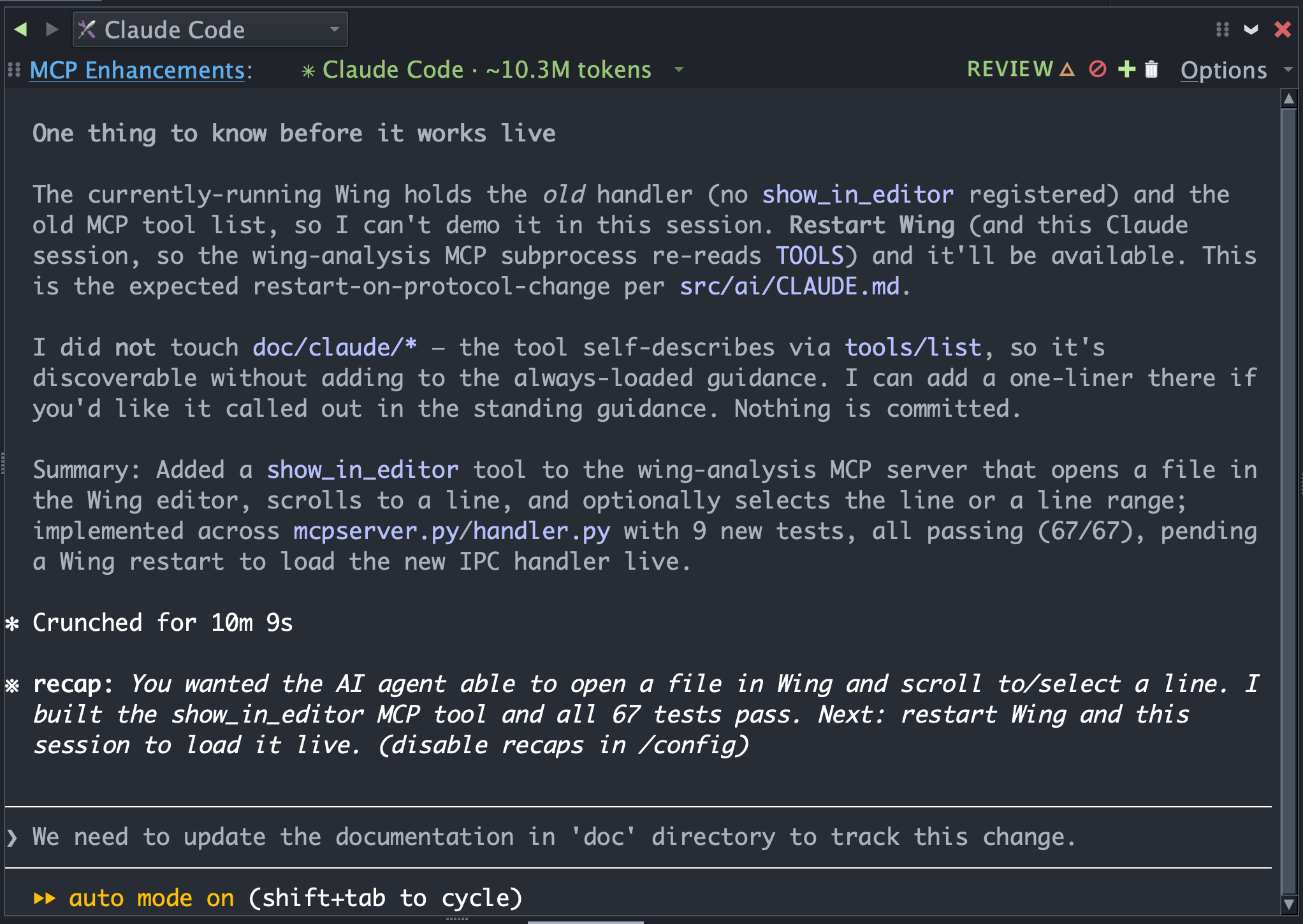
Shown above: Typing a follow-up in the Claude Code tool to continue the same session -- here, asking the agent to update the documentation for the change it just made.
Execution Mode and Context
Before you queue tasks, you can use the Q menu to select whether that task will create a new Claude session or reuse an existing session. In many cases, you will want to start a new session for each task, and this tends to save on token use. But if a series of tasks will benefit from the same local context (knowledge of what has been done before) then you should reuse the queue's session.
The most useful options when establishing a new session for a task are:
- Plan Mode -- The agent explores the code and writes a plan for the task without making any edits. You review the plan, ask for changes, and only approve it once you're happy with the approach. This is worth using for larger or riskier changes where you want to lock in the design before any code is written, and for pure investigation or diagnosis -- for example tracking down a difficult bug -- since the agent cannot change anything while it works. And because a Plan Mode task makes no edits, it is a safe way to start a task that reads code another task is actively changing, without risk of the two colliding.
- Auto Mode -- This enables Claude Code's auto-mode, which uses a classifier to filter which actions to approve automatically and which to present to you for approval. In general, this is the way to go when letting Claude make changes without constant interruption.
Two more modes give you finer control over approvals when you want to watch more closely: Accept Edits pre-approves file edits but still asks before running commands, and Edits Require Approval asks before every edit and command.
When reusing a session for a task, you'll usually just want to select Full Context but Wing also provides Compact Context for cases where context is growing large but contains valuable memories. Note that compacting context itself consumes tokens, so it only makes sense to do in longer-running series of related tasks.
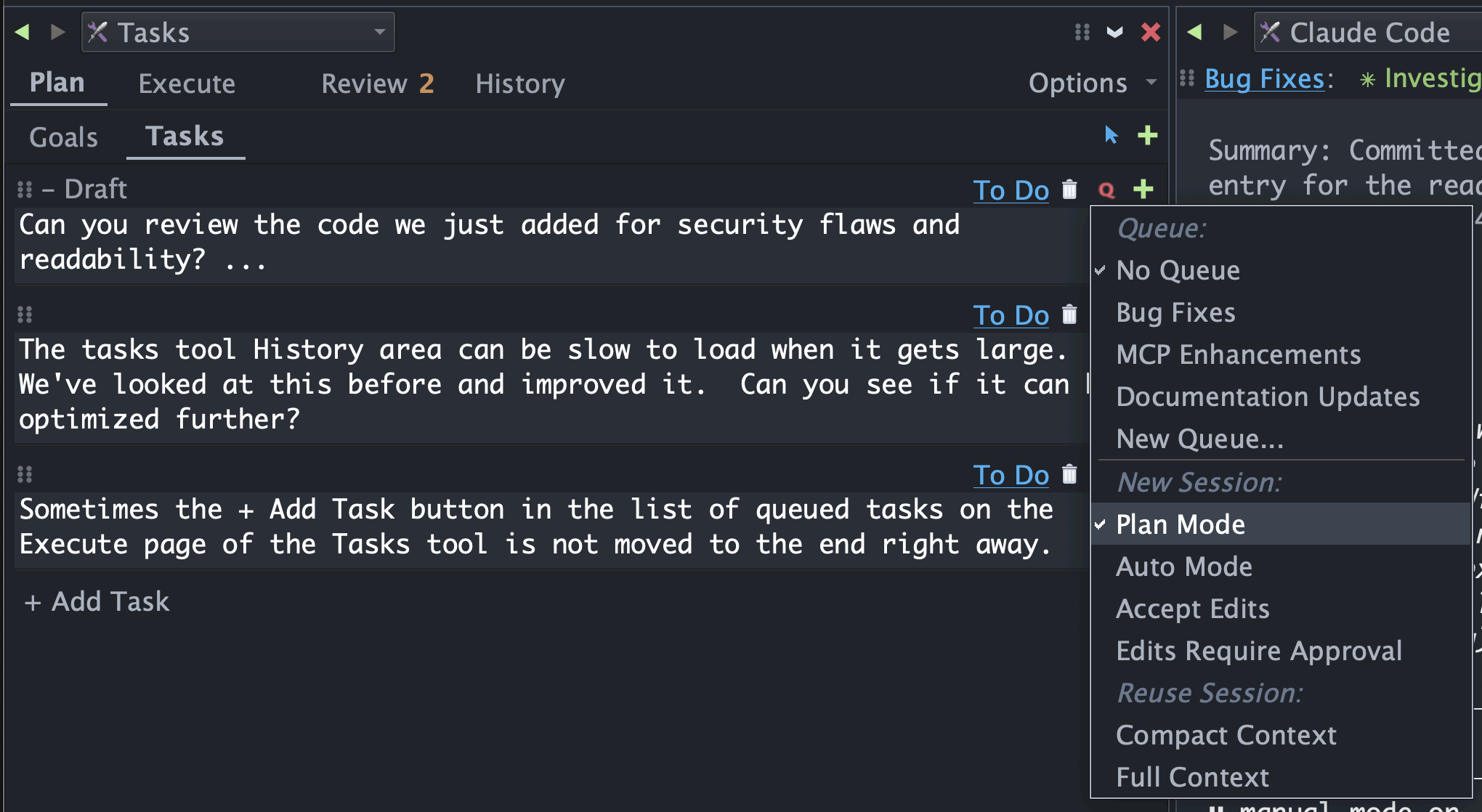
Shown above: Using the Q menu to switch a queued task into plan mode before the agent runs it.
Further Reading
Wing's Claude Code integration is deep and powerful, but should be usable also if you don't fully understand it. When in doubt, ask Claude Code!
See also Wing's Claude Code Agent Integration and AI Agent-Assisted Development in Wing's documentation.
That's it for now! Next time we'll cover reviewing the results of tasks before committing them.
As always, please don't hesitate to email support@wingware.com if you run into problems or have any questions.