 Wingware
Wing Tips: Introducing the Claude Code Agent in Wing Pro 12
Wing Pro 12 added a deep integration of Claude Code, Anthropic's AI agent. You can use this to queue agent requests, manage their execution, and review and audit each completed task before committing changes. Wing also provides an AI-agent-focused API that Claude uses for code analysis, unit testing, debugging, and version control, in a way that reduces both elapsed time and token use.
This is the first in a series of Wing Tips on working with this new capability.
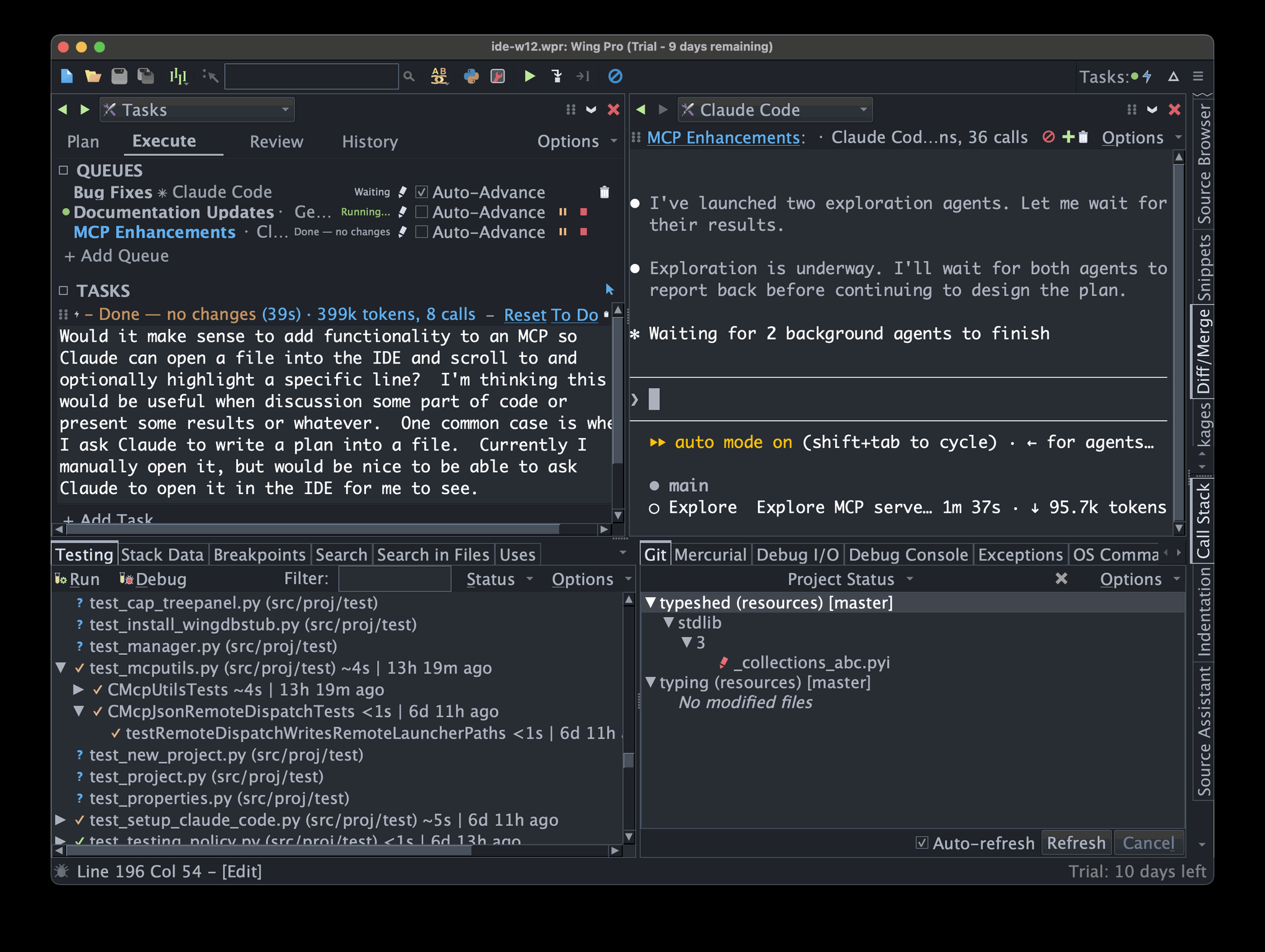
Shown above: The Tasks tool in use, to queue work for Claude Code in Wing Pro 12.
Setup
To get started:
- Install or upgrade to Wing Pro 12.
- Get a Claude Code account if you don't already have one (see the Claude Code documentation). Claude Code will prompt you to authenticate the first time you use the agent.
- From the Project menu, choose New Project, tick on Set Up for Claude Code, and select an existing or new directory and Python environment. If you already have a Wing project, just open it and choose Set Up for Claude Code from the Project menu.
- Set your new or existing project up in a revision control repository. You can use Claude Code without it, but Wing's task review features won't work. Even a local git repository (in same directory as your sources) will work. Ask Claude for help with setup.
Your First Session
Type a request into the Claude Code tool and press Enter -- or add it as a task in the Tasks tool, which queues the work and lets you review it before committing. For example:
- "Can you write, run, and fix unit tests for the new user registration dialog?"
- "Let's change how this works so it uses a .jsonl file instead."
- "Find out why the dashboard sometimes shows yesterday's data, and propose a fix."
The agent reads the relevant files, makes edits, and reports back.
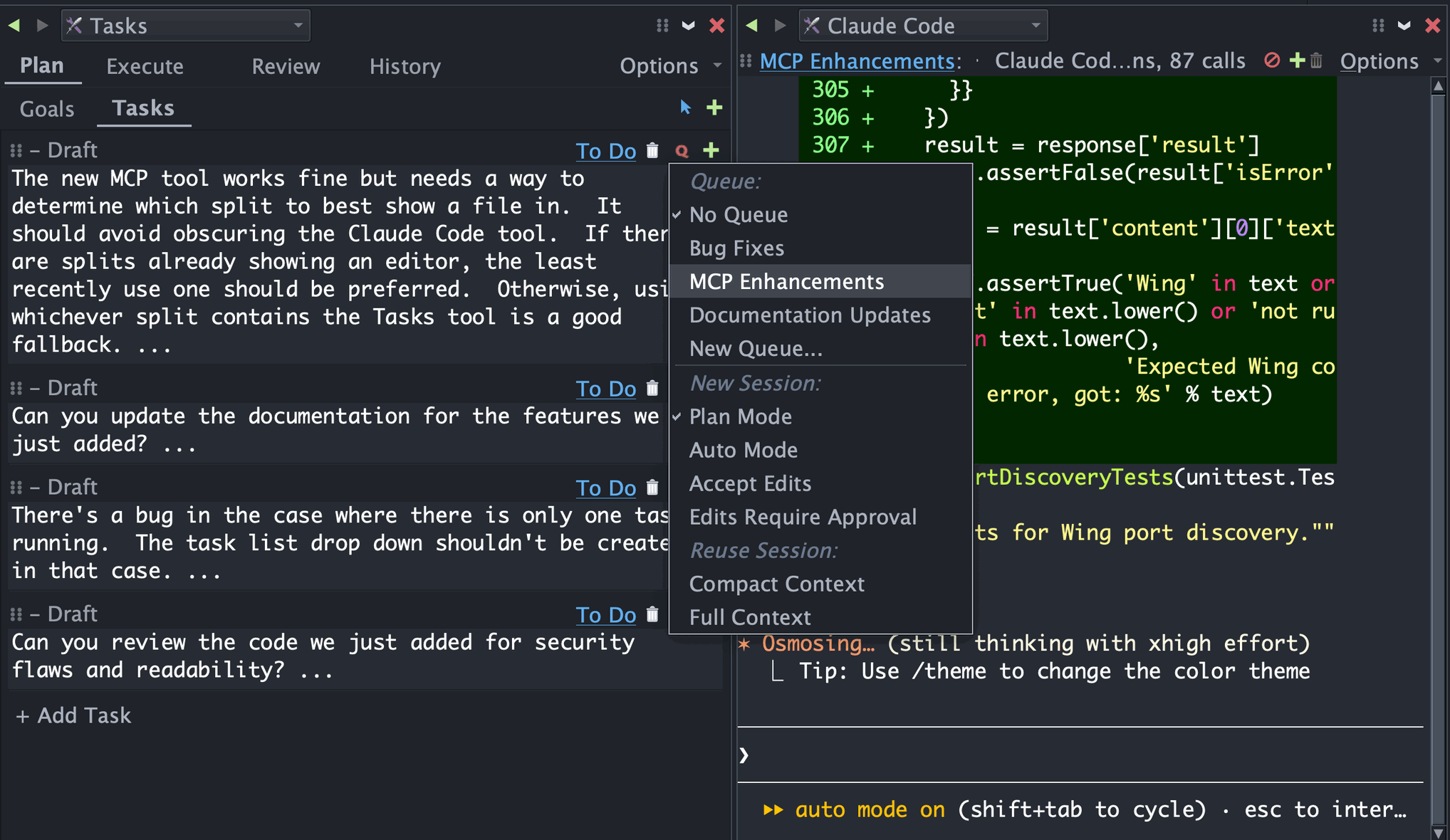
Shown above: Submitting a request from the Tasks tool's Q menu, where you choose the queue and the session mode (such as Plan Mode).
If the result isn't quite right, follow up in the same task -- for example "good, but please add a regression test that would have caught this". The agent has the context of the previous turn and refines accordingly.
Where to Next
AI agents are an astonishing new paradigm for software development. The next several Wing Tips dive more deeply into Wing's new AI agent focused feature set:
- The Tasks tool as a way to manage one or more AI agents.
- Reviewing and accepting the agent's edits.
- Using unit tests to keep code quality high and simplify the review process.
- Fixing code warnings with the agent, in place or in bulk.
- Best practices for getting reliable results.
Beyond the Tasks tool, Wing also offers one-click FIX actions for exceptions, failing tests, and code warnings, plus right-click Code Actions to explain, review, or optimize code -- see Wing's Claude Code Agent Integration for the full picture.
Further Reading
Wing's Claude Code integration is deep and powerful, but should be usable also if you don't fully understand it. When in doubt, ask Claude Code!
See also Wing's Claude Code Agent Integration and AI Agent-Assisted Development in Wing's documentation.
That's it for now! Next time we'll take a closer look at the Tasks tool.
As always, please don't hesitate to email support@wingware.com if you run into problems or have any questions.