Using Wing with Django

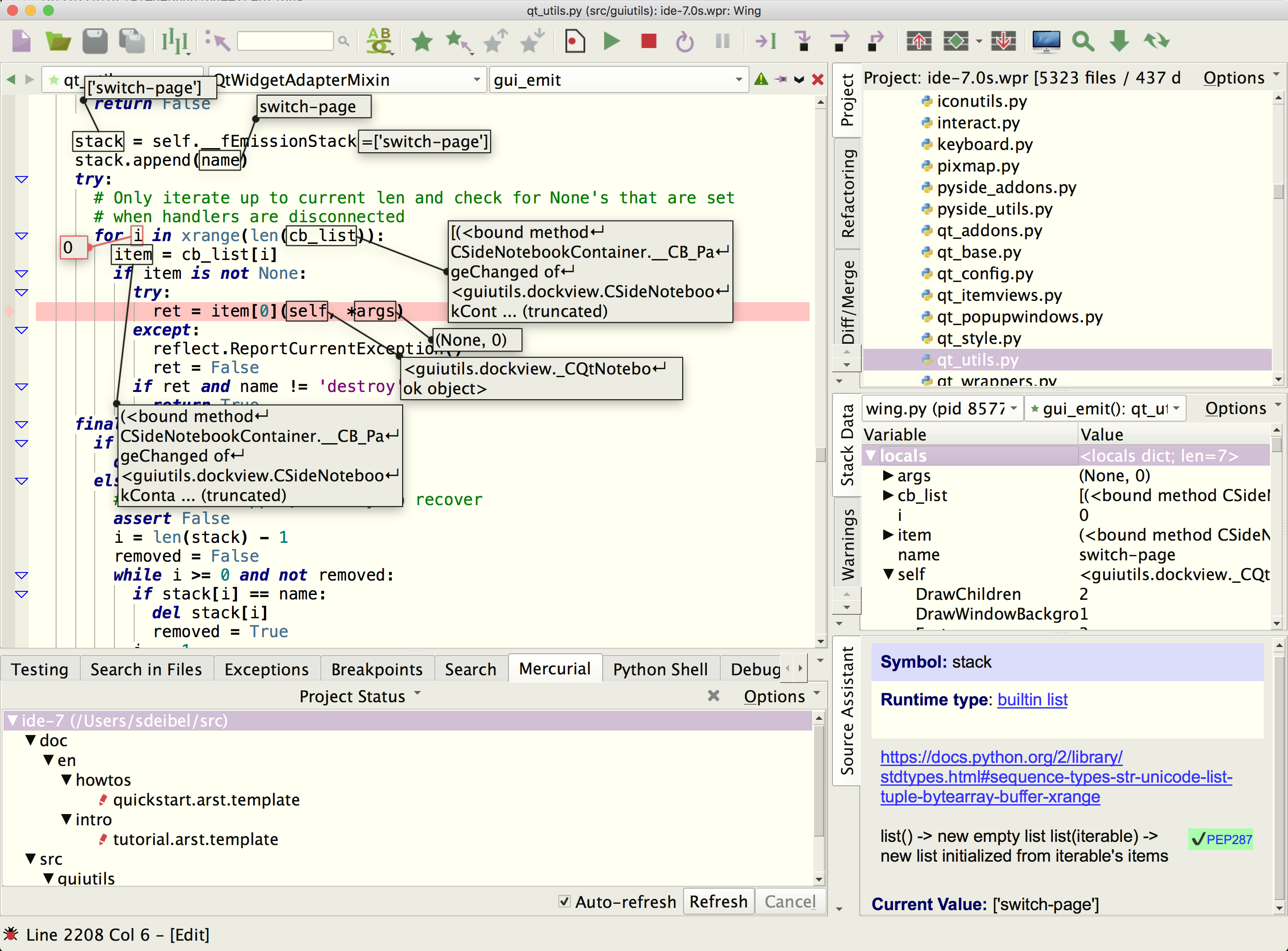
Wing Pro is a Python IDE that can be used to develop, test, and debug Python code written for the Django web development framework. The debugger works with Django's auto-reload feature and can step through and debug Python code and Django templates. Wing Pro also automates some aspects of the creation and management of Django projects and applications.
If you do not already have Wing Pro installed, download it now.
This document describes how to configure Wing for Django. To get started using Wing as your Python IDE, please refer to the tutorial in Wing's Help menu or read the Quickstart Guide.
Creating a Project
You can configure a new Wing project to use an existing Django project, or you can create a new Django project at the same time.
Existing Django Project
To set up a Wing Pro project for an existing Django project, use New Project in the Project menu. First select the host you with to work on, then choose your existing source directory, and set Project Type to Django. If Wing auto-detects a Python environment in your selected source directory, you can immediately create the project. Otherwise, press Next to select your Python environment as described below.
When creating a Wing project for an existing Django directory, Wing scans for Django settings and manage.py during project creation and tries to determine which should be used for development. If multiple settings are found, you will be prompted to select which one you want to configure for development with Wing.
New Django Project
If you are starting a new Django project at the same time as you are setting up your Wing project, use New Project in the Project menu. First select the host you wish to work on, then choose a new project directory, and set Project Type to Django. Then press Next to configure your Python environment as described in the previous section.
Selecting the Python Environment
The Python Environment that you use with Django can be any existing Python installation or environment, or you can create a new virtualenv, Poetry env, uv env, pipenv, conda env, or Docker container along with your project. See Creating Python Environments for details.
If you select an existing Python environment, be sure that it has Django installed into it before creating your project. If you don't know where your Python is located, run it outside of Wing and type the following:
import sys
print(sys.executable)
The resulting full path can be used with Command Line under the Existing Python Executable option in the New Project dialog.
Once the project is created, this will display a dialog that confirms the configuration, with a detailed list of the settings that were made.
Now you should be able to start Django in Wing's debugger, set breakpoints in Python code and Django templates, and reach those breakpoints in response to a browser page load.
Usage Tips
Automated Django Tasks
The Django menu, shown in Wing when the current project is configured for Django, contains items for common tasks such as creating a new app, generating SQL for a selected app, migrating an app or database, running validation checks or unit tests, and restarting the integrated Python Shell with the Django environment.
Wing's Django extensions are open source and can be found in scripts/django.py in the install directory listed in Wing's About box. For detailed information on writing extensions for Wing, see Scripting and Extending Wing.
Collecting Static Files
If your project needs to run collectstatic every time that you launch Django in Wing's debugger, then you should set the Build Command under the Debug/Execute tab of Project Properties (accessed from the Project menu) to Custom and then select the command named Collect Static Files.
This command is created automatically when you create your Django project. If it is missing, you can run Collect Static Files once from the Django menu to create it.
Once this is done, Wing will run manage.py collectstatic --noinput first, each time it launches Django for debugging. The output from this command will be visible in the OS Commands tool.
Template Debugging
Wing Pro allows you to set breakpoints in any file that contains {%%} or {{}} tags, and the debugger will stop at them.
If you are using Python 3.12 or later, you will need to check on the preference Debugger > Advanced > Use Legacy Tracer Core with Python 3.12+ before this capability will work.
Note that stepping is tag by tag and not line by line, but breakpoints are limited to being set for a particular line and thus match all tags on that line.
When template debugging is enabled, you won't be able to step into Django internals during a template invocaton. To work around that, temporarily uncheck Enable Django Template Debugging under the Extension tab of Project Properties in Wing, and then restart your debug process.
Better Auto-Completion
Wing provides auto-completion on Python code and Django templates. The completion information is based on static analysis of the files and runtime introspection if the debugger is active and paused. It is often more informative to work with the debugger paused or at a breakpoint, particularly in Django templates where static analysis is not as effective as it is in Python code.
Running Unit Tests
Wing Pro includes a unit testing integration capable of running and debugging Django unit tests. For Django projects, the Default Testing Framework under the Testing tab of Project Properties is set to Django Tests so that the Testing tool runs manage.py test and displays the results. Individual tests can be run or debugged by selecting them and pressing Run Tests or Debug Tests in the Testing tool.
If you need to specify command line arguments when running Django tests, for example to select different settings or to run only certain tagged tests, these can be set under the Testing tab of the File Properties for manage.py.
Another way to run tests with different settings is to set the environment variable WING_TEST_DJANGO_SETTINGS_MODULE, which replaces DJANGO_SETTINGS_MODULE when unit tests are run.
Changing Django Settings Files
If you need to debug Django with different settings for different tasks, you can change DJANGO_SETTINGS_MODULE under the Environment tab in Project Properties.
Alternatively, create a Named Entry Point from the Debug menu that runs your manage.py with a Launch Configuration that sets the correct value for DJANGO_SETTINGS_MODULE. You can then debug using those settings with Debug Named Entry Point in the Debug menu. Multiple named entry points can be created, one for each settings configuration.
Note that the items in the Django menu always use the settings specified in Project Properties with DJANGO_SETTINGS_MODULE and the project's main entry point.
Related Documents
For more information see:
- Django home page provides downloads and documentation.
- Quickstart Guide contains additional basic information about getting started with Wing.
- Tutorial provides a gentler introduction to Wing's features.
- Wing Reference Manual documents Wing in detail.
- Remote Web Development describes how to set up development to a remote host, VM, or container.