 Wingware
Tutorial: Review and Commit

When the task from the previous chapter finishes, it transitions from the Execute tab of the Tasks tool to the Review tab. This is where you confirm what the agent did before committing to revision control.
If the result isn't quite what you wanted, you have two options: review the changes and reject the task with feedback, or follow up with a refinement request in the same task.
The Review Tab
The Review tab in the Tasks tool groups completed tasks by queue. You can review the results of one or more tasks here, on a queue-by-queue basis. Each queue keeps track of the files that were changed by tasks that ran in it since the last time a review was done. There are two action links in each queue: Start Review and Commit Without Review.
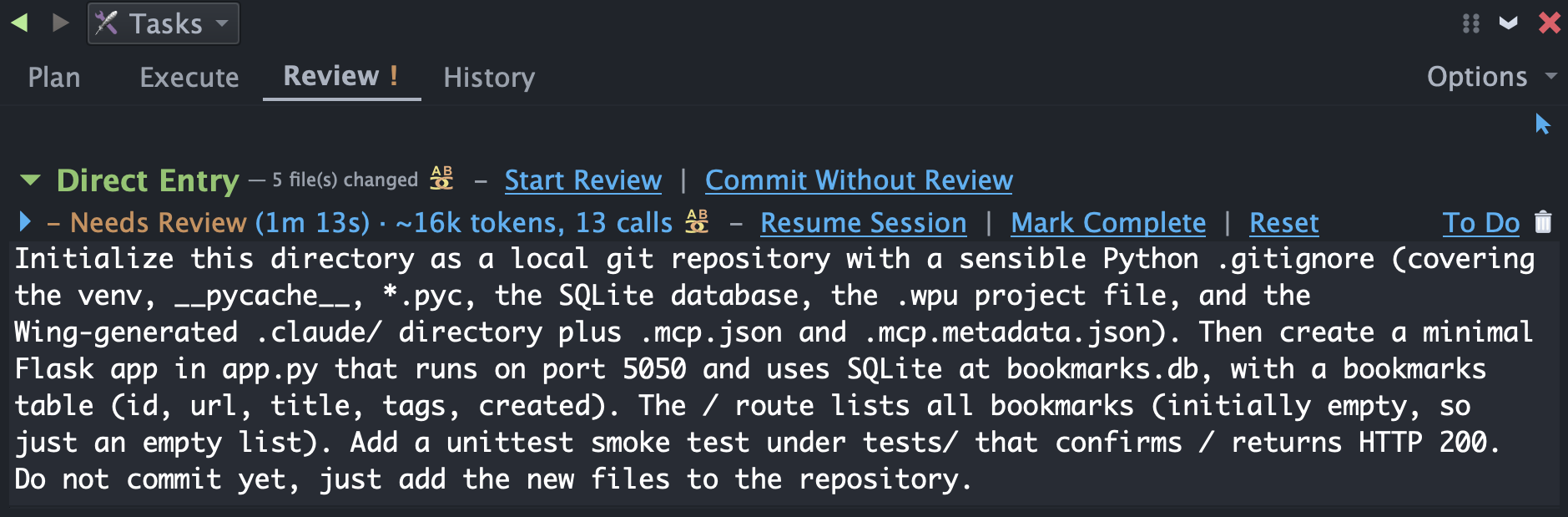
Each task and also each queue have a diff/merge icon which drops down the list of files changed by that task or queue. For the first-task you just ran, you should see app.py, .gitignore, and tests/test_app.py . You can click any of the changed-file indicators to open the file or view its diff individually, but in most cases you'll want to use the queue-level actions to process the whole change set at once.
For now, click Start Review. Note that in this case we've just added files so the review isn't showing individual change sets, but all content in the files is new.
Walking the Diff
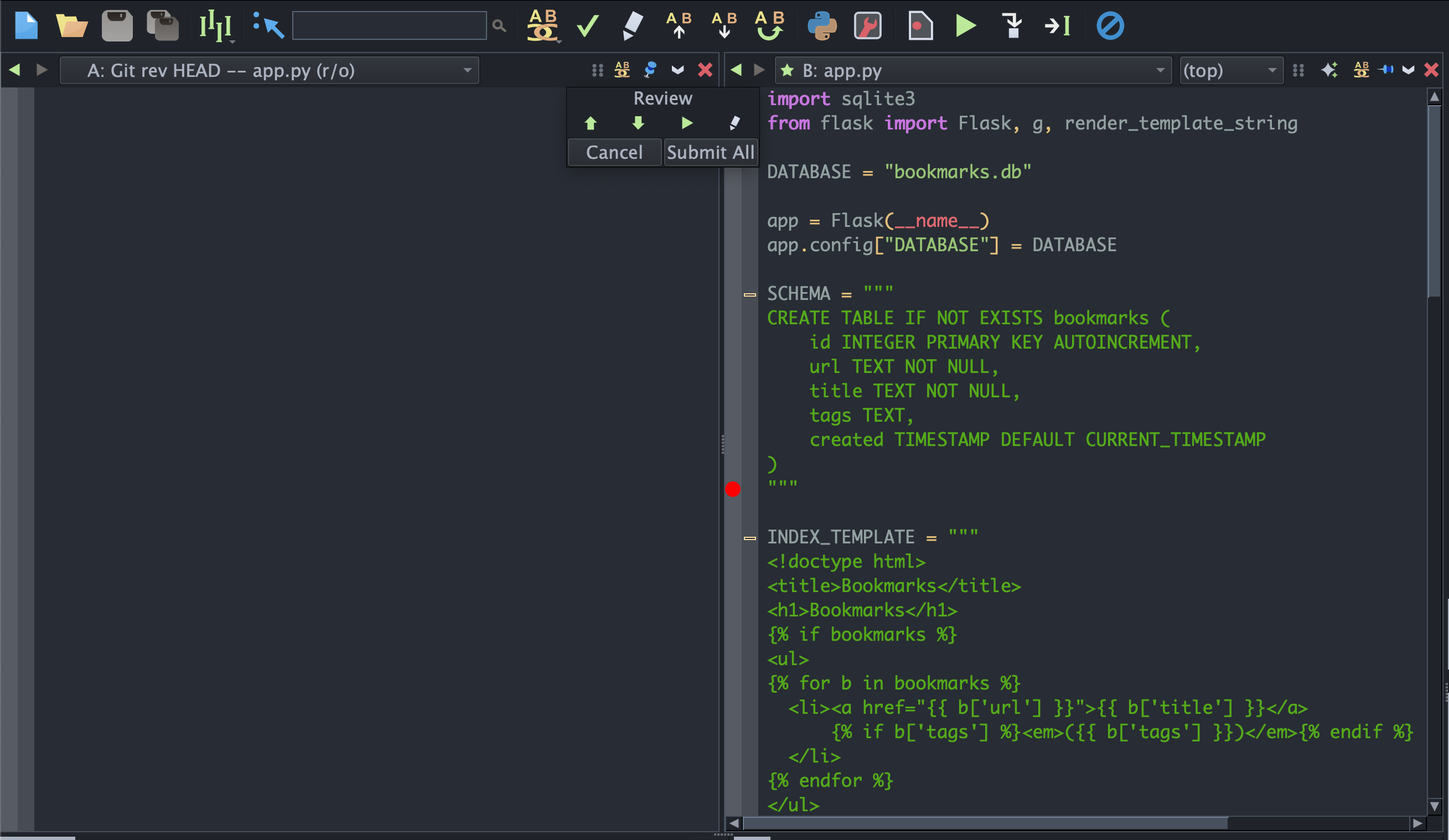
Start Review opens a diff/merge session in Wing, to showing the agent's changes side-by-side -- on the left, the previous state of each file (empty, in this case, since the agent created them); on the right, what the agent produced. You can move between files and individual changes using the navigation toolbar and the floating Review window shown between the changes.
In the floating Review window, you can operate on each individual diff/merge pair to:
- Accept it by moving past it using the green navigation arrows.
- Undo it using the right-facing arrow to revert one change set.
- Comment on it with the pencil icon to provide feedback for the agent
You can also accept or comment on the change set as a whole from the toolbar using the green checkmark or pencil icons, respectively.
Any non-empty comment causes the task to iterate when you finish review, rather than commit -- so the agent can act on what you wrote.
Here's an example of requesting a change, although if you do this you'll need to be sure to use the right port later when trying to access the website:
Once you accept a review, your changes will be committed. This touches only the files that were changed by tasks in the queue that you reviewed, so you can potentially create multiple queues to work on different parts of your code base and commit those changes independently.
Committing Without Reviewing
Commit Without Review in the Review tab of the Tasks tool skips the diff session and commits immediately. This is appropriate when the work has already been vetted by other means. Looking at diffs is one way to check the agent's work, but you may also or instead use unit tests, follow-up agent reviews, and other controls to verify quality of changes made by an AI agent.
After You Commit
Once the task is committed, it transitions to the History tab in the Tasks tool. History keeps a record of completed tasks along with run time and token consumption.
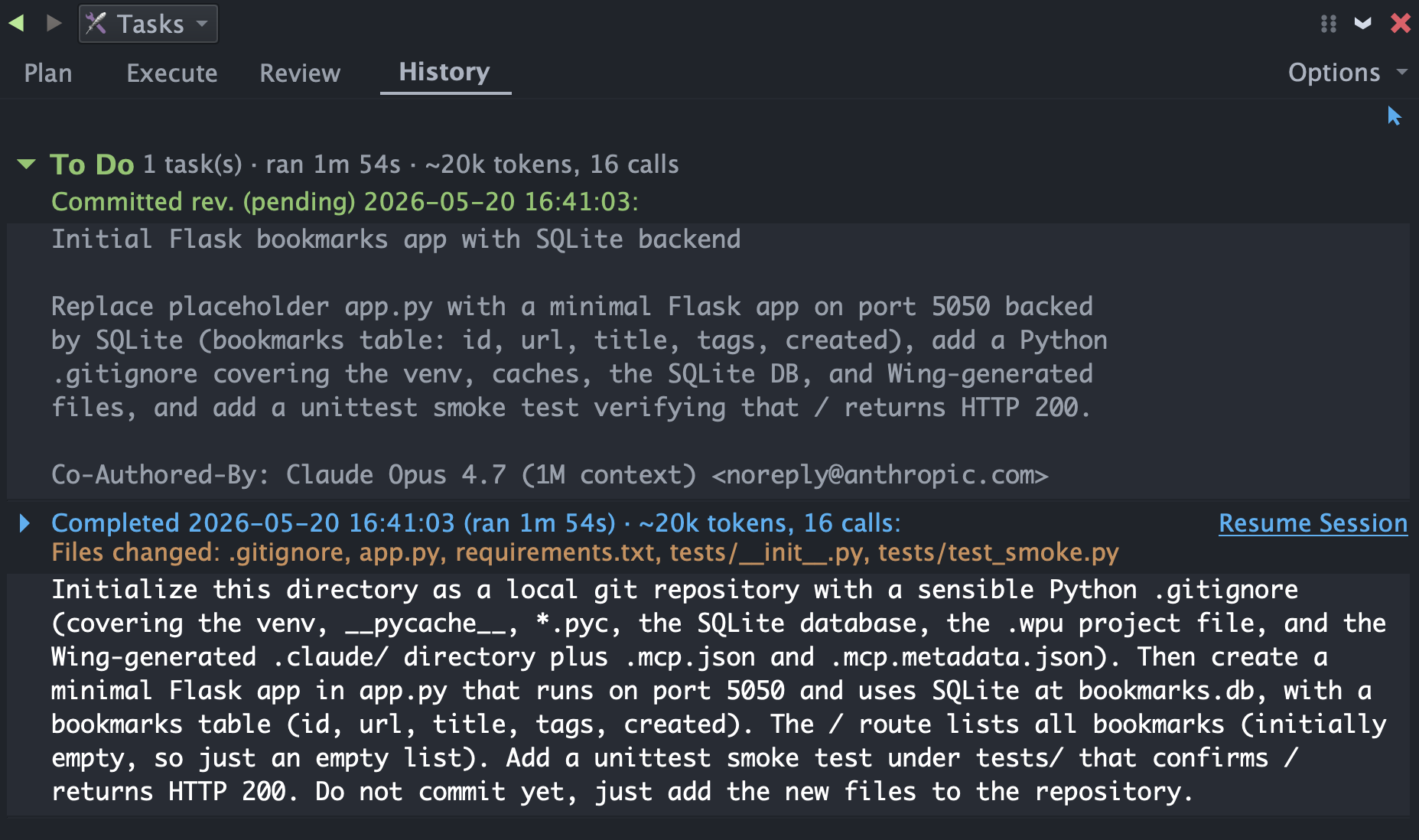
At this point Wing's Project tool should show the files the agent created and you can see test results or re-run tests in the Testing tool.
Commit Modes
Wing offers several commit modes in the AI Agent tab of Project Properties in the Project menu. These control who commits and whether Claude Code commits on its own:
Claude commits only when asked is the default. Claude Code never commits on its own; it manages the commit only when you start a review or use Commit Without Review, using a record that Wing keeps of the work done by tasks in the queue to compose the commit message.
Claude commits after each task lets Claude Code commit on its own at the end of every completed task, without waiting for you.
Claude commits at its discretion lets Claude Code commit on its own at the logical stopping points it chooses, deferring when work is incomplete or problems are unresolved.
Wing commits with generated message appends generated task work summaries into a list that is used without review as the commit message, and the commit is completed immediately without invoking Claude Code.
Wing presents commit message for review brings up your commit in the VCS tool in Wing, with the automatically generated commit message preloaded. You can edit the commit message and then complete the commit.
For now, keep using the default.