 Wingware
Tutorial: Your First Agent Task

Now you're ready to run your first AI agent task, the first step in building a small Flask web app from scratch. Each tutorial step will add one feature, refactor, or test. By the end you'll have a working app and a feel for what it's like to drive an AI agent from Wing.
You don't need to know anything about Flask to follow along; the agent writes all the code for you!
Submit the First Task
Copy and paste the following into the Claude Code tool, then press Enter:
Initialize this directory as a local git repository with a sensible Python .gitignore (covering the venv, __pycache__, *.pyc, the SQLite database, the .wpu project file, and the Wing-generated .claude/ directory plus .mcp.json and .mcp.metadata.json). Then create a minimal Flask app in app.py that runs on port 5050 and uses SQLite at bookmarks.db, with a bookmarks table (id, url, title, tags, created). The / route lists all bookmarks (initially empty, so just an empty list). Add a unittest smoke test under tests/ that confirms / returns HTTP 200. Do not commit yet, just add the new files to the repository.
The agent will set up the repository, write the scaffolding, run the test, and report back. This takes a few minutes to complete.
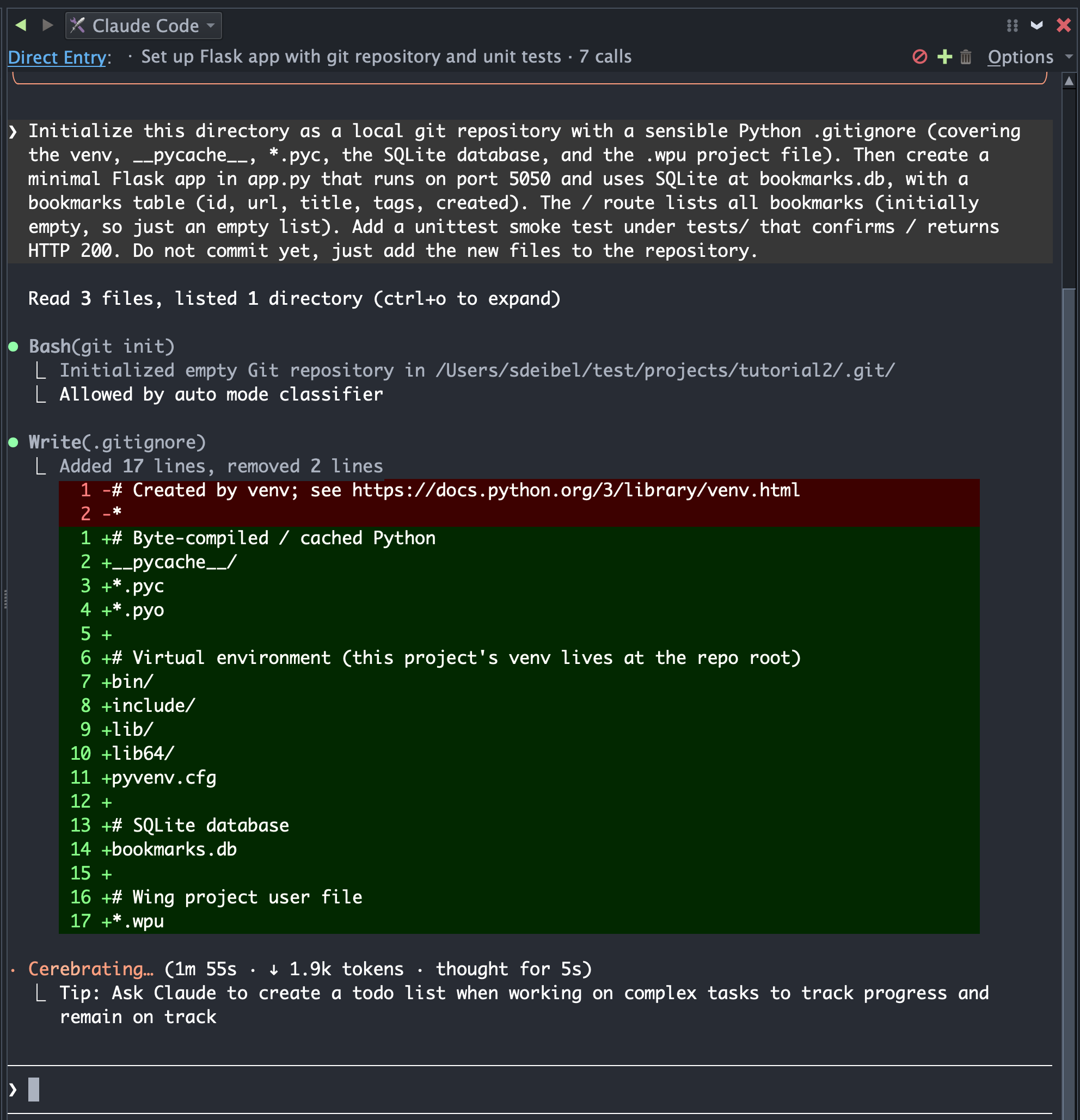
While the task runs you could keep working in other tools - editing unrelated files, browsing code, reading ahead in this Tutorial. Wing tracks the agent's progress in the Tasks and Claude Code tools.
Don't be concerned if you see some errors in Claude Code's console. Some of those are Claude reacting to restrictions Wing or its own control system place on it. It will adjust and continue with the work in the way that we want it to.
Two Ways to Submit a Task
There are actually two equivalent ways to enter and submit agent requests:
- The Claude Code tool that you just used is a conversational panel where you can type your requests and press Enter to run them immediately.
- The Tasks tool is a structured queue with Plan, Execute, Review, and History tabs. This is useful for drafting a series of tasks before queueing them, usually while you are waiting for one or more other Claude Code instances to complete their work.
Both feed the same agent process and both track tasks through the same Plan -> Execute -> Review -> History lifecycle. Tasks move between these tabs depending on their status. If you entered your task in the Claude Code tool, Wing synthesizes a task in the Tasks tool, initially showing it under the Execute tab, and when the task completes it will transition to the Review tab.
Using the Tasks tool is optional, and it can be disabled. However, it makes it easier to manage the process of planning, executing, and reviewing many tasks in multiple potentially concurrently running Claude Code instances.