 Wingware
Tutorial: Iterating with the Agent

Tasks don't always complete perfectly on the first try.
While a task is running, or after it completes, you can send a follow-up request by typing directly into the Claude Code tool. The agent has the full context of what came before, so you don't need to re-explain anything.
Follow-ups are the right tool when the next request builds naturally on the last one – refinement, course correction, or a related extension.
If you are instead starting a new unrelated task, it's better to /clear in Claude Code first, or start a new task from the Tasks tool, as we'll describe later.
Starting a new session is also a good idea when Claude Code is spinning its wheels — trying one speculative fix after another, fixating on an approach that isn't working, or even dismissing your reports that something is still broken. When you notice this, step in once or twice with guidance. If that doesn't help, it's usually better to start fresh than to keep trying to course-correct an off-the-rails agent.
Before you do, check for any unwanted or half-finished changes the agent left behind, and either ask it to remove them or revert to your last known-good commit. A new session has no memory of the origin or correctness of uncommitted code, so if you leave a broken attempt in place the fresh session may assume that code is intentional and fixate on the same wrong solution. Running the retry starting in Plan Mode can also help, since it makes the agent reason through a new approach before changing anything.
For the bookmarks app, try this follow-up now in the same Claude Code tool you used in the previous chapters:
Add a form on / so I can add a new bookmark from the browser. Fields: url, title, tags (comma-separated). Submit via POST. Keep the listing on the same page underneath the form.
The agent already knows the route, the schema, and the test layout from the previous task, so this is a small extension, not a fresh start.
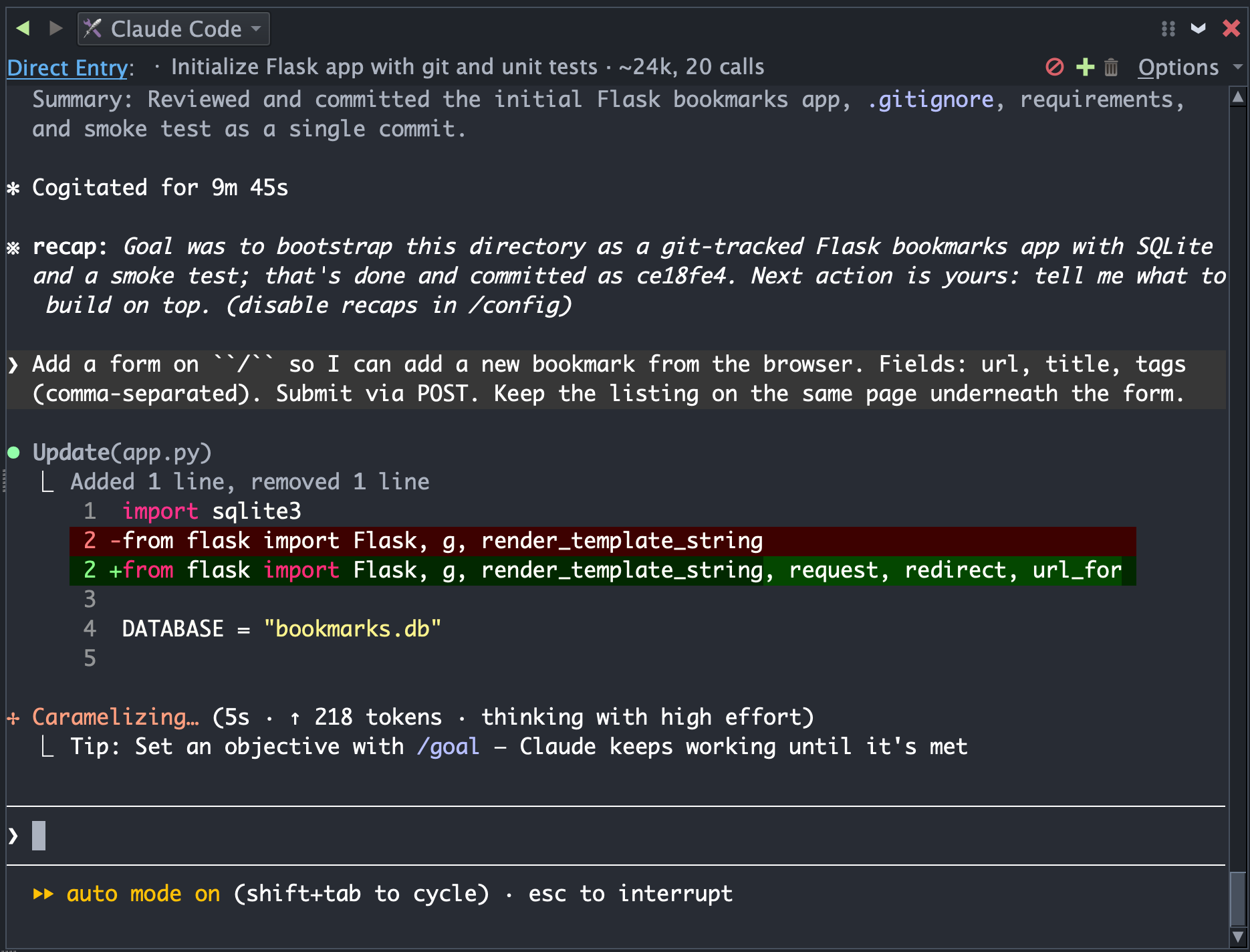
When Claude Code finishes, start debug with Start/Continue in the Debug menu or by pressing the green run icon in the toolbar.
After the app starts, you can open http://localhost:5050/ in your browser to try the form.
Here are some other example follow-ups you could use:
- "Did you add a test for the form submission?"
- "Actually, put the form on a separate /add page instead."
- "Also update the README with how to run the app."
However, for now let's leave the app in its current state and instead try Commit Without Review on the Review tab of the Tasks tool.