 Wingware
Wing Pro 12.1 Autonomous Development Test: Exoplanet Transit Dashboard
This demo tests the autonomous Tasks Manager in Wing Pro 12.1 on a large project that didn't go smoothly: transitory, a desktop dashboard that searches public TESS, Kepler and K2 space-telescope data for planets passing in front of their stars. The run took a day and a half, on a laptop that was closed for hours at a time and later used on a train with a connection that came and went. Partway through, two of the public services the app depended on stopped answering, and for a while it didn't work at all. It took one prompt and two follow-up requests to get to a working app, which rediscovers all 13 known planets in its validation set.
Claude Code did the coding in each task. Wing Pro supplied everything around it: the research and planning, the breakdown into tasks, running them side by side, recovering tasks cut off by sleep and dropped connections, and a record of every decision for the user to review.
At a Glance
- Wing Pro 12.1, with Claude Code using Claude Opus 5.5
- 38 hours of wall-clock time, from 7:55 am on October 29, 2026 to about 10 pm on October 30, with 18 hours 39 minutes of agent work. A person wrote the opening prompt and two follow-ups, accepted the plans, and answered questions, mostly about the services that stopped answering.
- 80 tasks and 63 commits, with 18 proposed tasks left for later
- Code: github.com/wingware-dev/transitory
- Run record: run-trail/RUN.md
The run had three parts: the original prompt, a request to improve the sky view, and fixing the data sources after they failed.
The Request
The run started from one prompt, entered as a task in Wing's Tasks tool:
I'd like a Python tool that gives me a dashboard for finding planets around other stars in public space-telescope data, for macOS, Linux and Windows. It should show me the sky so I can zoom in and select one or more stars by clicking and/or entering name or catalog number. When I submit the stars, it should fetch each star's brightness measurements from the TESS or Kepler missions, clean them up, search them for the small regular dips of a planet passing in front of the star, and fit the best candidates to estimate each planet's orbital period, size compared to its star, and how long each transit lasts. The results should be shown to me with a gallery of plots for each star (the raw and cleaned brightness, the search results, and the dips lined up on the period with the fitted model) and a summary table of what it found and how confident it is.
I want to be able to trust what it finds, so it should prove itself by rediscovering known planets. Pick a set of stars with confirmed planets of different sizes and periods, plus a few stars known to have none, and have the report compare what it finds with the published values, including any it misses. Tests should use made-up brightness data with planets put in at known periods and depths, not downloaded data, so they run can offline. Keep downloaded data in a local cache that isn't committed, and make sure we follow the archive's terms for using and crediting its data.
Once the code exists, set it up in Wing as the main entry point so I can test/debug it. Run all tasks to completion except small details and ideas for future improvements.
Commit a screenshot of each major visible change under docs/shots/ since we'll be creating a publishable trace of this run later.
Building the Dashboard
The Tasks Manager ran the prompt as a research task first, since the project was empty and the request was large. Its agent planned a PySide6 desktop app, with a transit search from astropy and a limb-darkened transit model fitted with scipy, and a harness that drives the app offscreen to test it and take the screenshots. Once the user accepted the 9-step plan, the Manager filed the steps as tasks and ran up to four at a time. The skeleton, the data pipeline, the plots and the dashboard were all committed by 9:03 am, just over an hour after the run started.
In demo mode, the dashboard runs on made-up stars with planets put in at known periods and depths, with no downloads:
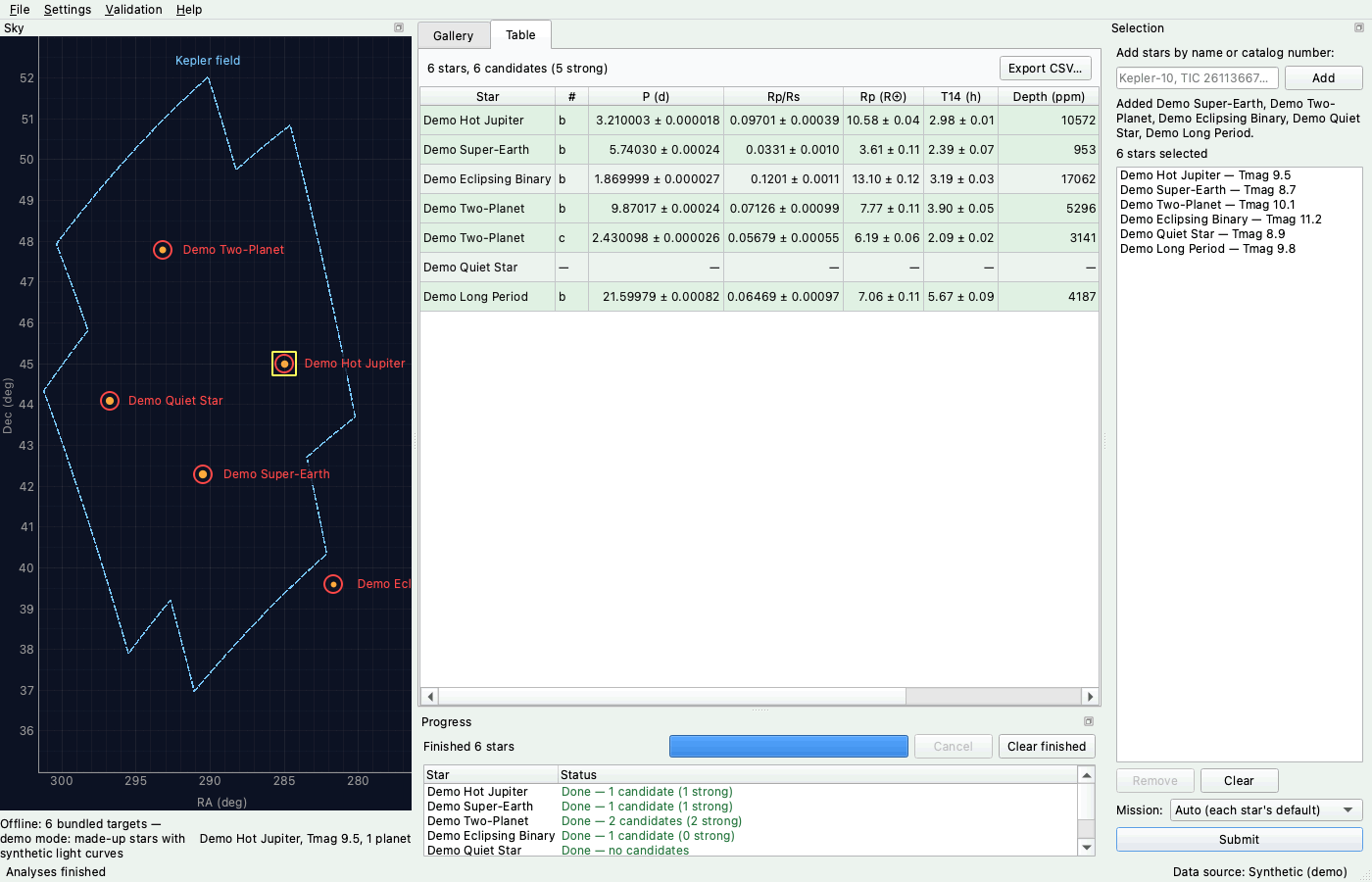
Shown above: The results table for six made-up demo stars.
The known-planet validation then ran live against the archive, and it and its rerun turned up problems in the search and the fit: single events counted as planets, period uncertainties that were too small, and false positives from only two transits. The agents filed these as new tasks, and the Manager ran them before a final validation run. The live runs were also where the interruptions began. The laptop went to sleep three times during one long run, and each time the Manager told the agent where to pick up, without starting the run again.
Improving the Sky View
After trying the app, the user wrote a second task the next morning:
When I mouse over stars, the details section at bottom expands and collapses, which also shifts the stars, making it impossible to actually hover/select specific stars. Also can't scroll or zoom on the sky and in general that view seems to need improvement. There are some suggested draft tasks that might be part of that.
The Manager fixed the first two problems in their own tasks and had an agent plan the rest: the true aspect ratio with right ascension in hours, a legend, field stars from the TESS Input Catalog when zoomed in, click and right-click actions, and an option to go to a star. The sky map now looks like this when zoomed in on Kepler-10:
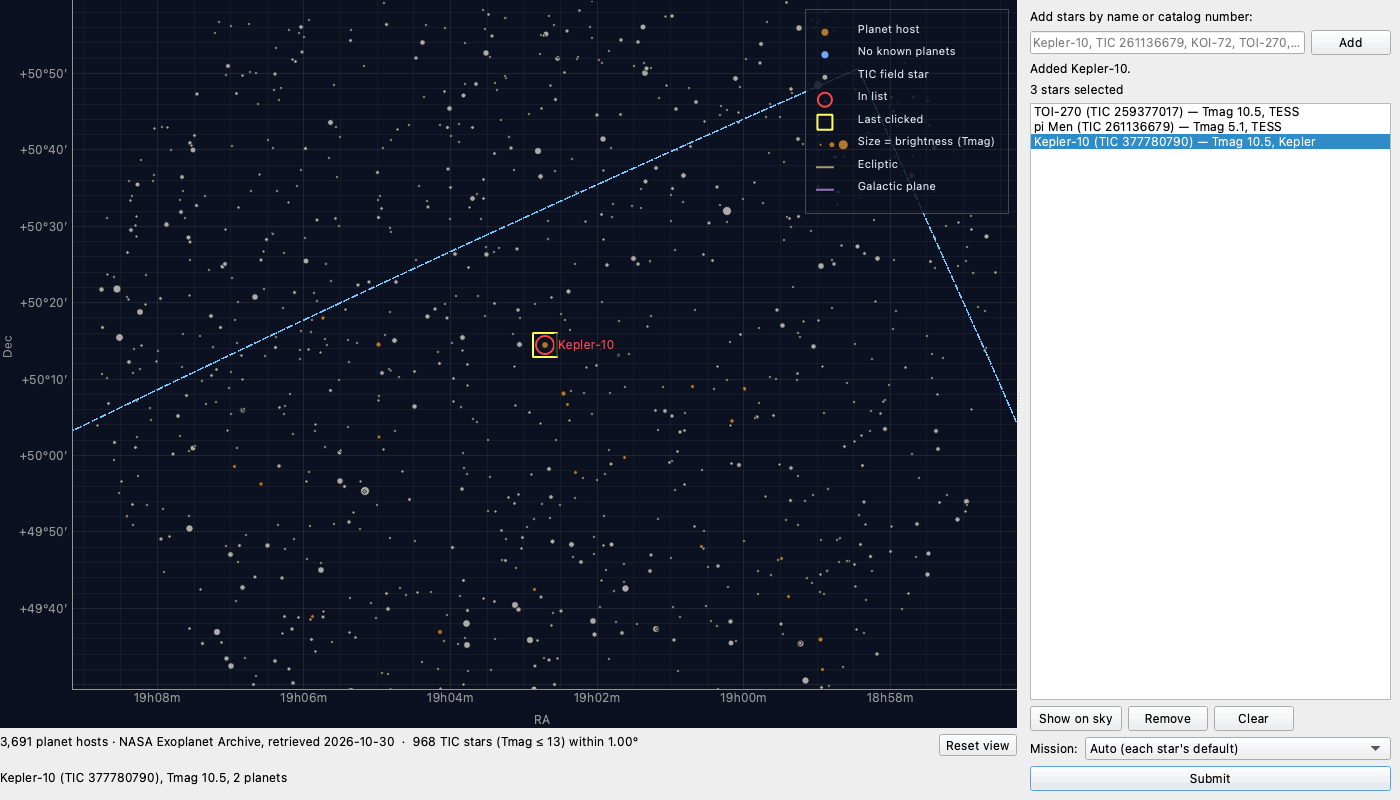
Shown above: The sky map zoomed in on Kepler-10, with field stars from the TESS Input Catalog.
The plan also put a survey image behind the stars, from the CDS hips2fits service. It worked against test images, but hips2fits timed out on the train, and then stopped answering from any network for the rest of the run. The user decided the sky view was good enough without it, so the background was switched off and left for later.
Fixing the Data Sources
That evening, the app stopped working altogether, and the user wrote a third task:
Nothing seems to work anymore. All the stars I tried raise an exception that there is no MAST data, even one in the Kepler field. That one said could not connect. I wonder if we're hitting a maximum free use limit or something.
The agent found that MAST's observation search, which the app used to find every light curve, was hanging, though MAST's other services still worked. It also found that stars from the K2 mission had never been supported. When the Manager suggested waiting for MAST to recover, the user asked whether there was a better approach, or whether to give up on the app.
The Manager pointed out that the light-curve files sit at fixed places that don't need the search, and with the user's agreement had an agent research and plan a more resilient data path. The agent checked the alternatives live during the outage, and its plan was carried out in six tasks. The app now finds light-curve files on STScI's archive and on its copy on Amazon's servers before falling back to the search, gives up quickly on a service that is down, and says which source each light curve came from:
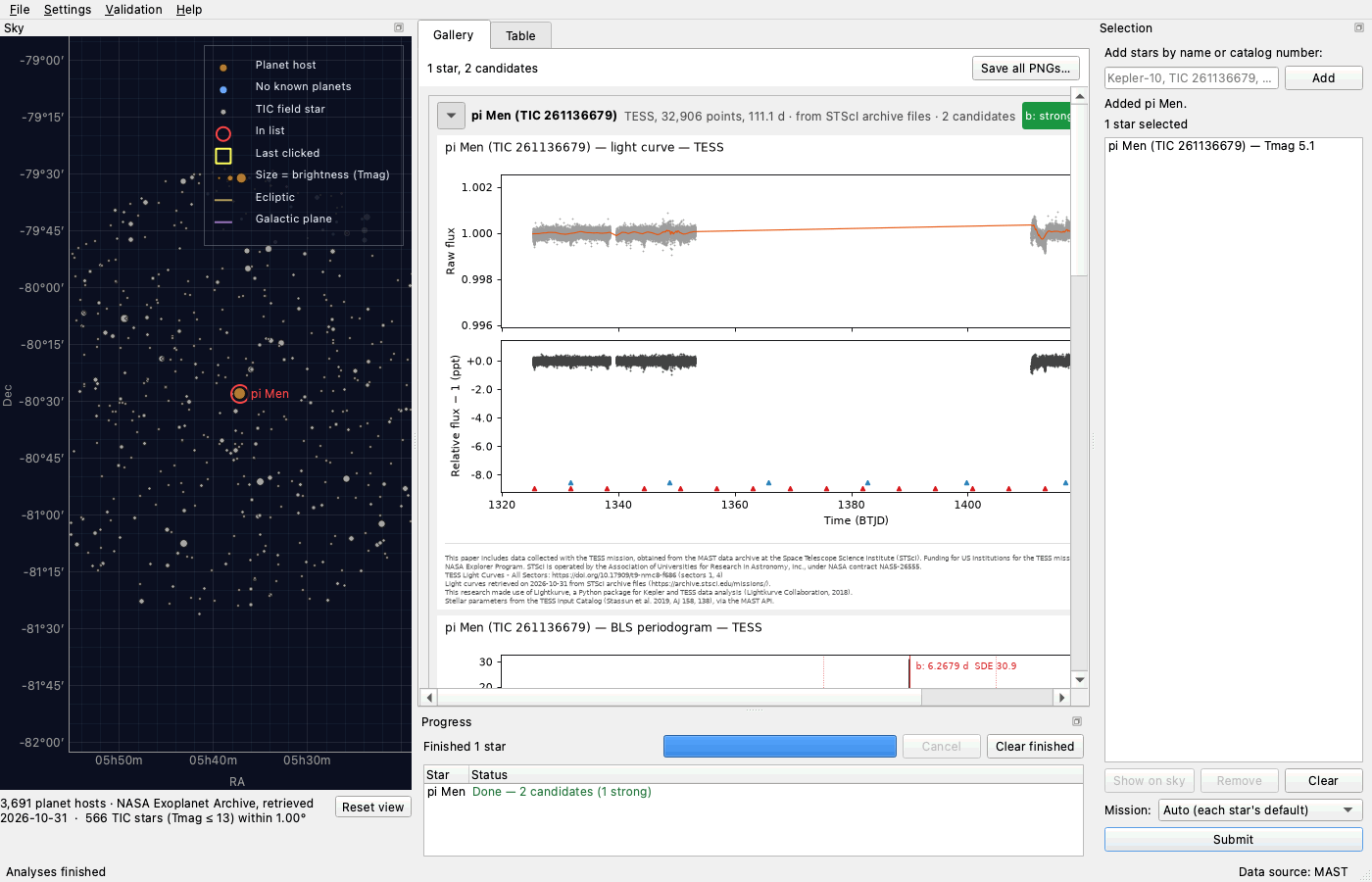
Shown above: A TESS light curve for pi Men, found on STScI's archive files without the MAST search.
K2 support followed, with a correction for the slow sawtooth in K2 light curves caused by the spacecraft's roll. Without it, the 33-day planet K2-18 b was missed:
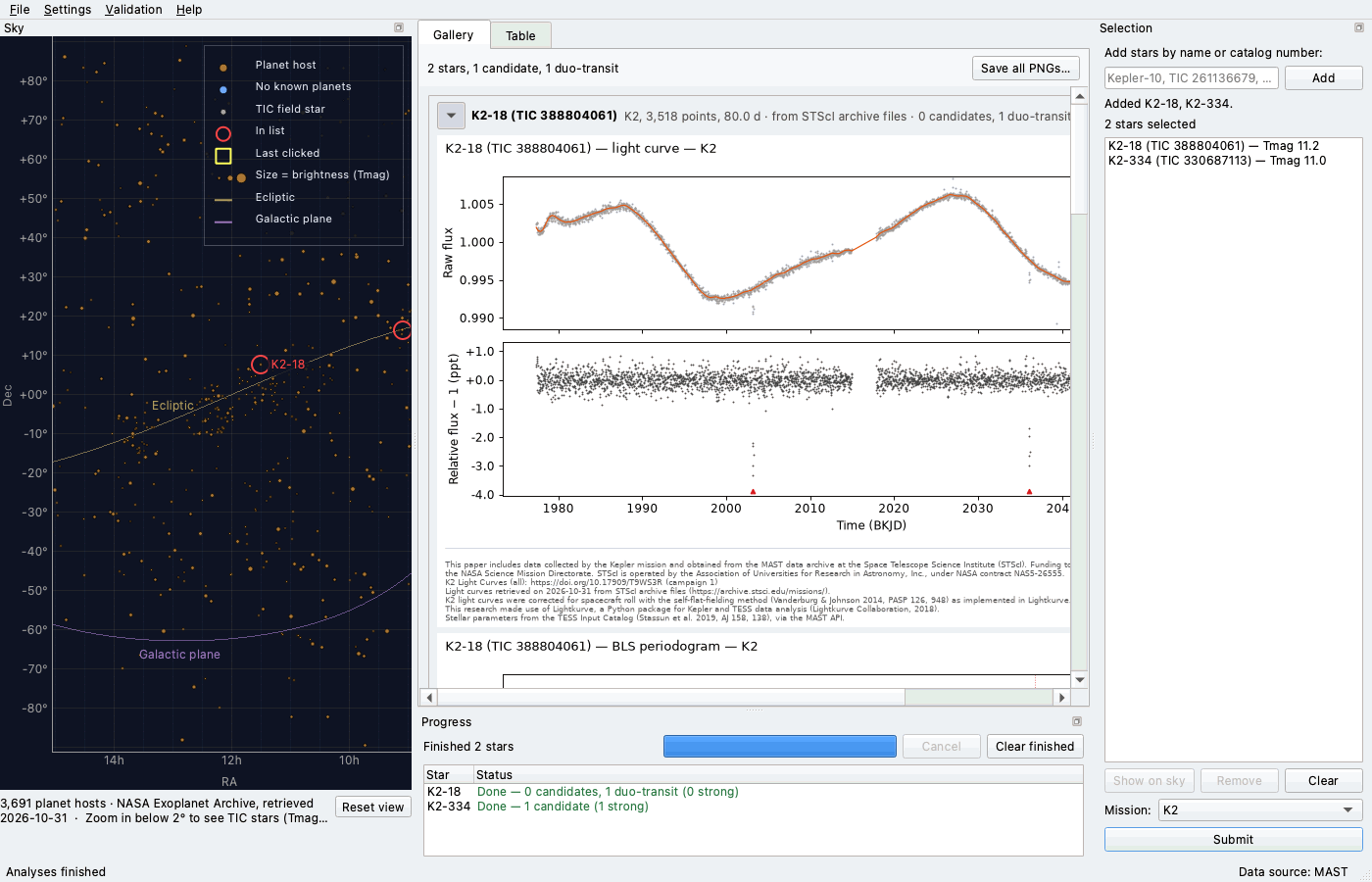
Shown above: K2-18 b's two transits in K2 Campaign 1, after the roll correction.
The validation was then rerun live, with K2-18 and K2-334 added to the set.
The Result
transitory fetches each selected star's light curves, cleans them, searches them for regular dips, fits the best candidates with a limb-darkened transit model, and grades each one. Results are shown as a gallery of plots for each star and a summary table, and both can be exported. Every plot carries the data credits for its star.
In the final live validation, it found all 13 known planets in its set at their published periods, with one weak false detection on the three stars known to have none. The validation report compares each result with the published values.
Notes
This was a much harder run than the aquarium and paper investing demos. It depended on public services that failed, and on a laptop that slept and lost its connection. The Manager resumed cut-off tasks and asked the user about the network when it needed to, but the app's dependence on a single search service only became clear once that service failed, and it took the user's prompting to fix it rather than wait. The sky image behind the map is still off, and 18 proposed tasks were left for later, including tasks to restore it and to check the README's Linux and Windows notes on real machines.
Before publishing, the sky images the agents recorded for the tests were replaced with made-up star fields, because the survey images are copyrighted by their owners. The commits the run record links to have the made-up images.
Wing gives agents its IDE's features as tools on its MCP servers, and the run record counts how the agents used them. The Tasks Manager made 93% of its tool calls to Wing's tools. Workers ran 132 of their 205 test runs with Wing's test tools, and every commit went through Wing. In 11 tasks, workers used Wing to edit Python code by function or class, finding and replacing each one in a single step, and in two they ran tests under Wing's debugger. In this run they also found code with grep, find and their own search tools, 560 times, and mostly looked at changes with git in the shell. Use of Wing's MCP tools in the run record has the full counts.
The run record gives, for each task, the prompt, the questions and who answered them, the judgement calls and the alternatives considered, the findings filed, the commits and screenshots, and the time each took. It also lists the Manager's decisions and what went wrong along the way. run-trail/trail.json has the same data.
Try it Yourself
To repeat a run like this one, you need Wing Pro 12.1 or later and an AI agent such as Claude Code, with an account that covers sustained use. Getting Started with Autonomous Development walks through the setup, and AI Agent-Assisted Development in Wing's documentation covers the Tasks Manager in full.
To run transitory itself, follow the install steps in its README, and try python run_dashboard.py --demo first to see it work without downloading anything.