 Wingware
Using Wing with uv

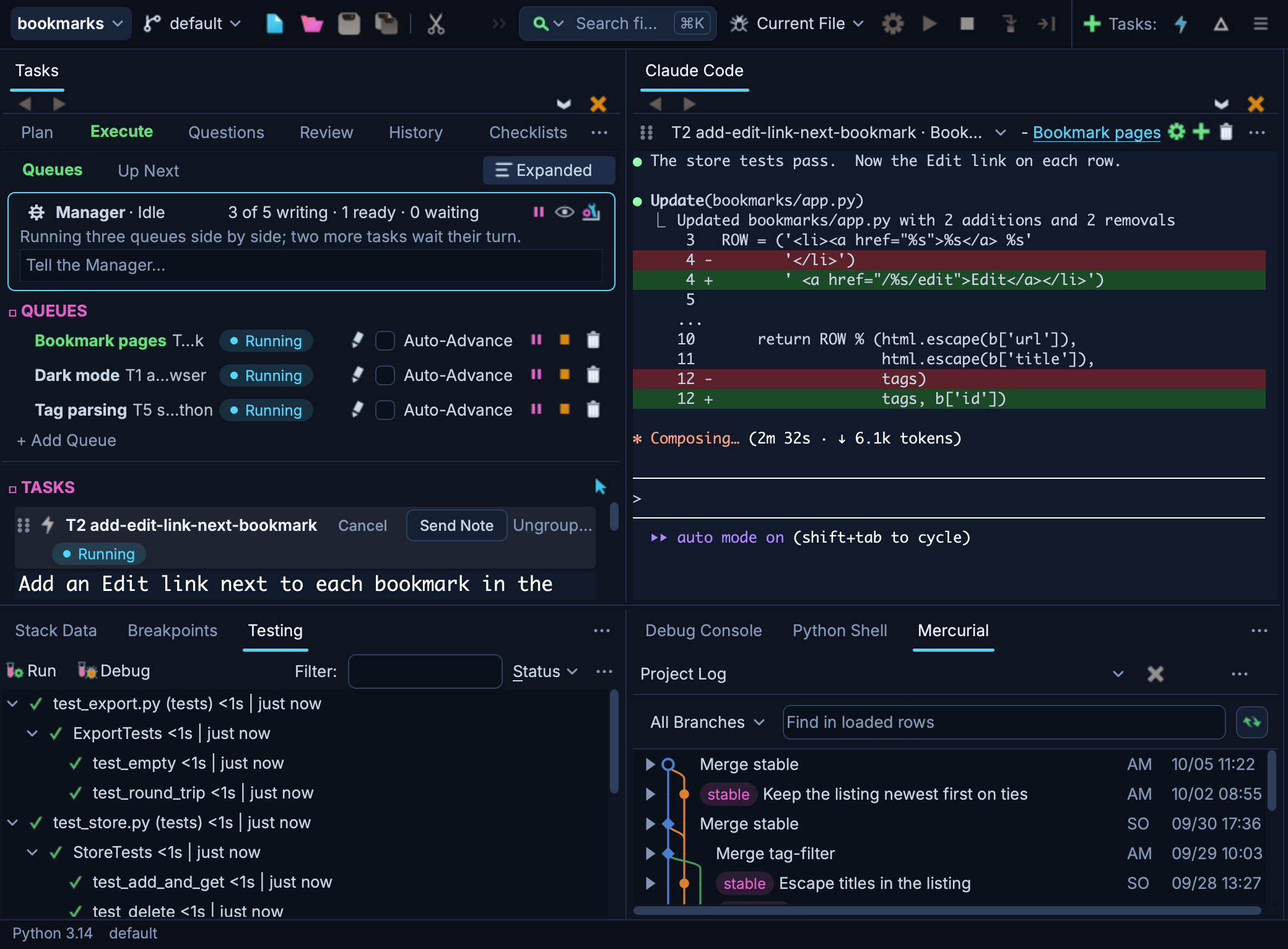
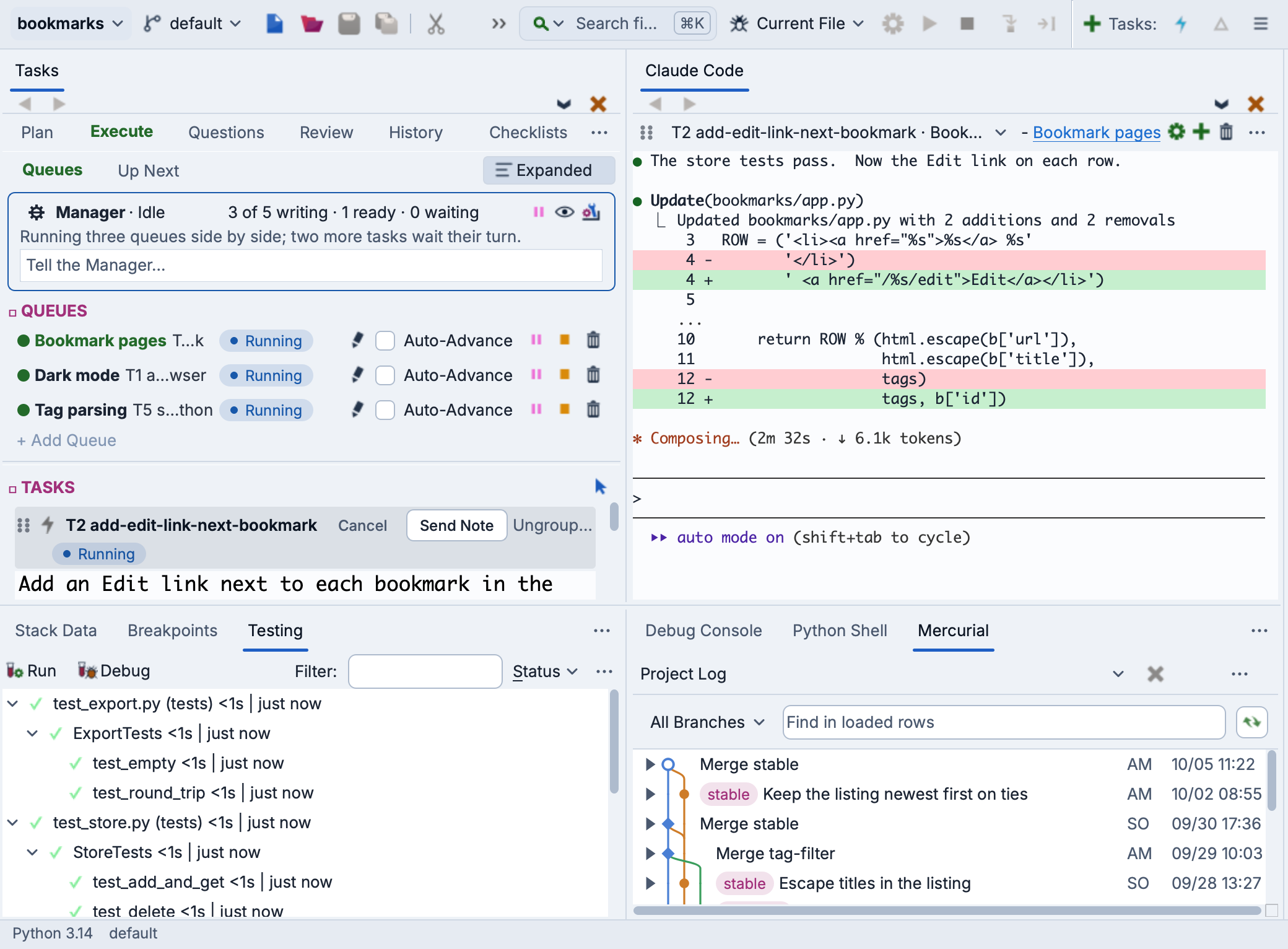
Wing is a Python IDE that can be used to develop, test, and debug Python code running in a Python environment managed by uv.
If you do not already have Wing installed, download it now.
This document describes how to configure Wing for uv. To get started using Wing as your Python IDE, please refer to the tutorial in Wing's Help menu or read the Quickstart Guide.
Creating a New uv Environment
Wing can create a new uv environment at the same time that you create a new project. To do this, select New Project from the Project menu and choose the source directory to use with your new project with the New directory, Existing directory, or Clone repository card. Then, under Python, set Environment to New Env and Manager to uv.
Wing uses your selected source directory as the uv project directory. You can optionally enter the following values:
Packages to Install lets you specify packages to add to the new environment with uv add. This is either a space-separated list of package specifications under Package Names, or a Package File: a requirements.txt, Pipfile, environment.yml, or pyproject.toml. Package specifications may be anything accepted by pip, such as a package name, package==version, and package>=version.
Python Executable selects the base Python installation for the new environment. If uv is not installed, Wing says so and offers to install it with pipx install uv or with that Python's pip install --user. See Creating Python Environments for details.
After submitting the New Project dialog, Wing runs uv init in the source directory, which writes pyproject.toml and pins the selected Python's version in .python-version. Next, Wing runs uv venv to create the environment in .venv from the selected Python, and adds any packages, which writes uv.lock. Wing then sets the Python Executable in Project Properties to the command that activates the environment, and adds the source directory to the project.
Now source analysis, executing, debugging, and testing in Wing will use the new uv environment, as long as the project you just created is open.
Using an Existing uv Project
To use an existing uv project with Wing, select the directory that contains your uv.lock as your source directory, with the Existing directory card in the New Project dialog. Wing runs uv run there to find the environment, and selects it under Python, with Environment set to Existing Env. If the environment does not exist yet, uv run creates it from uv.lock.
When the directory has no uv.lock, Wing selects an environment made with uv venv if it is in .venv or venv.
Wing activates the environment each time it runs Python, whether Python Executable is set to Activated Env or to Command Line with the environment's Python.
Environments Without pip
Environments created by uv init, uv sync, and uv venv have no pip. Wing's Packages tool runs uv pip for these environments instead.
Code you run in the environment, including commands typed into the OS Commands tool or a terminal, gets whatever pip comes next on the PATH, even when the environment is activated. That pip installs packages into another Python, so use uv pip or uv add instead. Alternatively, create the environment with uv venv --seed to include pip.
Moved and Relocatable Environments
The activate script of a normal uv environment contains the path where it was created. If you move or copy the environment, Existing Env marks it as (moved) and sets up the project to run the environment's Python with Command Line, since its activate would activate the original environment. Creating the environment again in its new location fixes this.
An environment created with uv venv --relocatable has an activate script that works from any location, so Wing keeps using Activated Env with it after it is moved or copied.
Working on a Remote Host
Wing can also create a new uv environment on a remote host. This is done the same way as described above, except you first need to choose or create a remote host configuration from the Host menu in the New Project dialog, after pressing All Options if it is shown. On a remote host, Wing checks for uv only when you press Create Project, and installs it without asking if it is missing.
Wing updates the remote host configuration to use the environment created by uv, rather than the base Python installation. If you delete the remote .venv directory, Wing loses contact with the remote host, because it runs its remote agent with that environment. To fix this, run uv sync on the remote host in the directory that contains your uv.lock.
Package Management
Once you've configured your project to use uv, you can use the Packages tool in the Tools menu to list, add, remove, or update packages. Wing selects uv as the package manager when the project directory contains uv.lock. See Package Manager for details.
Related Documents
For more information see:
- Package Management with uv contains some additional details about using uv with Wing.
- Creating Python Environments describes how Wing runs each kind of Python environment.
- Quickstart Guide contains additional basic information about getting started with Wing.
- Tutorial provides a gentler introduction to Wing's features.
- Wing Reference Manual documents Wing in detail.