 Wingware
Wing Tips: Getting Started with Autonomous Development in Wing Pro 12.1
This Wing Tip describes how to get started with autonomous development in Wing Pro 12.1. You provide a high-level specification for a new application or a major feature. Wing's Tasks Manager fleshes it out, plans the work, splits it into tasks, and keeps a team of AI agents working on them for hours or days, as needed. The agents write the code, unit tests, and documentation, and commit their work in logical units. You answer questions, review results, and ask for revisions in the Tasks tool, which summarizes work done and decisions made.
Autonomous development shifts your focus from coding details to product design and oversight. You explain your vision. Your team of AI agents takes care of the implementation, end to end, far faster than you could develop the code on your own.
This Wing Tip is part of a series of Wing Tips on working with AI agents in Wing. For more detail on each step, see the How-To Autonomous Development with Wing Pro.
Getting Started
We recommend using a reasonably isolated environment, such as a virtual machine, when using AI agents. At the very least, prevent agents from accessing the keys to your server infrastructure, reading sensitive data, or pushing to your main repository.
(1) Install an AI agent and set up an account for it that covers the amount of work you expect to do. For sustained use, a subscription is generally much cheaper than paying for usage on an API key. Claude Code and Codex are best for autonomous development, since they check the safety of the commands they run. Antigravity, Copilot, and Cursor also work but don't provide the same level of safety. See Setting Up an AI Agent and AI Agent Safety for details.
(2) Install git or Mercurial, if you don't already have one of them. Wing uses it to track, review, and commit each task's changes. You don't need to learn how to use it, since Wing and the agents do that for you.
(3) Create a new project with New Project in the Project menu. Choose New directory and enter a Name, then choose your agent under AI Agent and a Python environment under Python. Leave Create a Git repository checked and click Create Project. Setting up the project for an agent turns on the Tasks Manager and lets it commit autonomously:
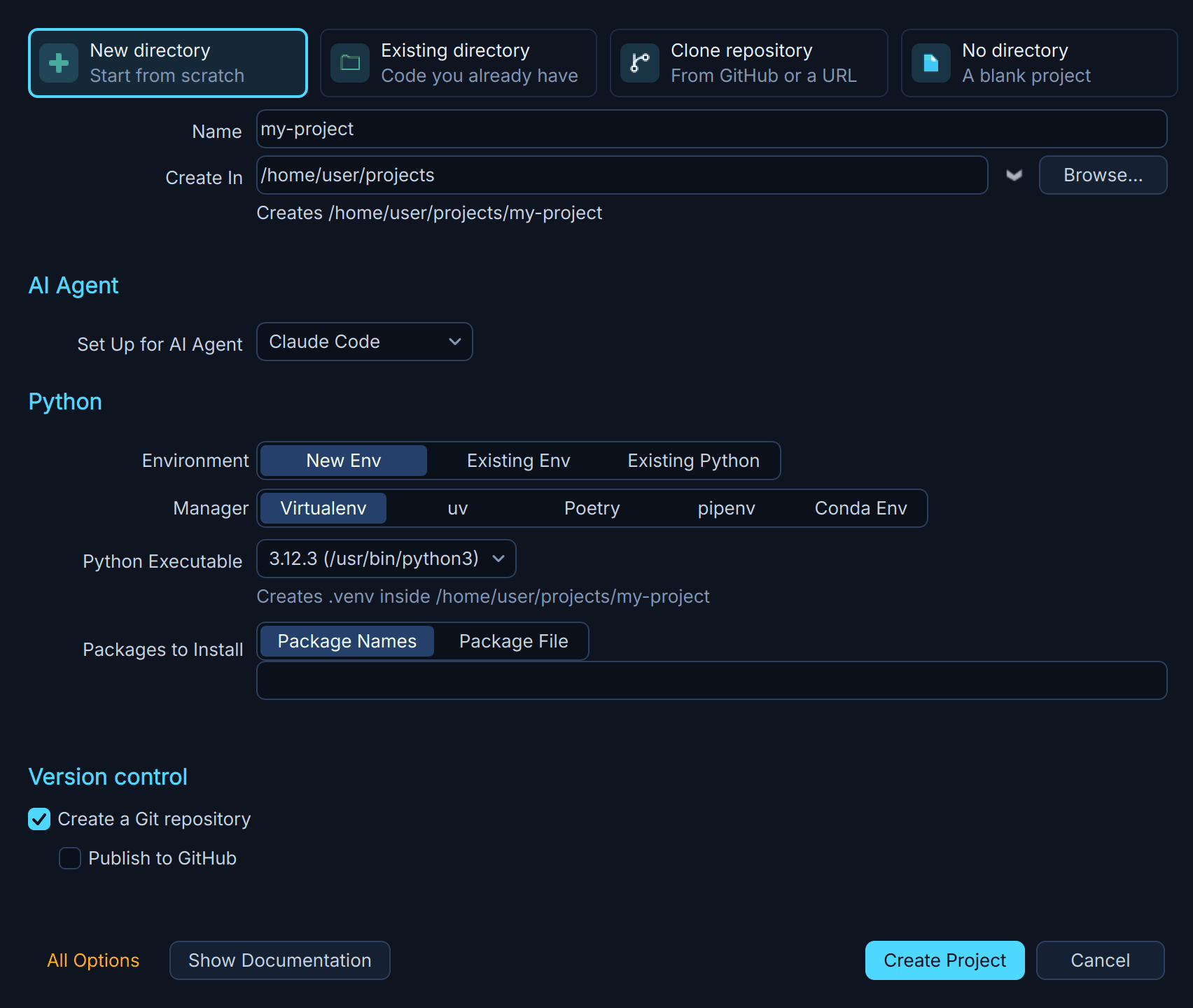
Shown above: Setting up a new project for an AI agent.
(4) Check the Tasks Manager's settings with the settings icon at the right of the Manager's bar, at the top of the Execute tab in the Tasks tool. The defaults are a good place to start. We recommend leaving automatic commits on, so work can go on while you are away. You can still look over every committed task on the Review tab and ask for changes.
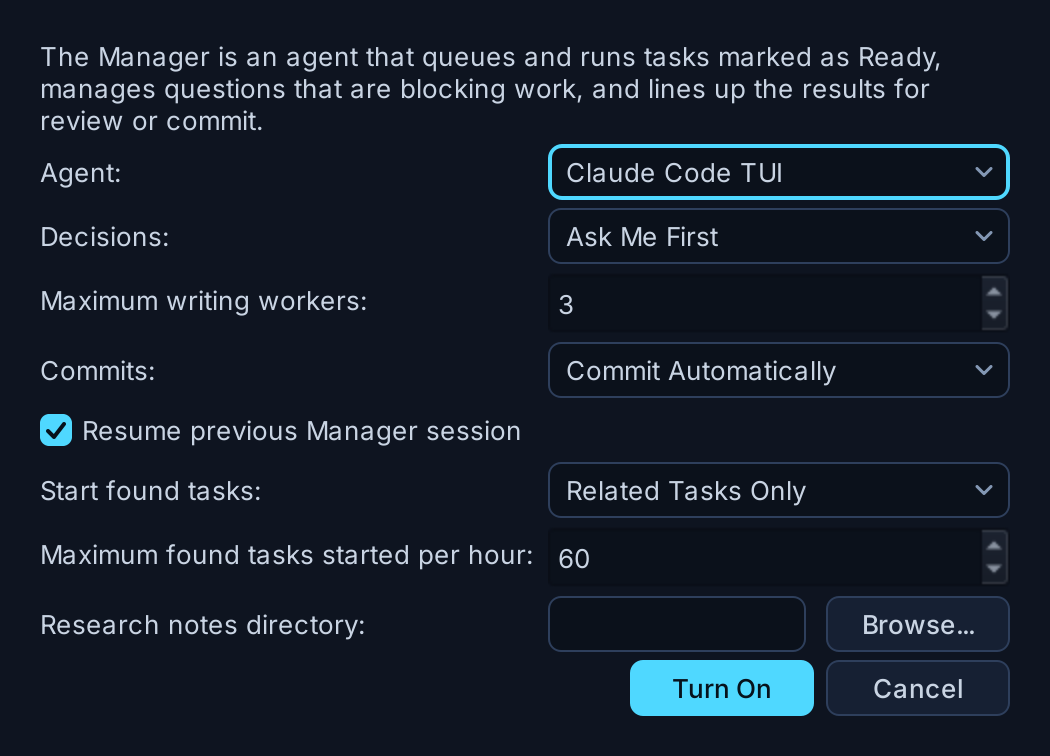
Shown above: The Tasks Manager's settings.
(5) Write a specification or tasks on the Plan tab of the Tasks tool, and mark them Ready by clicking their Draft buttons. A task can be anything from a bug report to a high-level specification for a whole application. Describe what the code should do and any technical constraints that matter from the start. The Manager researches the rest, asks you questions, and writes out the tasks:
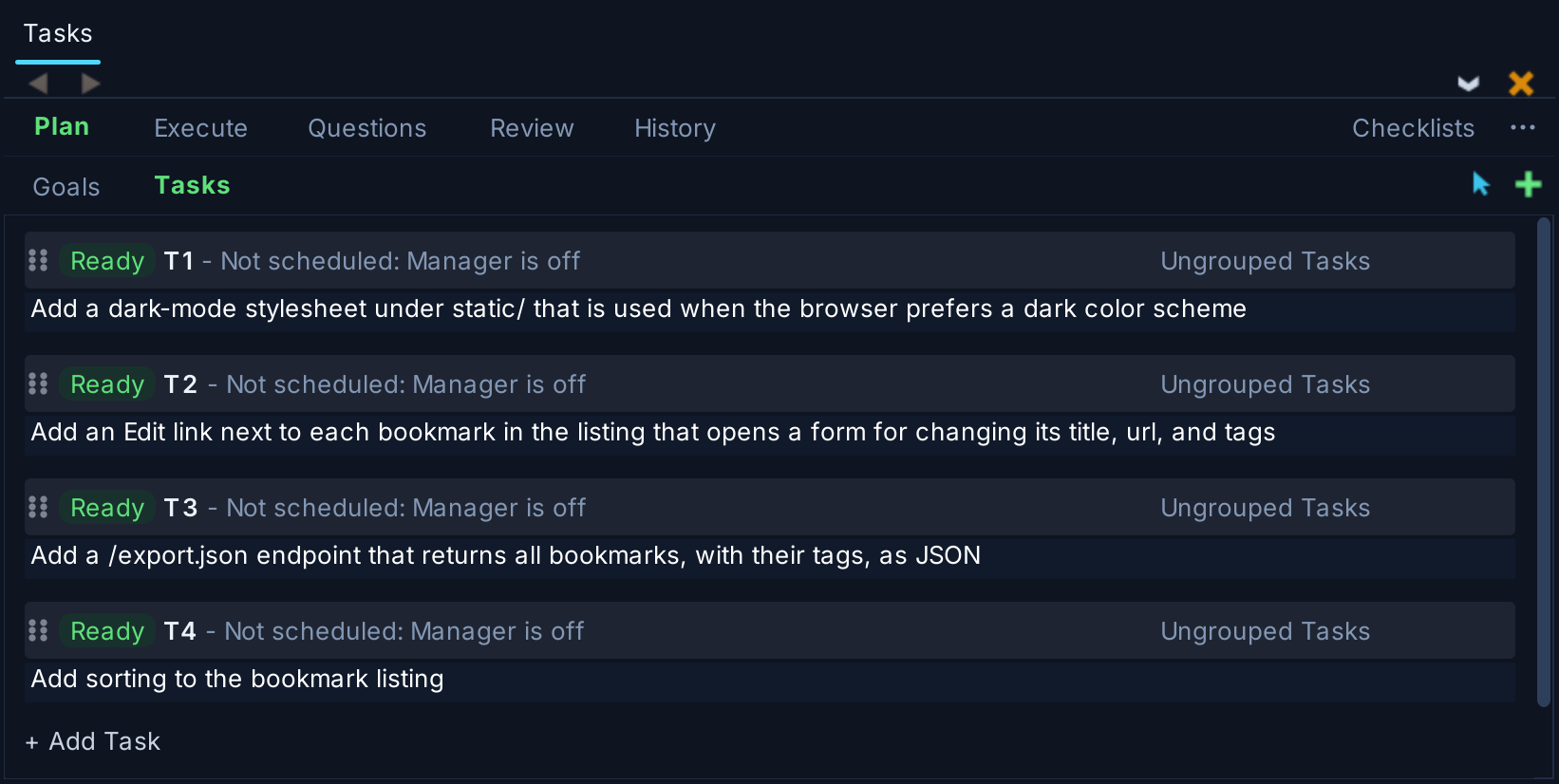
Shown above: Tasks on the Plan tab, marked Ready.
You can watch progress on the Execute tab, and click a queue's name to see its session in the AI Agent tool. Problems that agents notice along the way, and follow-up tasks the Manager proposes, appear in the Incoming view on the Plan tab for you to make Ready or dismiss.
(6) Answer questions on the Questions tab when the Manager or a task needs your input. Other tasks keep running while it waits. You can also talk to the Manager directly on the Execute tab, to ask about progress or give it instructions such as "ask me first about anything that changes a file format."
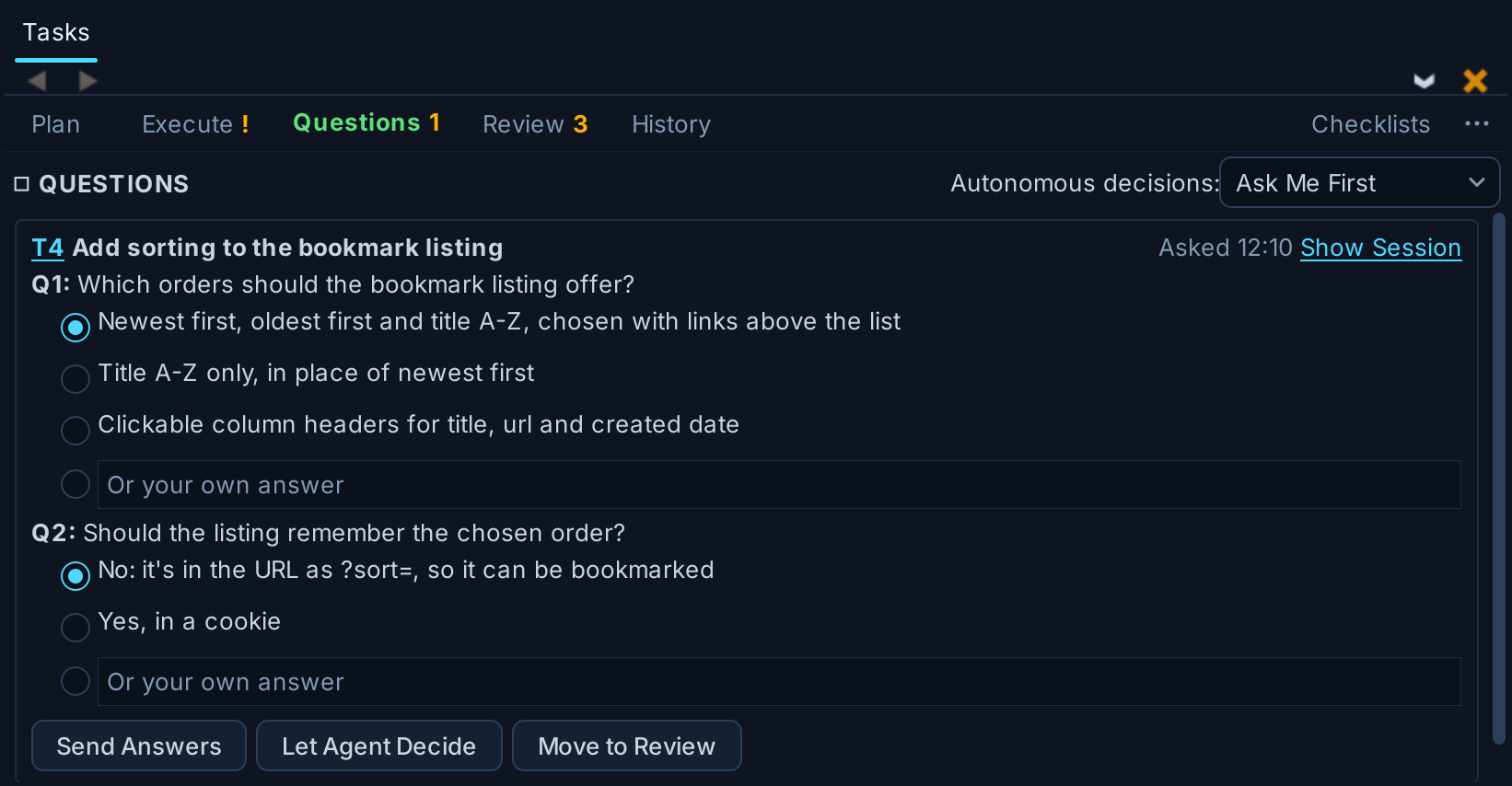
Shown above: A question from a worker, waiting on the Questions tab.
(7) Review finished work on the Review tab. Each task reports a summary of its changes and the decisions made in it. Use Revise to ask for changes to any decision or the task as a whole. If you are committing work yourself, use Start Review to view and comment on the code, or Commit to commit it without further review.
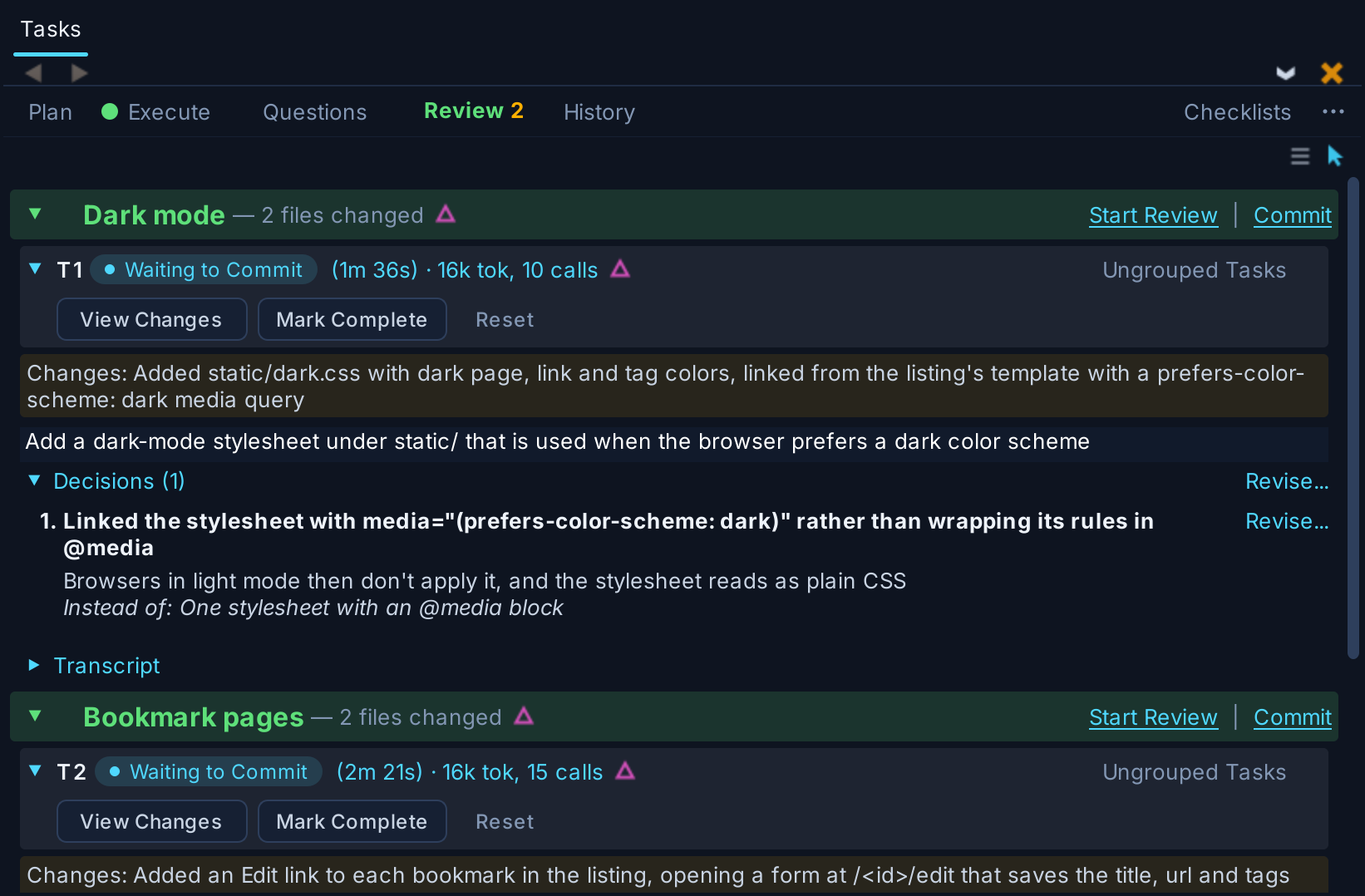
Shown above: A finished task's report on the Review tab, with automatic commits turned off.
Usage Tips
For better results, build tests and cross-checks into your process:
- Ask the Manager early on to set up a way for agents to run your application as a user would, so they can see the results of their work.
- Add tasks at key points that review the code for security flaws, gaps in test coverage, or anything else that matters to you. Problems they find automatically become new tasks.
- Let the Manager commit on a separate branch, and review that branch before merging it into your main branch.
- Use the application yourself, and add tasks for the bugs and improvements you find.
If you're unfamiliar with any of this, just tell the Manager what you need, in the Execute tab of the Tasks tool. It can help you set up your development environment and get started with autonomous software development.
Further Reading
See The Tasks Manager Agent in the Wing Pro manual for details. For examples of complete projects built this way, see the Autonomous Development Demos.
That's it for now! We'll be back soon with more Wing Tips for Wing Pro.
As always, please don't hesitate to email support@wingware.com if you run into problems or have any questions.