 Wingware
Using Wing with Streamlit
 Classic+
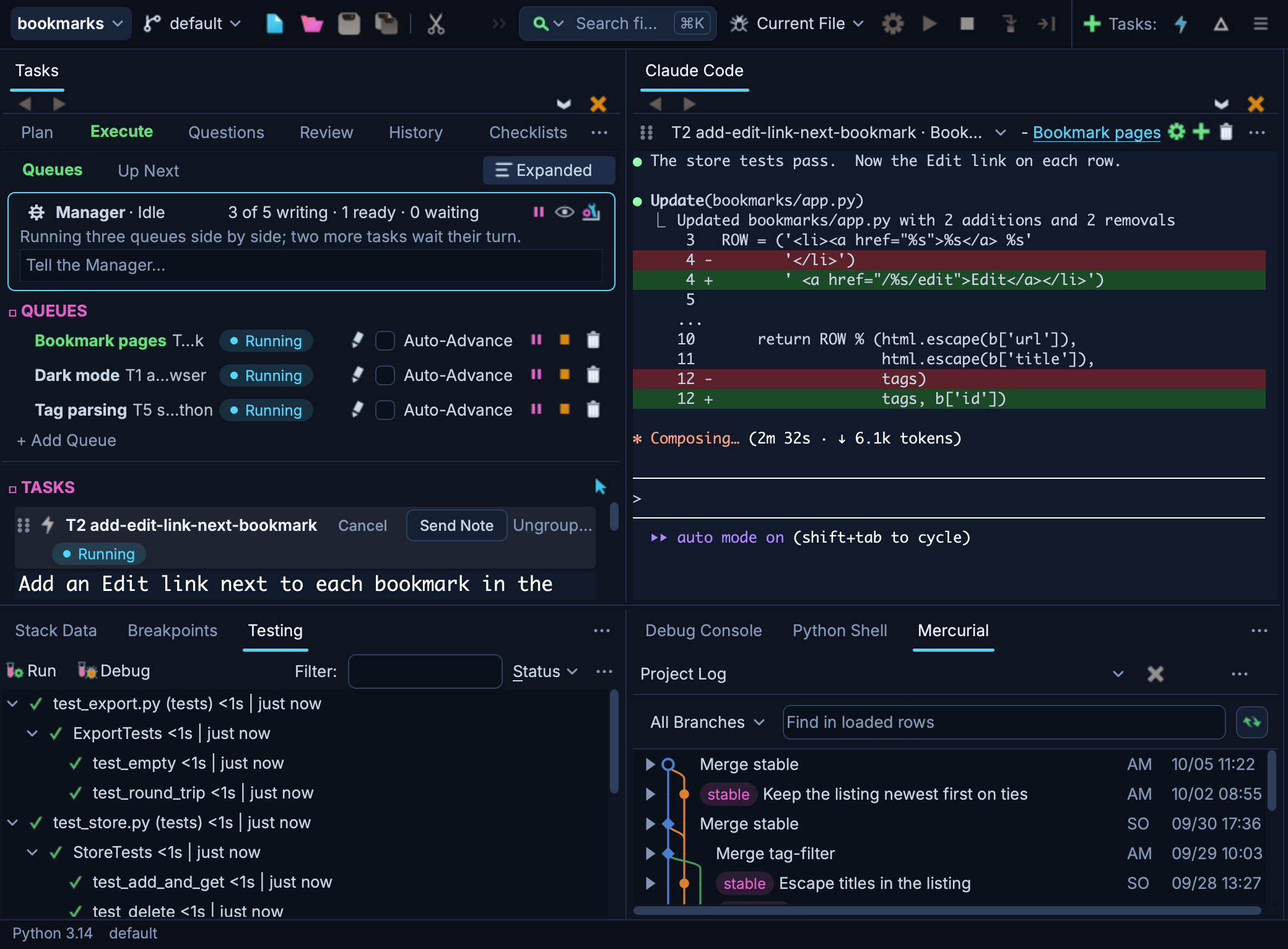
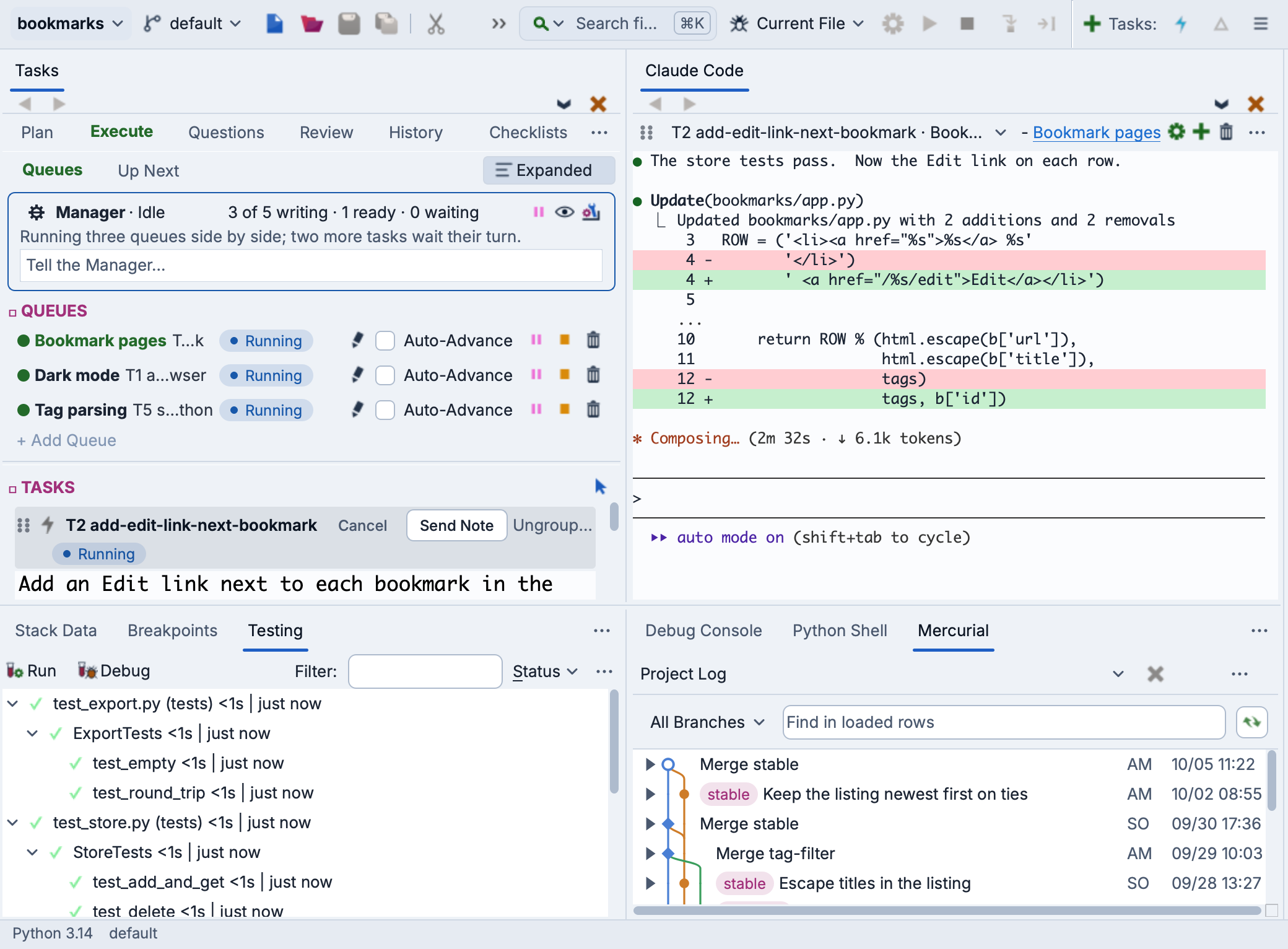
Wing is a Python IDE that can be used to develop, test, and debug Python code written for Streamlit, a framework for building data apps and dashboards that run in a web browser.
If you do not already have Wing installed, download it now.
This document describes how to configure Wing for Streamlit. To get started using Wing as your Python IDE, please refer to the tutorial in Wing's Help menu or read the Quickstart Guide.
Project Configuration
To create a new project, use New Project in Wing's Project menu. Choose the Existing directory or New directory card to select or create your source directory. Then, under Python, select the Python environment that Streamlit is installed into, or create a new environment and enter streamlit under Packages to Install. See Creating a Project for details.
Debugging
Streamlit apps are started with streamlit run, which Wing can debug from a small launch script. Add a file named run_streamlit.py to your source directory with the following contents, replacing app.py with the name of your app's file:
import sys
from streamlit.web import cli

sys.argv = ["streamlit", "run", "app.py"]
cli.main(prog_name="streamlit")
Then open run_streamlit.py and select Set Current as Main Entry Point in the Debug menu. Now Start/Continue in the Debug menu starts Streamlit under Wing's debugger and opens your app in a browser, at http://localhost:8501 by default. Breakpoints set in your app's file are reached as Streamlit runs it.
Streamlit runs your app's whole file again each time a widget changes in the browser, and when you choose Rerun after saving changes to it. Breakpoints in it are reached on every run, so you may want to make them conditional or disable them with the Breakpoints tool once you have seen what you need.
Related Documents
For more information see:
- Streamlit documentation describes Streamlit's API and command line.
- Quickstart Guide contains additional basic information about getting started with Wing.
- Tutorial provides a gentler introduction to Wing's features.
- Wing Reference Manual documents Wing in detail.